


List of the best free methods to find duplicate files on your Windows PC. Whether you’re running Windows 11, 10, 8, or 7, this guide covers three reliable ways to find and delete repeating files – a dedicated free app, Windows’ built-in File Explorer, and PowerShell for anyone comfortable with scripts. Follow this detailed guide to easily find and delete repeating files, organize your disk space, and reclaim storage without deleting anything you actually need.
- What Are Duplicate Files?
- Find Duplicate Files Using a Free App
- Remove Duplicate Files Using File Explorer
- Delete Duplicate Files Using Windows Powershell
What Are Duplicate Files?
Duplicate files are exact copies of each other that you may encounter within your file system. These duplicates can accumulate over time due to various reasons, such as copying files, downloading multiple copies of the same file, or unintentional duplication. Duplicate files can exist in various formats, including documents, images, videos, music files, and more.
While duplicate files may seem harmless at first glance, they can pose several problems for you as a computer user. Firstly, they consume valuable disk space, leading to inefficient storage usage. This can be particularly problematic if you have limited storage capacity, as it reduces the available space for storing new files and applications. Additionally, duplicate files can clutter your file system, making it difficult for you to locate and manage important files.
Moreover, duplicate files can contribute to performance issues on your computer. When the disk space becomes fragmented with duplicate files, it can slow down file access times and overall system performance. This is especially true for large duplicate files, such as videos or high-resolution images, which can significantly impact system resources when accessed or manipulated.
Overall, duplicate files are redundant and unnecessary copies of data that can clutter your file system, waste disk space, and degrade system performance. Identifying and removing duplicate files is essential for optimizing storage space and maintaining a well-organized and efficient file system.
Find Duplicate Files Using a Free App
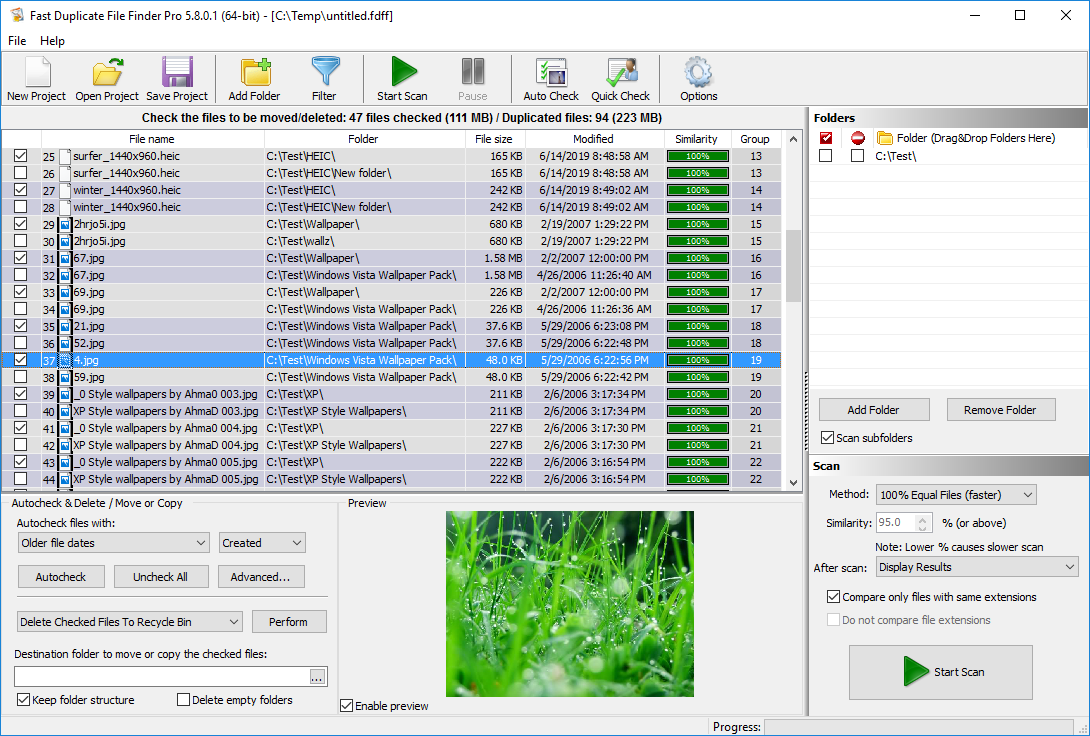
The easiest way to find duplicates is by using the free Duplicate File Finder app. It was chosen as the best duplicate file finder and provides many features, fast performance, and accurate results. Choosing a reliable duplicate finder is extremely important as many similar tools use CRC or MD5 checksums to identify duplicates. That may produce incorrect results and lead to loss of data. In contrast, FDFF is a reputable tool that you can trust as it is 20 years on the market. It uses an optimized byte-to-byte comparison that guarantees correct results. In addition to finding duplicate files, it can also find similar files and find similar file names.
Find Duplicate Files
Duplicate Finder Benefits
Comprehensive Features: FDFF offers an array of features to streamline duplicate file removal. Advanced search algorithms and customizable scan settings ensure efficient identification and elimination. Its intuitive user interface simplifies navigation through options and settings.
Fast Performance: FDFF lives up to its name with lightning-fast performance. Scan your entire file system in minutes. Reclaim valuable disk space and improve system performance. Say goodbye to wasted time waiting for scans to complete. The multi-threaded scan feature of this tool allows it to compare duplicates simultaneously. That significantly speeds up the process. Its exceptional speed ensures that the only limiting factor is the performance of your storage.
Accurate Results: Unlike tools relying on CRC or MD5 checksums, FDFF employs advanced byte-to-byte analysis for precise identification. This duplicate finder stands out from others by accurately comparing files and ensuring that the listed files are genuine duplicates.
Reliability: With over 20 years of market experience, FDFF has earned a reputation for trustworthiness. Its longevity underscores its reliability and effectiveness. Whether you’re a novice or a seasoned IT professional, FDFF provides reliability and performance.
Versatile Functionality: Beyond duplicate file detection, FDFF offers additional features like finding similar files and identifying files with similar names. Seamlessly manage a variety of file management tasks with ease and efficiency. From cleaning up your music library to organizing photos, FDFF has the tools to get the job done swiftly and effectively.
Internal Preview: FDFF’s internal preview feature allows direct file previewing within the application. Quickly assess duplicate file contents and make decisions without opening external programs. Simplify decision-making, save time, and optimize file organization and disk space with FDFF’s internal preview feature.
Duplicate Finder Verdict
Overall, Fast Duplicate File Finder offers the easiest and most effective way to find and remove duplicate files from your Windows PC. With its comprehensive features, fast performance, and accurate results, FDFF is the ultimate solution for optimizing your file system and reclaiming valuable disk space.
Download the free Duplicate File Finder
Remove Duplicate Files Using File Explorer
Follow these steps to find and remove duplicate files on Windows:
-
-
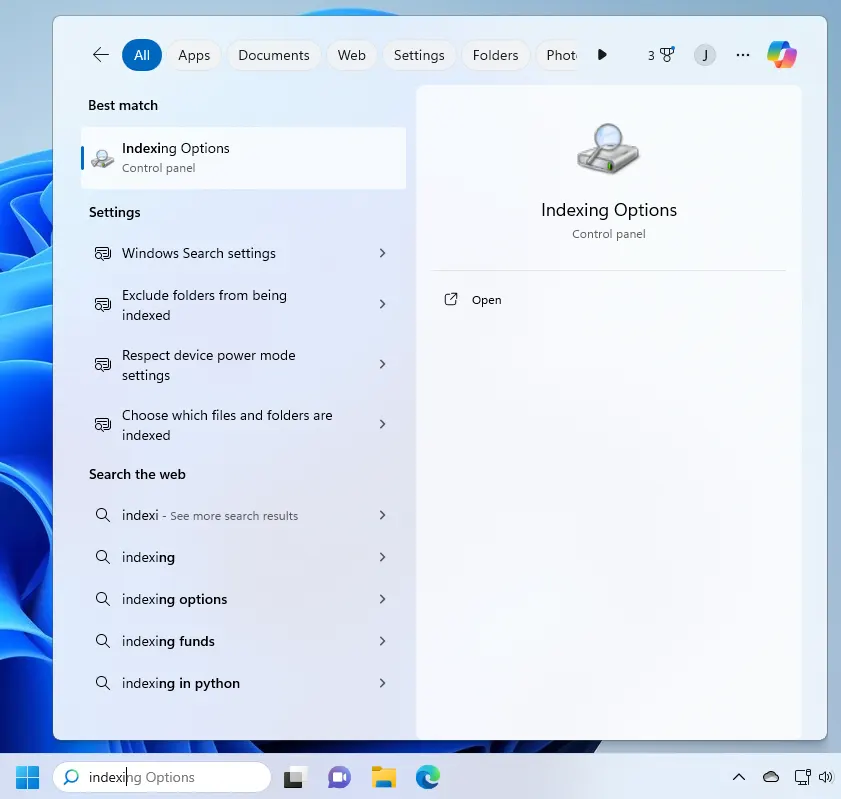
- Click the Start menu and enter Indexing Options in the search. Then click Indexing Options.
Indexing Options
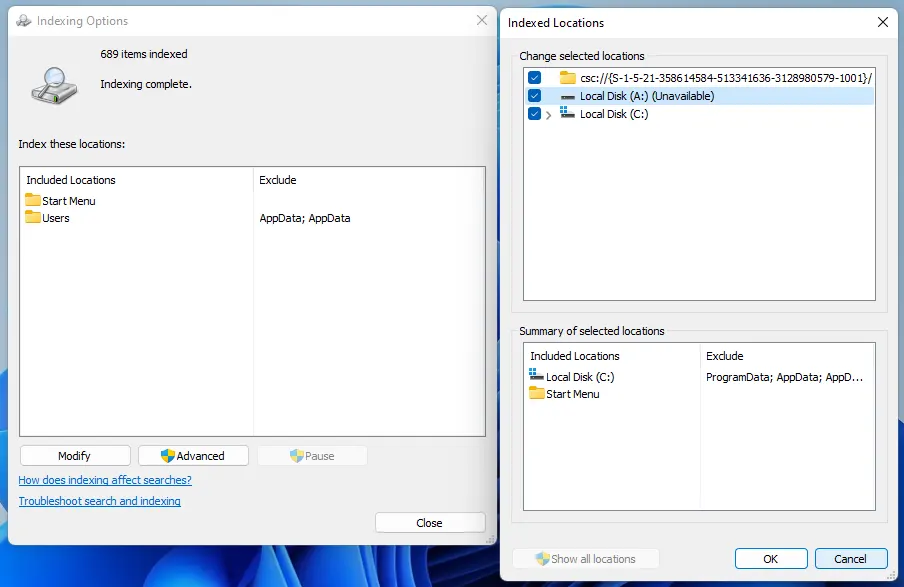
- Click Modify, and then select Show all locations. A pop-up will appear to ask for your login details. Make sure that you are using an administrator account when doing any modification using this setting.
Index All Files
- Check all boxes in the Change Selected Locations list and close the window.
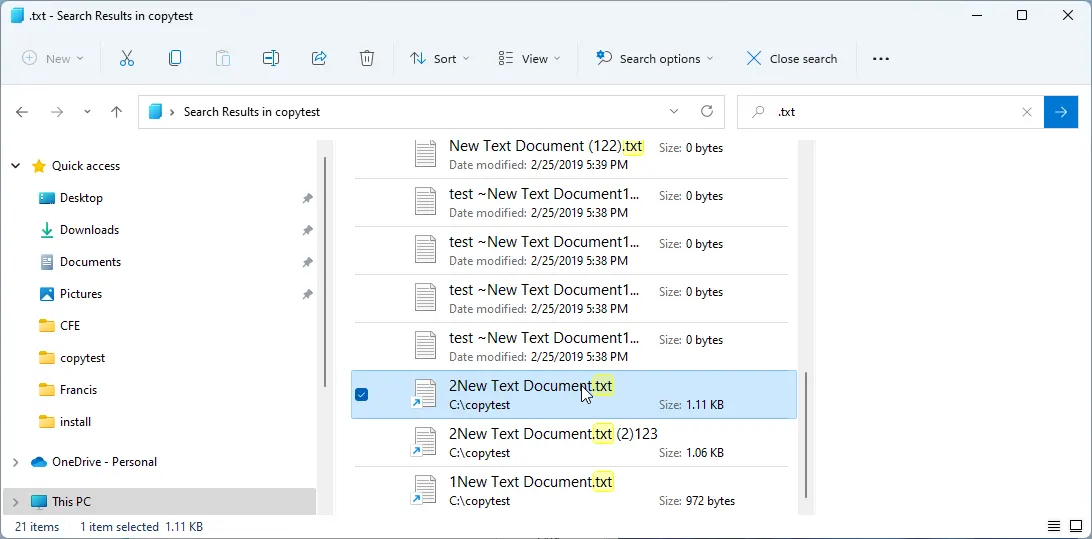
- Open the Windows File Explorer and navigate to the folder or drive where you want to find duplicate files.
Find Duplicate Files in Windows Explorer
- In the upper-right corner type the file types that you want to search for:
IMAGES .heic, .jpg, .bmp, .png, .gif VIDEOS .mkv, .avi, .wmv, .mov, .mp4, .3gp MUSIC .mp3, .aiff, .wav, .wma, .ogg WORD Documents .doc, .docx MICROSOFT POWERPOINT .ppt, .pptx EXCEL Spreadsheets .xls, .xlsx, .csv PDF FILES .pdf TEXT FILES .txt, .csv, .nfo, .xml EXECUTABLE PROGRAMS .exe, .com - Sort the search results by Name:
- Windows 11: Right-click an empty area of the file list, choose Sort by > Name, then right-click again and choose Group by > Name. Alternatively, use the “…” (See more) button on the command bar.
- Windows 10, 8, 7: On the toolbar click Sort and choose Name, then click Sort again, then Group By, and choose Name.
- Review the listed duplicate files. You should pay attention to the Date modified and also the Size properties. The newer and larger files are supposed to be the latest revisions of your files. You can also see the contents of some files like images in the Preview panel.
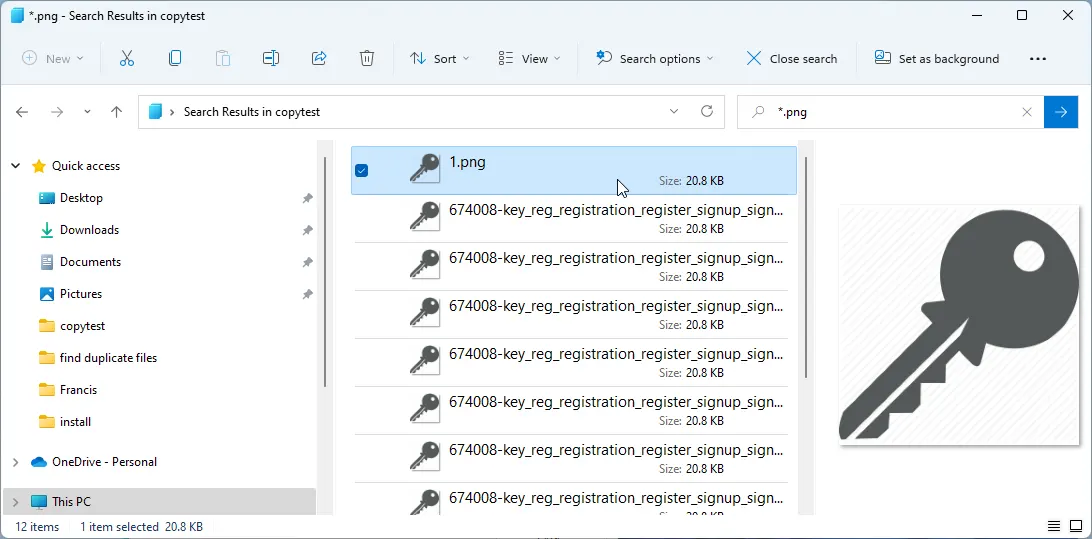
Find and Delete Duplicate Images
- Mark the files that you do not need and click DELETE to remove the duplicates.
Finding Duplicates in File Explorer Conclusion
In conclusion, when you follow these steps to remove duplicate files using File Explorer, you’ll find it’s a viable option. Unfortunately, it does require some manual effort. You’ll need to adjust indexing options, navigate through folders, and individually review files to identify duplicates.
This process can be time-consuming, especially if you have a large number of files to sort through. Additionally, relying solely on File Explorer may not provide the efficiency and flexibility you need for effective duplicate file management.
That’s where tools like Fast Duplicate File Finder come in. FDFF automates the process, quickly scanning for duplicate files and allowing you to customize your search criteria. It marks duplicates for deletion, saving you time and effort. Best of all, FDFF is free to use, making it a cost-effective solution for managing your file system and reclaiming storage space on your Windows PC.
While File Explorer can help you identify and remove duplicate files, you may find FDFF to be a more convenient and efficient option for comprehensive duplicate file management.
Delete Duplicate Files Using Windows PowerShell
PowerShell is an advanced alternative to the Windows command line. It is installed by default on newer Windows versions and you can use it directly. If you are using an older Windows like Windows 7 you can download and install PowerShell from the Microsoft website. Please bear in mind that PowerShell is a powerful scripting console.
If you do not feel comfortable working with scripts or you are not familiar with consoles then you should better use the previous methods to find and remove duplicate files. The console is a powerful tool, but if you are not familiar with it, you may end up accidentally deleting important data.
Find Duplicate Files With the Same Content
Follow these steps to find duplicate files with the same content in PowerShell:
- Click on the Windows button and type PowerShell and click on the app to start it.
- In the PowerShell console type:
cd c:\your_folderto navigate to the folder in which you want to find duplicate files. You should replace the drive and the folder name in the CD command with the ones that you want to scan.
Get-ChildItem -Recurse -File `What this code does is to find and group all files with equal file sizes. Then it removes the groups that have only one file. Next, it generates the MD5 hash of all the files and groups them together by hash. Finally, it removes the groups with less than two items.
| Group-Object -Property Length `
| ?{ $_.Count -gt 1 } `
| %{ $_.Group } `
| Get-FileHash `
| Group-Object -Property Hash `
| ?{ $_.Count -gt 1 } `
| %{ $_.Group } - Review the results and delete the duplicates
Find Duplicate Files With the Same Names
Follow these steps to find files with the same names in PowerShell:
- Run PowerShell by clicking on the Start menu and typing PowerShell in the search.
- Use the CD command to go to the folder that you want to scan for duplicates. In the console type:
CD DRIVE:\folder - To find duplicate files with the same names type the following code in the console:
gci -Recurse -file | Group-Object name | Where-Object { $_.Count -gt 1 } | select -ExpandProperty group | %{ $_.fullname }What it does is to group all files with the same names together. Then it removes the groups that contain less than two files. - Review the listed files and delete the ones that you do not need.
In conclusion, using Windows PowerShell to delete duplicate files offers a powerful alternative for those comfortable working with scripts and consoles. While it provides advanced functionality for identifying and removing duplicates based on file content or name, it’s essential to exercise caution. PowerShell commands can have significant consequences, especially if you’re not familiar with scripting or console operations. If you’re uncertain or prefer a more user-friendly approach, it may be best to stick with other methods for managing duplicate files. Always review the results carefully before deleting any files to avoid unintentional data loss.
Conclusion
In summary, we have explored multiple free methods to help you efficiently find and remove duplicate files on your Windows PC. Whether you opt for using File Explorer, PowerShell, or a dedicated app like Fast Duplicate File Finder, each approach has its merits and considerations.
Using File Explorer provides a manual yet viable option for locating duplicate files. However, it requires adjusting indexing options, navigating through folders, and individually reviewing files, which can be time-consuming and labor-intensive. While this method may suffice for some users, it may lack the efficiency and flexibility needed for comprehensive duplicate file management.
On the other hand, PowerShell offers an advanced alternative for those comfortable with scripts and consoles. It allows for precise identification and removal of duplicate files based on content or name. However, PowerShell commands can be complex and have significant consequences if not used correctly, making it less suitable for novice users or those unfamiliar with scripting.
In contrast, tools like Fast Duplicate File Finder automate the process, swiftly scanning for duplicates and marking them for deletion. With its comprehensive features, fast performance, and accurate results, FDFF stands out as the ultimate solution for optimizing your file system and reclaiming valuable disk space. Best of all, it’s free to use, making it a cost-effective option for managing duplicate files on your Windows PC.
While each method has its advantages, choosing the right approach depends on your comfort level with technology, the size of your file collection, and your specific requirements. By following this detailed guide and considering your options carefully, you can effectively organize your disk space and ensure a clutter-free file system on your Windows PC.
- Click the Start menu and enter Indexing Options in the search. Then click Indexing Options.
-