
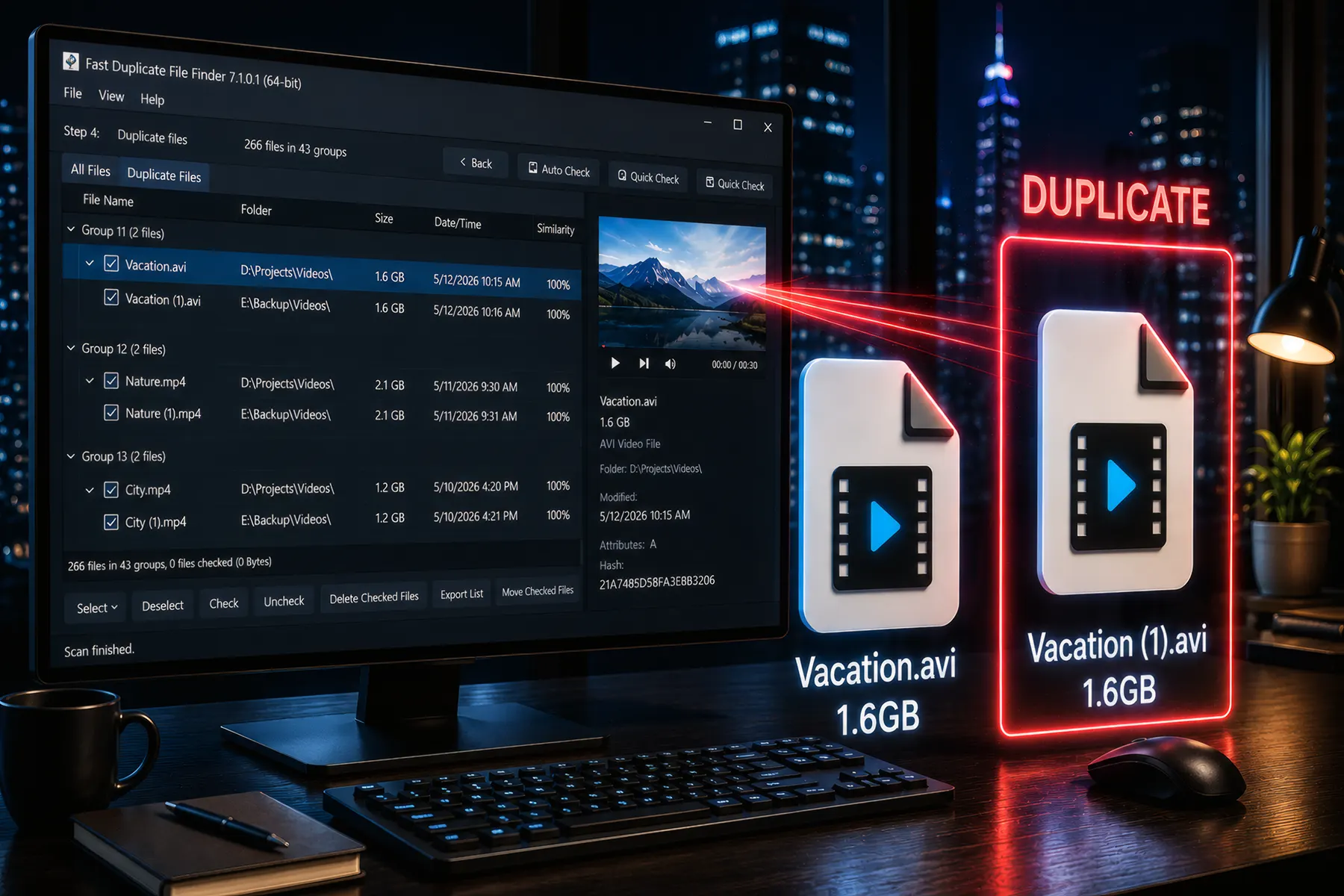

This article explains how to find duplicates with the same file size and name easily. We will use the best free duplicate file finder to easily remove duplicates.
Duplicate files slowly accumulate on every computer. Over time, downloads, backups, shared files, and repeated copies create clutter that wastes disk space and makes file management harder than it should be. As storage fills up, performance can degrade and finding the right file becomes frustrating.
Fortunately, there is a fast and effective way to identify duplicates without heavy processing. By comparing file size and file name, you can instantly locate obvious duplicate files and clean up your system in minutes.
This article explains how this method works, when to use it, its limitations, and how to get the best results using the free Fast Duplicate File Finder.
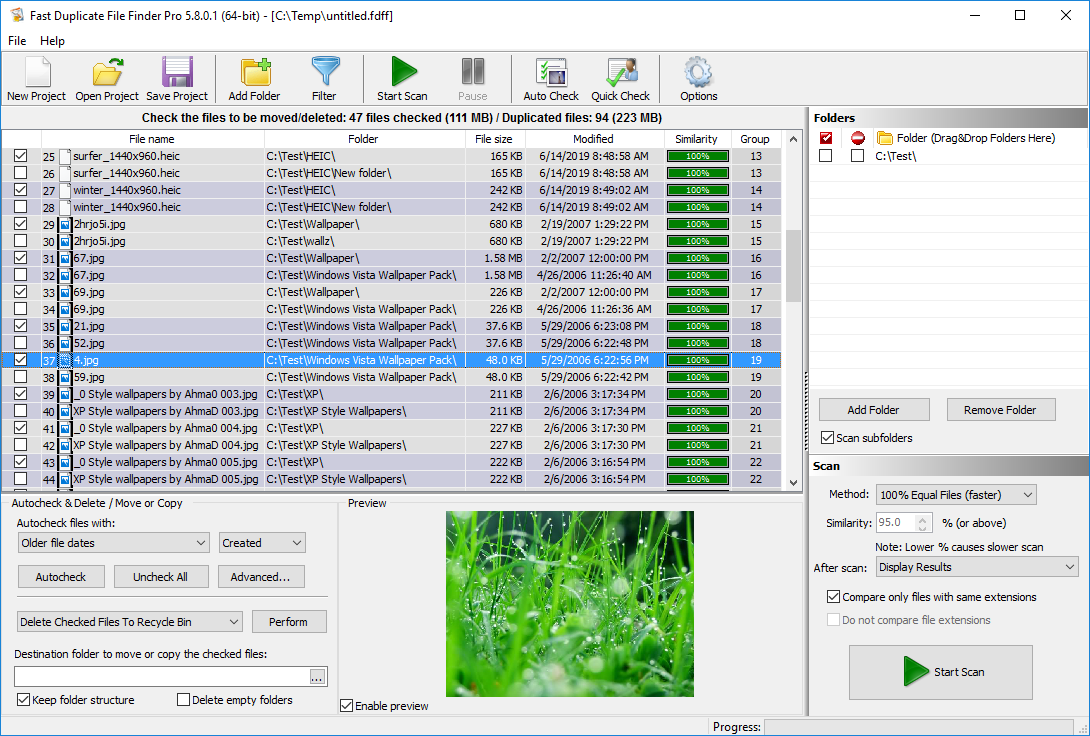
Find Duplicate Files by Name and Size Instantly
What Are Duplicate Files?
Duplicate files are identical or near-identical copies of the same file stored in different locations. They are often created unintentionally through everyday actions such as downloading files multiple times, copying folders, or creating backups without proper organization.
- Repeated downloads of the same file
- Manual copying between folders
- Backup duplication
- Email attachments saved multiple times
- Software-generated duplicates
While some duplicates are intentional, most are unnecessary and can be safely removed once identified.
Understanding the “Same File Size and Name” Method
This method detects duplicates based on two simple attributes:
- Identical file names
- Identical file sizes
For example:
- report.pdf – 2.4 MB
- report.pdf – 2.4 MB
Since both the name and size match, these files are highly likely to be duplicates.
Unlike content-based scanning, this method does not open or analyze file contents. Instead, it relies on metadata, which makes it extremely fast.
Same File Size and Name – Instantly Find Duplicates
Same File Size and Name – Instantly find duplicates with identical names and size
This is a very fast scan mode that groups files with identical names and file sizes, making it ideal for quickly finding obvious duplicates without full file comparison. You can also enable the “Treat Copy (X) as same file name” option. This allows the scan to recognize renamed copies as duplicates, even when numbering or copy labels are added. For example, files like “Video.mp4”, “Video – Copy.mp4”, and “Video – Copy (2).mp4” will all be identified as duplicates if they have the same file size.
This feature gives you a significant advantage over many other tools, which either miss renamed duplicates or require slow, full content analysis to detect them.
Why “Same File Size and Name” Method Is Faster Than Other Tools
Most duplicate file finders rely heavily on full file comparison, which involves reading the entire content of each file. While accurate, this process is slow and resource-intensive.
In contrast, the “Same File Size and Name” method:
- Does not read file contents
- Uses simple metadata comparison
- Processes thousands of files in seconds
- Requires minimal system resources
As a result, it is significantly faster than traditional duplicate detection methods used by many competing tools.
When to Use This Method
This scan mode works best in situations where duplicates are likely to be exact copies:
- Downloads folder cleanup
- Backup folder organization
- Shared project directories
- Large document collections
- Quick system cleanup
It is especially useful as a first pass before running deeper scans.
Limitations to Keep in Mind
While this method is fast, it is not perfect. You should be aware of the following limitations:
- Different files can share the same name and size
- Files with different names may not be detected
- Modified files may have different sizes
- No content verification is performed
For critical files, it is always recommended to review results before deleting anything.
Step-by-Step Guide for “Same File Size and Name” Method
- Select Folders – Choose the folders you want to scan. You can include entire drives or specific directories.
- Choose Scan Mode – Select the “Same File Size and Name” mode for maximum speed.
- Start the Scan – Run the scan and let the software quickly group potential duplicates.
- Review Results – Examine the grouped files and confirm duplicates.
- Remove Duplicates – Delete or move unnecessary files safely.
Speed vs Accuracy
There is always a trade-off between speed and accuracy:
- Size + Name → fastest method
- Content comparison → most accurate
For best results, start with the fast method, then follow up with a deeper scan if needed.
Tips for Best Results
- Start with quick scan modes
- Review results carefully
- Use automatic selection rules cautiously
- Keep backups of important data
Why Choose Fast Duplicate File Finder
Fast Duplicate File Finder stands out because it combines speed with flexibility. Unlike many tools that rely only on slow comparison methods, it offers multiple scan modes, including ultra-fast options like “Same File Size and Name”.
- Extremely fast scanning engine
- Multiple detection methods
- Advanced duplicate grouping
- Safe and controlled file removal
This makes it a superior choice for both quick cleanups and deep analysis.
Conclusion
Finding duplicate files does not have to be slow or complicated. By using the “Same File Size and Name” method, you can instantly identify obvious duplicates and free up valuable disk space.
While this method is not a replacement for deep analysis, it is the fastest way to perform an initial cleanup. Combined with more advanced scanning modes, it provides a complete solution for managing duplicate files efficiently.
If you want speed, simplicity, and reliable results, this approach is one of the best ways to start cleaning your system today.
To free up extra space and find missing disk space use the free Folder Size app.