
Duplicate Image Finder - Screen Shots
Remove Duplicate Photos - Find Similar Images - Organize Photos
 About
About Features
 Download
 Register (buy)
 Screen Shots
 What's New?
 FAQ
FAQ Awards
 Tutorials
The screenshots below show Duplicate Image Finder's main scan results, RAW EXIF data view, reverse image search, options, supported formats, filters, auto-check rules, and folder comparison - the core screens you'll use to find and remove duplicate photos.
Duplicate Image Finder - Similar Photos List
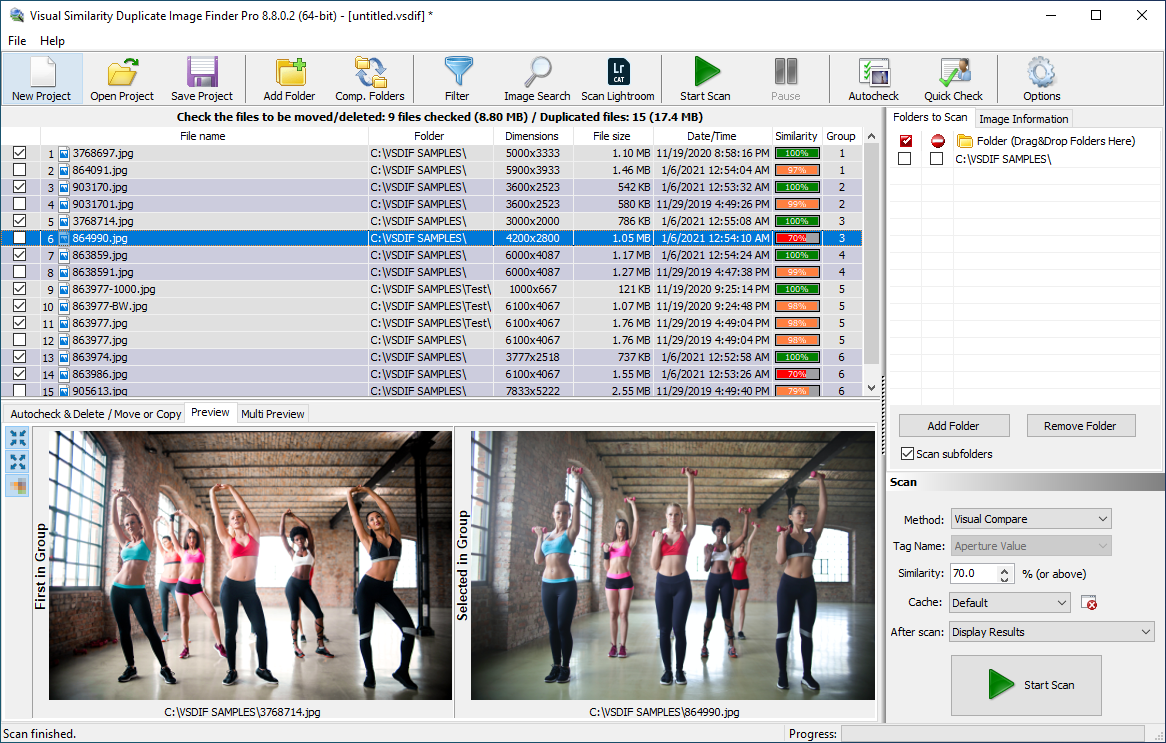
Scan results grouping similar and duplicate photos together, with side-by-side previews so you can compare each match before deciding what to remove.
Duplicate Image Finder - RAW EXIF Information
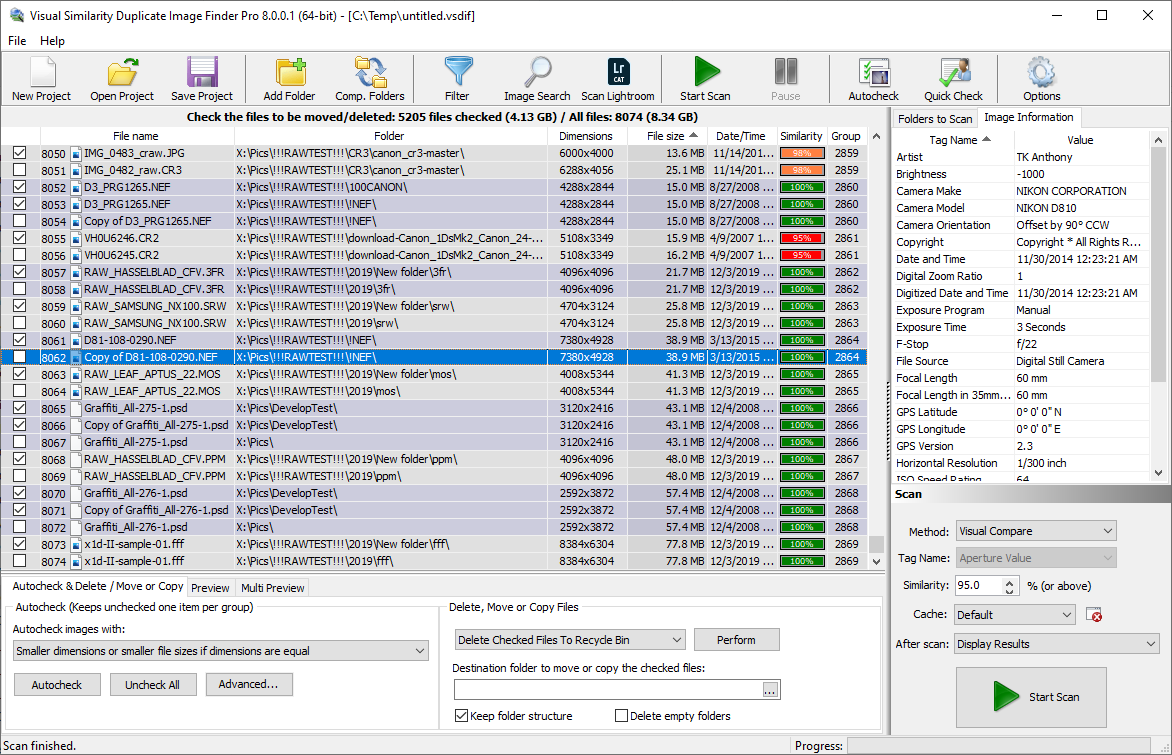
Detailed EXIF metadata for RAW photos, including camera, lens, and shot time, used to spot duplicates by the data embedded in the image itself.
Duplicate Image Finder - Image Search
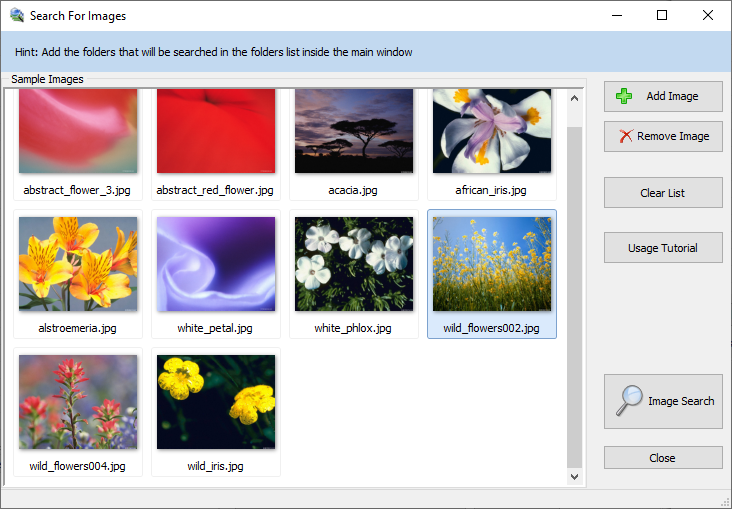
Reverse image search: pick a sample photo and Duplicate Image Finder lists every visually similar match across your library.
Duplicate Image Finder - Options
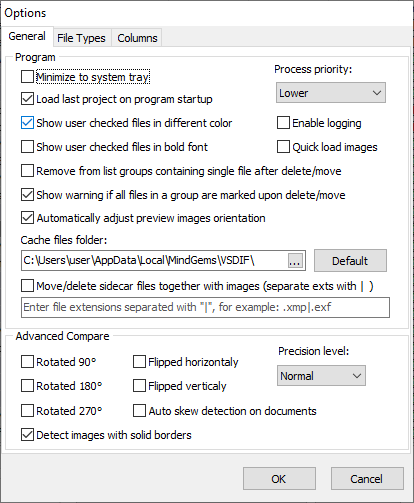
Settings for adjusting the similarity threshold, scan mode, and comparison behavior to match how you want duplicates detected.
Duplicate Image Finder - Photo Formats
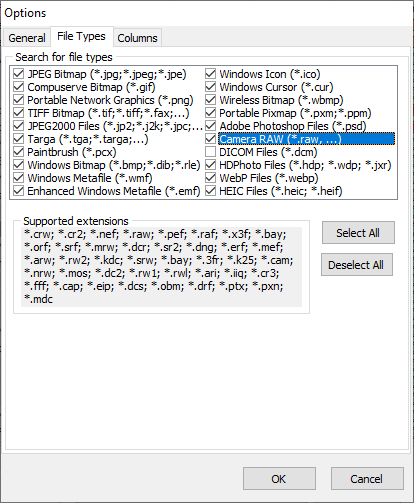
The full list of supported photo and RAW camera formats - over 340 in total - that can be scanned and compared.
Duplicate Image Finder - Filter
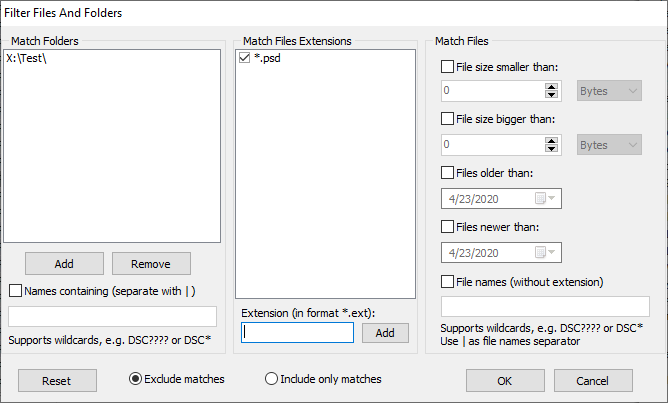
Include or exclude specific files and folders from a scan based on file type, size, date, or other properties.
Duplicate Image Finder - Auto-check
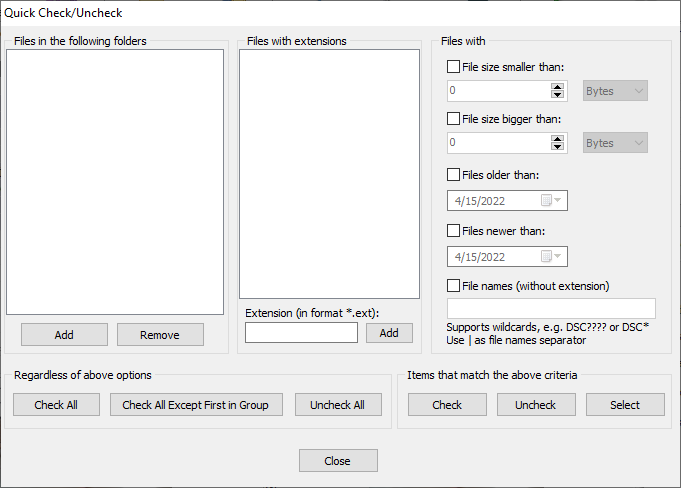
Auto-check rules that automatically mark which duplicates to remove based on resolution, file size, date, name, and other criteria.
Duplicate Image Finder - Compare Folders
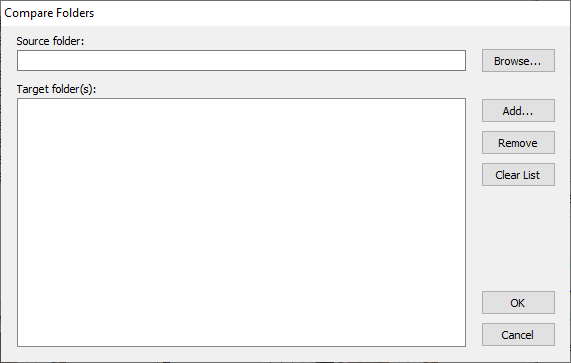
Compare two folders directly - useful for checking a backup against your original library without risking the source folder.