
Disk Cleanup Utility: Free Tools to Recover Lost Disk Space
Remove Duplicate Files and Find Large Folders - No Registry Cleaners, No Bloatware
Over years of regular use, a PC accumulates duplicate files, forgotten downloads, and old exports scattered across different folders and drives - often saved under different names, which makes them hard to track down manually. This is what actually eats up disk space, more than temporary files or cache ever do.
Windows' built-in Disk Cleanup utility handles the basics - temporary files, Recycle Bin contents, old Windows update files - but it has no way to find duplicate files or show you which specific folders are actually consuming your space. That's where a dedicated disk cleanup utility comes in.
What Windows' Built-In Disk Cleanup Utility Does (and Doesn't Do)
You can find Windows' own Disk Cleanup tool by searching "Disk Cleanup" in the Start menu, selecting a drive, and choosing which file categories to remove - temporary internet files, thumbnails, Recycle Bin items, and old system files via "Clean up system files."
It's a safe, free starting point, but it has real limits: it won't detect duplicate photos, documents, or music files, it can't tell you which folders are actually taking up the most space, and it doesn't touch files outside its predefined categories - meaning most of the space wasted by duplicated or forgotten files goes untouched.
Free Disk Cleanup Tools
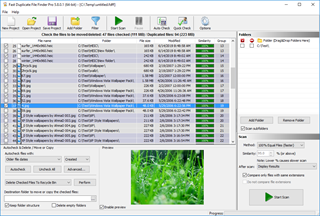
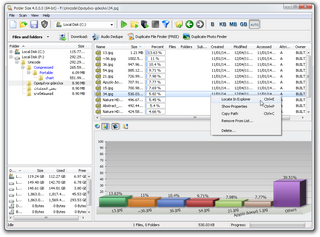
Manually hunting for duplicate files or oversized folders is slow and easy to get wrong, especially once files are spread across several folders, backups, or drives. These two free tools automate the two halves of a real disk cleanup: finding duplicates, and finding what's actually taking up space.
Fast Duplicate File Finder scans your drives for duplicate files of any type - documents, music, video, images - even when they've been renamed or moved. It lets you preview files before removing them, and sends deleted files to the Recycle Bin by default rather than deleting them outright.
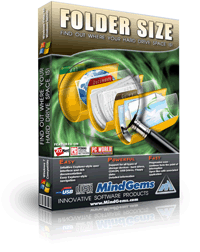
Folder Size shows you exactly which files and folders are consuming the most space, with reports for the largest files and largest folders including subfolders, plus bar and pie chart breakdowns - so instead of guessing, you can see precisely where your disk space actually went.
How to Clean Up Disk Space: A Practical Process
- Run Windows' built-in Disk Cleanup first to clear temporary files, old update files, and Recycle Bin contents - it's quick and safe.
- Run Folder Size across your drives to identify which folders are actually consuming the most space. This tells you where to focus rather than guessing.
- Run Fast Duplicate File Finder on the folders that turned out to be the largest - duplicate documents, photos, and media are usually the biggest recoverable chunk of wasted space.
- Review flagged duplicates before deleting - both tools let you preview files first, so you're not deleting anything blind.
- Delete to the Recycle Bin, not permanently, on your first pass - empty it only once you've confirmed everything looks correct.
Disk Cleanup Best Practices
A disk cleanup utility is only as safe as how it's used. A few habits make the difference between a clean drive and a costly mistake:
- Back up before a large cleanup - especially the first time you run a tool on a folder you haven't reviewed before.
- Use safe delete (Recycle Bin), not permanent delete, until you've confirmed the results are correct.
- Avoid registry cleaners - modern versions of Windows manage the registry well on their own, and registry "cleaning" tools carry more risk than benefit for the small amount of space they claim to recover.
- Review before deleting in bulk - use the preview options in your disk cleanup tool to confirm matches rather than trusting an automated selection blindly.