

The Fastest Duplicate Image Finder of 2020 Is Here – Find Similar Photos in Adobe Lightroom
Visual Similarity Duplicate Image Finder was already known for its high performance and precision but we never stop improving our tools. In this major release, we provide exciting new features and extreme performance improvements. In addition to the immense performance optimizations, this release will find similar photos in Adobe Lightroom. Do not forget that our dedicated duplicate photo finder LOOKS at your images in order to find similarities – this is not something that a standard duplicate file finder can do. Here is a detailed explanation about Which duplicate file finder to choose.
Find Duplicate Images in Adobe Lightroom
With the new VSDIF Lightroom integration, you can quickly scan your Adobe Lightroom catalog for both similar and duplicate images. Instead of manually searching through thousands of photos, you simply choose your Lightroom catalog as the source, making the process fast and straightforward.
All the powerful features of VSDIF remain available, just as when scanning regular folders. The only difference is that, rather than browsing for directories, you point the program directly to your Lightroom catalog file. This approach ensures a seamless workflow without the need to leave Lightroom’s familiar environment.
Because we believe in respecting the integrity of third-party applications, VSDIF never modifies your Lightroom catalog directly. When you decide to delete or move images from the results list, the application immediately provides a quick info panel explaining how to refresh your Lightroom catalog. This way, Lightroom can instantly synchronize and reflect your changes.
By combining VSDIF’s precision with Lightroom’s organizational power, you can clean up your photo collection more efficiently than ever before. From removing exact duplicates to grouping visually similar shots, the process becomes not only easier but also faster and more reliable.
Up to 20 Times Faster Image Comparison Stage
Massive Speed Boost with SSE3 Optimization
The image comparison stage has undergone a significant performance upgrade thanks to the integration of SSE3 CPU instructions. If you’re not familiar with SSE3, there’s no need to worry – almost all modern processors support it. These specialized instructions accelerate complex mathematical operations, enabling much faster processing without compromising accuracy.
From Hours to Minutes
Our tests show an impressive 1500% to 2000% improvement in speed, which translates to scans that are 15–20 times faster in the second stage of image comparison. To put that into perspective, a process that once took an hour can now be completed in just three minutes. This boost is especially noticeable when working with large image libraries, where time savings become substantial.
Speed Without Sacrificing Accuracy
While speed is important, we ensured that this optimization does not reduce the precision of the comparison results. You can still expect the same high-quality, accurate matches as before – just delivered in a fraction of the time. For professionals and enthusiasts managing massive image archives, this means faster workflows and more productive editing sessions.
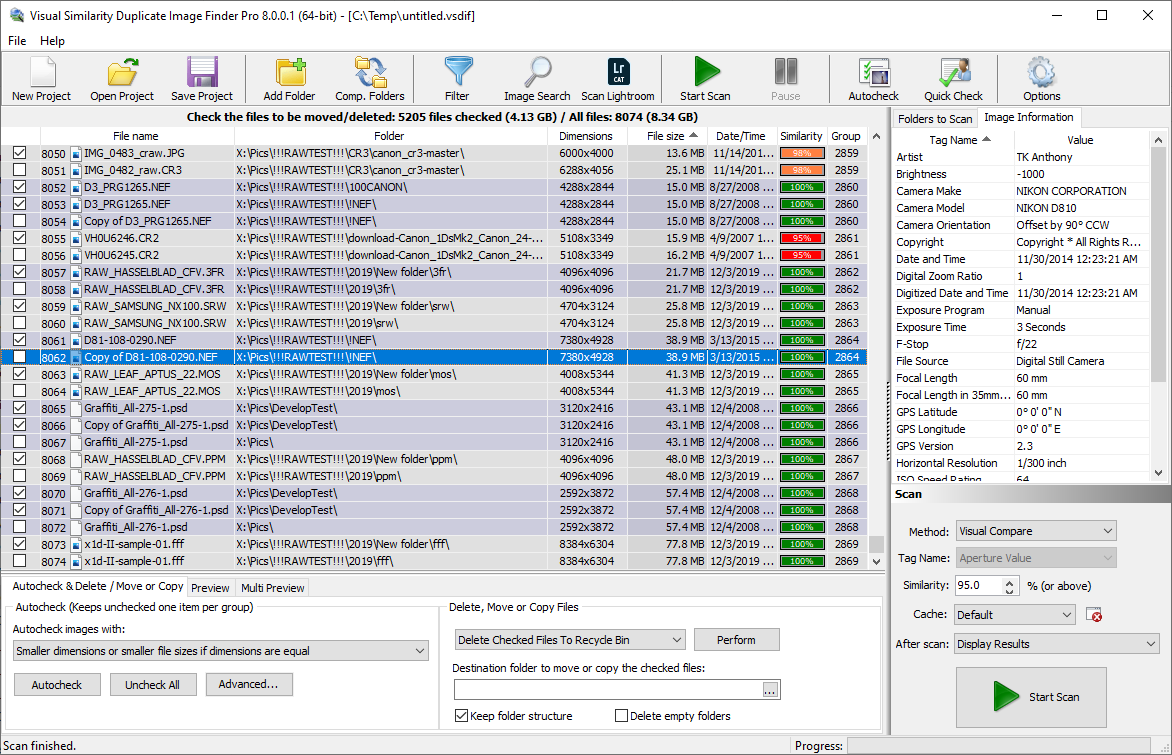
VSDIF displaying grouped Lightroom similar and duplicate images
Extra Preview Settings For Duplicate Images
Three new options are available both in Preview and Large Preview windows.
- Auto stretch – this option will stretch the images automatically to fit in the corresponding area if their size is smaller
- Auto shrink – this option will automatically shrink the image to fit in the preview area
- Smooth resize – this option enables and disables the antialiasing in the preview area. Disabling the antialiasing will make the images look grainier.
All the above options are enabled by default which was the standard VSDIF behavior. There are cases where such options are needed – medical research, graphics design, and many more.
Auto-check Images by Path Length
Two new auto-check options are provided in this release – “Shorter path” and “Longer path”. The options are pretty self-explanatory. The first one will automatically mark the images with a shorter path. The second one will mark those with the longer paths. Auto-chek as you already know will always leave one item in a group un-checked in order to preserve it. This option makes it very easy to preserve files in a folder if its path is shorter or longer than the rest in the list.
New Keyboard Shortcuts, Selection Features, UI Improvements
New Keyboard Shortcuts for Faster Workflow
We introduced two convenient keyboard shortcuts to speed up file management. Press the Delete key to remove an entry from the results list, or use Ctrl + Delete to remove the entry and permanently delete the corresponding image file. These shortcuts make cleanup faster and reduce trips to the context menu during repetitive tasks.
Enhanced Selection Options in the Results Grid
Managing large sets of duplicate or similar images is now easier with the new “Select Checked” option in the results grid’s popup menu. With one click, you can select all checked items and prepare them for deletion or removal from the list. This saves time and ensures you don’t miss items you intended to process.
Smarter Quick Check Dialog
The Quick Check dialog now includes a dedicated “Select” button. Instead of only ticking checkboxes, you can instantly select every file that matches your criteria. This turns Quick Check into a powerful selection tool and streamlines bulk actions for large-scale cleanup.
Improved EXIF Date Comparison Mode
When you work in “EXIF Date Time Original” mode, the grid displays the time difference between photos in seconds. Because similarity percentage isn’t useful here, we replaced it with this time-based comparison, making it easier to spot burst shots or images taken in quick succession.
Bug Fix and What’s Next
We fixed an issue where Auto-check didn’t behave correctly when Match full path was enabled while File names… was disabled. Although not critical, it previously required disabling both options to turn off Auto-check. Looking ahead, we’re preparing exciting enhancements for the upcoming 8.x.x.x releases and welcome your suggestions in the comments.
Do not forget to share the great news on your social network or message this article to your friends.
This article also relates to::
Adobe Lightroom Find Duplicate Photos, Adobe Lightroom Find Duplicates, Adobe Lightroom Find Similar Photos, Best Duplicate Photo Finder 2020, Can Lightroom Identify Duplicate Photos?, Find Dupes Lightroom, Find Duplicate Photos, How Do I Compare Two Photos In Lightroom?, How Do I Delete Duplicate Photos In Lightroom?, How Do I Find Similar Photos?, How To View Duplicates In Lightroom, Lightroom Cc Duplicate Photo, Lightroom Duplicate Finder, Lightroom Duplicate Finder 2020, Lightroom Duplicate Finder Download, Lightroom Duplicate Finder Review, Lightroom Duplicate Photo, Lightroom Duplicate Photos, Lightroom Find Duplicates 2019, Lightroom Find Duplicates 2020, Lightroom Find Similar Photos, Lightroom Import Duplicates, Lightroom Plugin Find Similar Images, Lightroom Plugins, Lightroom Plugins Duplicate Finder, Lightroom Similar Photos, Teekesselchen Lightroom, Teekesselchen Lightroom Plugin
Pingback: Best Duplicate Image Finder - VSDIF 8.2.0.1 Tested With 1 Million Images
Pingback: VSDIF 8.3.0.1 - Professional Duplicate Photo Finder
Pingback: Lightroom Duplicate Finder - Delete Duplicate Photos