


A folder’s size isn’t fixed – it’s simply the total size of every file and sub-folder inside it. There’s no built-in limit; a folder can be a few bytes or several terabytes, depending entirely on its contents. Below, we explain how folder and file sizes are calculated, how storage units compare (from bytes to terabytes), and how to instantly see the size of any folder using the free Folder Size tool.
Table of Contents
- What Determines a Folder’s Size?
- Folder Sizes and File Size Units
- File Size Units in Order (Smallest to Largest)
- KB vs. KiB: Decimal vs. Binary Sizes
- How to Check Folder Size in Windows
- Folder Size: The Free Tool to View Folder and File Sizes
- Frequently Asked Questions
What Determines a Folder’s Size?
A folder itself doesn’t take up meaningful space – its size is simply the sum of every file it contains, including everything inside its sub-folders. Windows doesn’t calculate or display this automatically next to a folder the way it does for individual files, which is exactly why folder sizes seem confusing at first: there’s no single number stored anywhere, it has to be calculated by adding up the contents each time. That calculation is what tools like Folder Size automate.
Folder Sizes and File Size Units
As for everything else, there is a unit that measures the size of a file to determine how much space it occupies on the storage. The smallest unit is the Bit, and it has two states – 0 (Zero, Off, False) or 1 (One, On, True). On its own, a single bit can only represent something like an on/off switch. To represent numbers and letters, bits are grouped into the next larger unit – the Byte.
A Byte is a group of 8 Bits and can represent a value from 0 to 255 – the total number of combinations 8 bits can form (28 = 256). Historically, every character, digit, or symbol was assigned a number in that 0-255 range according to the ASCII table. Most modern systems now use Unicode/UTF-8, where a single character can take up more than one byte, which is what allows computers to support multiple languages, alphabets, and special characters. The Wikipedia entry on bytes covers the history of the unit in more depth.
From Bytes to Kilobytes and Beyond
The next unit up from the Byte is the Kilobyte. This is also where the confusion between “KB” and “KiB” starts – see the KB vs. KiB section below for the full breakdown. For a quick reference table and a free file-size calculator, see our File Size Information page.
File Size Units in Order (Smallest to Largest)
Here’s every common storage unit, in order, with both the decimal (SI) and binary values:
| Unit | Decimal (base-10) | Binary equivalent |
|---|---|---|
| Bit | 1 bit | – |
| Byte (B) | 8 bits | 8 bits |
| Kilobyte (KB) | 1,000 bytes | 1,024 bytes (1 KiB) |
| Megabyte (MB) | 1,000 KB | 1,024 KiB (1 MiB) |
| Gigabyte (GB) | 1,000 MB | 1,024 MiB (1 GiB) |
| Terabyte (TB) | 1,000 GB | 1,024 GiB (1 TiB) |
So, from smallest to largest: Bit → Byte → Kilobyte → Megabyte → Gigabyte → Terabyte (and beyond that, Petabyte, Exabyte, and so on). Each step up is roughly a thousand times larger than the one before it.
KB vs. KiB: Decimal vs. Binary Sizes
One mebibyte (MiB) equals 220 bytes – 1,024 × 1,024, or 1,048,576 bytes. A megabyte (MB), by contrast, is defined as 106 bytes (1,000 × 1,000 = 1,000,000). The two are close, but not identical, and the gap grows larger at bigger sizes.
| Bytes | Decimal (SI) name | Binary (IEC) name |
|---|---|---|
| 1,024 | 1.024 KB | 1 KiB (kibibyte) |
| 1,048,576 | 1.048 MB | 1 MiB (mebibyte) |
| 1,073,741,824 | 1.073 GB | 1 GiB (gibibyte) |
| 1,099,511,627,776 | 1.099 TB | 1 TiB (tebibyte) |
This is why Windows might report a “500 GB” drive as showing closer to 465 GB of usable space – Windows Explorer actually calculates using binary (1,024-based) math but still labels the result “GB” instead of the more precise “GiB.” The Kibi/Mebi/Gibi prefixes exist specifically to remove this ambiguity: they were formally introduced by the International Electrotechnical Commission in 1998 and are documented in the NIST reference on prefixes for binary multiples. “Mebi” comes from “mega” + “binary” – close to mega in value, but explicitly meaning powers of two rather than powers of ten. You can read more on the distinction on Wikipedia’s Kilobyte, Megabyte, and Gigabyte pages.
How to Check Folder Size in Windows
Windows Explorer shows file sizes automatically, but not folder sizes – you have to calculate them yourself. There are two ways to do it:
The Built-In Way (Slow)
Right-click any folder and choose Properties. Windows will scan the folder and display its total size – but only for that one folder at a time, and larger folders can take a noticeable while to calculate. There’s no way to see the sizes of every folder on a drive at once this way, which makes finding what’s actually eating up your disk space a slow, one-by-one process.
The Fast Way: Folder Size
Folder Size adds a right-click “Scan with Folder Size” option to Windows Explorer (Vista through Windows 11, 32- and 64-bit) and instantly shows every folder’s size in a sortable, Explorer-style list – no more guessing or checking folders one at a time.
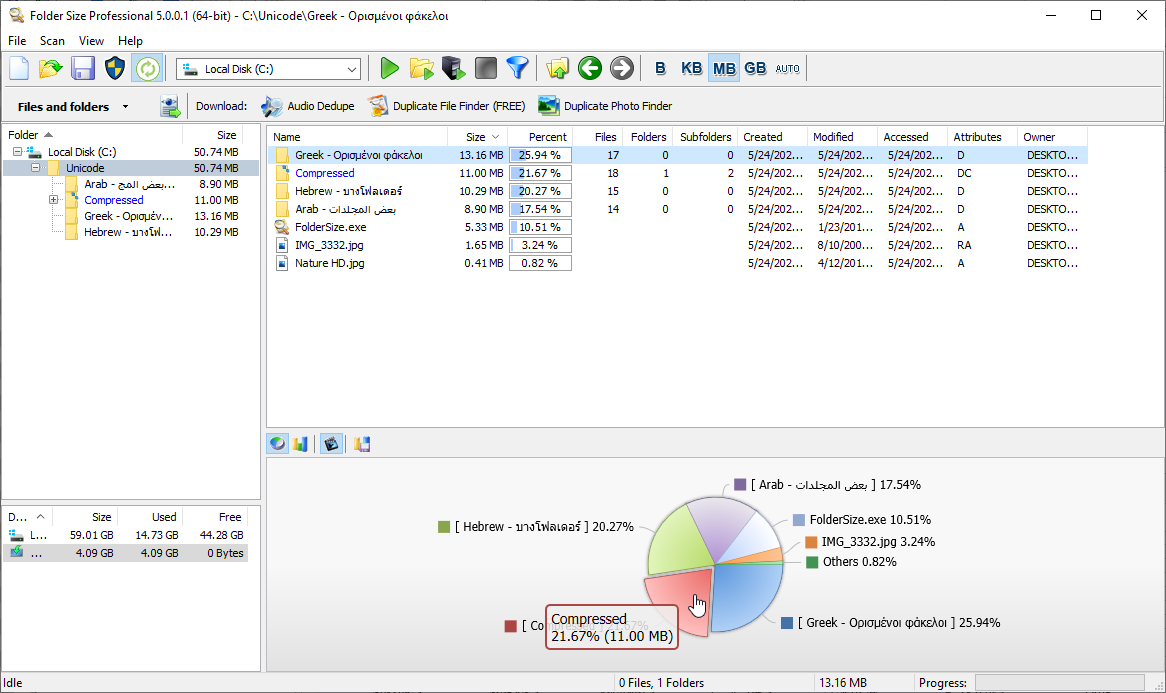 Folder Size – Free File Size and Directory Size Analysis Tool
Key features:
- Scans anything – local drives, external drives, network shares, NAS, and SAN devices.
- Real-time updates – move or delete a file in Explorer and the totals update without a full rescan.
- Reports built in – see your largest files and folders at a glance, which is the fastest starting point for any disk cleanup.
- Exports to Excel, CSV, XML, PDF, and TIFF, plus command-line options for automated or scheduled scans – useful for IT audits and compliance reporting.
- Zero background load – it only scans on demand, so it doesn’t run as a background service or slow your system down.
It’s built for both ends of the spectrum: home users who just want to free up space fast, and IT admins who need repeatable audits across network drives with exportable reports. Download Folder Size free to try it on your own drives.
Frequently Asked Questions
How big is a folder?
What’s the difference between file size and folder size?
Why does my drive show less space than advertised?
What are file sizes in order from smallest to largest?
How can I see the size of every folder on my drive at once?
Is Folder Size free to use?
What’s the difference between KB and KiB?
Does Windows show folder sizes automatically?
What operating systems does Folder Size support?
Can Folder Size scan network drives?
This article also relates to: Bytes And Megabytes, Bytes Gigabytes Megabytes, Bytes Kilobytes Megabytes, Calculating File Size, Check Folder, Convert File Size, Directory Size, File, File Size Explained, File Size Info, File Size Information, File Size Measures, File Size Units, File Sizes, File Sizes in Windows, File Sizes in Windows 7, File Sizes in Windows 8, File Sizes in Windows Vista, File Sizes in Windows XP, Files And Folders, Folder File, From Megabytes to Gigabytes, Megabytes in a GB, Megabytes to Bytes, Megabytes to Gigabytes, Size Folder, Size Of File, Size of Folder, Tree Size, TreeSize, What is Mega Bytes, Windir Stats, Windirstats, Windows File Size