


Delete duplicate photos on Windows 11 and 10 without the risk of losing originals or wasting hours scrolling through folders by hand. Whether you’re comparing free tools or looking for the most thorough option available, this guide breaks down the fastest and safest ways to find and remove duplicate photos on your PC. We’ll cover manual limitations, compare the best free tools, and show why a dedicated duplicate photo finder catches far more duplicates than any of them.
Why Deleting Duplicate Photos Manually Is So Difficult
Manually sorting through a photo library to find and delete duplicates sounds simple until you actually try it. File Explorer can sort by name, size, or date, but it has no way to tell you that two photos with completely different file names are actually the same shot, or that a slightly cropped copy is a duplicate of the original. As a library grows into the thousands, comparing images side by side becomes slow, tiring, and easy to get wrong – especially when duplicates are spread across several folders, backups, or an SD card import.
The core problem is that deduplication at scale isn’t really a sorting task, it’s a comparison task, and the human eye is slow at spotting subtle differences across hundreds of near-identical thumbnails. A photo saved twice under different names, resized for an email, or re-exported from editing software won’t show up as an obvious match, even though it’s clearly wasting space.
| Task | Manual Review | Duplicate-Finding Software |
|---|---|---|
| Comparing 1,000+ photos | Hours, high error rate | Minutes, consistent results |
| Spotting renamed duplicates | Easy to miss | Detected automatically |
| Finding resized or edited copies | Very difficult | Detected with visual similarity |
| Scanning multiple folders/drives at once | Tedious, error-prone | Handled in a single scan |
This is why most people who start cleaning up a photo library by hand give up partway through, and why a dedicated tool tends to be worth using well before the library reaches thousands of photos.
Free Tools to Delete Duplicate Photos
If you’d rather not sort through photos by hand, several free tools can scan your library and group duplicates automatically. The most common options are dupeGuru, Czkawka, VisiPics, Awesome Duplicate Photo Finder, and Free Fast Duplicate File Finder. These get recommended frequently on Reddit and other forums, but several of them come with real limitations – and in at least one case, a real security risk – that aren’t obvious until you’ve already installed them.
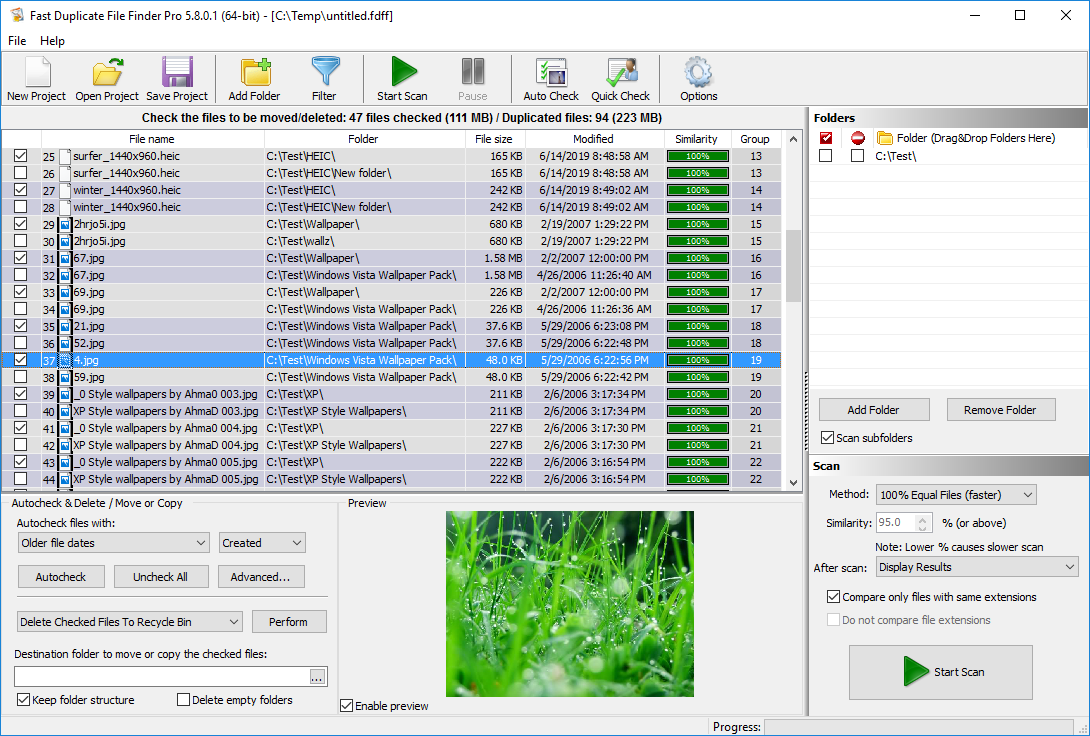
Fast Duplicate File Finder
dupeGuru is a popular open-source option, but its similar-image detection relies on basic hashing and fuzzy matching that frequently flags visually different photos as duplicates. It also lacks RAW support and offers limited control over what gets deleted.
Czkawka is fast and actively maintained, but suffers from the same weakness as dupeGuru: its similar-image detection is unreliable and prone to false matches. It technically lists some RAW format support, but in practice it crashes when scanning RAW files, which makes it usable mainly for finding exact duplicates rather than similar or edited copies. Its cross-platform interface is also a real usability problem – text rendering is frequently broken or unreadable, making it a frustrating tool to use day to day.
VisiPics offers basic visual comparison for images, but the project hasn’t been meaningfully updated in years. Its detection is outdated by current standards, and the interface shows its age, making it a difficult tool to use for anyone not already familiar with it.
Awesome Duplicate Photo Finder is lightweight and fine for a very small photo library, but it only supports manual duplicate selection and removal – there’s no automatic quality-based marking to speed up review. More seriously, several antivirus engines flag it as a Potentially Unwanted Application (PUA), and Malwarebytes goes further and blocks it outright as malware.
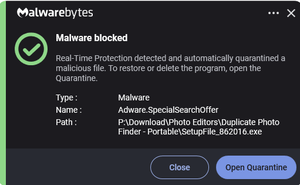
Malwarebytes detects and blocks Awesome Duplicate Photo Finder as Malware – Adware.SpecialSearchOffer.
| Feature | dupeGuru | Czkawka | VisiPics | Awesome Duplicate Photo Finder | Fast Duplicate File Finder | MindGems Duplicate Image Finder (VSDIF) |
|---|---|---|---|---|---|---|
| Image preview before delete | Partial | Partial | Yes | Partial | Yes | Yes |
| Reliable visual similarity detection | Poor – frequent false matches | Poor – frequent false matches | Basic, outdated | No | No | Yes |
| RAW format support | No | Partial – crashes on RAW files | No | No | Yes | Yes |
| Automatic quality-based selection | No | No | No | No – manual only | No | Yes |
| Safe delete (Recycle Bin) | Partial | Partial | No | No | Yes | Yes |
| System/Windows folder protection | No | No | No | No | Yes | Yes |
| Compare two or more folders | Partial | Partial | No | No | Partial | Yes |
| Similar/duplicate EXIF search | No | No | No | No | No | Yes |
| Scales to millions of files | Partial | Yes | No | No | Yes | Yes |
| Flagged as PUA/malware by antivirus tools | No | No | No | Yes – blocked by Malwarebytes | No | No |
As the table shows, MindGems Duplicate Image Finder outperforms every free tool on this list in detection accuracy, usability, safety controls, and – in Awesome Duplicate Photo Finder’s case – basic trustworthiness. We’ll take a closer look at it later in this article.
For a complete list, check the best duplicate photo finders list and the best duplicate file cleaners review. If you want to remove duplicate songs, check the best duplicate audio finders review and also the duplicate music finders precision tests
Why Fast Duplicate File Finder Is the Best Free Option
Fast Duplicate File Finder stands out as the best free choice of the group. It supports image preview, including RAW preview, so you can confirm a match before deleting anything. It’s built to scan millions of files without slowing down, and it includes safe deletion options that send files to the Recycle Bin rather than deleting them outright. It also protects system and Windows folders by default, reducing the risk of accidentally flagging something critical. On top of that, it supports filtering, multiple scan modes, and detailed file comparisons, making it considerably more capable than most other free tools on this list.
That said, even the best free option has real limits – as the table above shows, it has no true visual similarity detection, no EXIF-based duplicate search, and only partial support for comparing multiple folders. It’s the strongest free tool here, but it’s still built as a general-purpose duplicate file finder rather than a dedicated photo deduplication engine – which is exactly the gap the next section covers.
Download: Free Fast Duplicate File Finder
Why MindGems Duplicate Image Finder Finds More Duplicates (And Is More Efficient)
MindGems Duplicate Image Finder is the best duplicate photo finder available for Windows, and the comparison table above shows exactly why. It’s the only tool in this entire comparison – free or paid – that combines full RAW support, true visual similarity detection, EXIF-based duplicate search, multi-folder comparison, and safe deletion controls in one product. As covered above, the free alternatives don’t just lack individual features – several have real reliability and even security problems that make them a poor choice regardless of price.
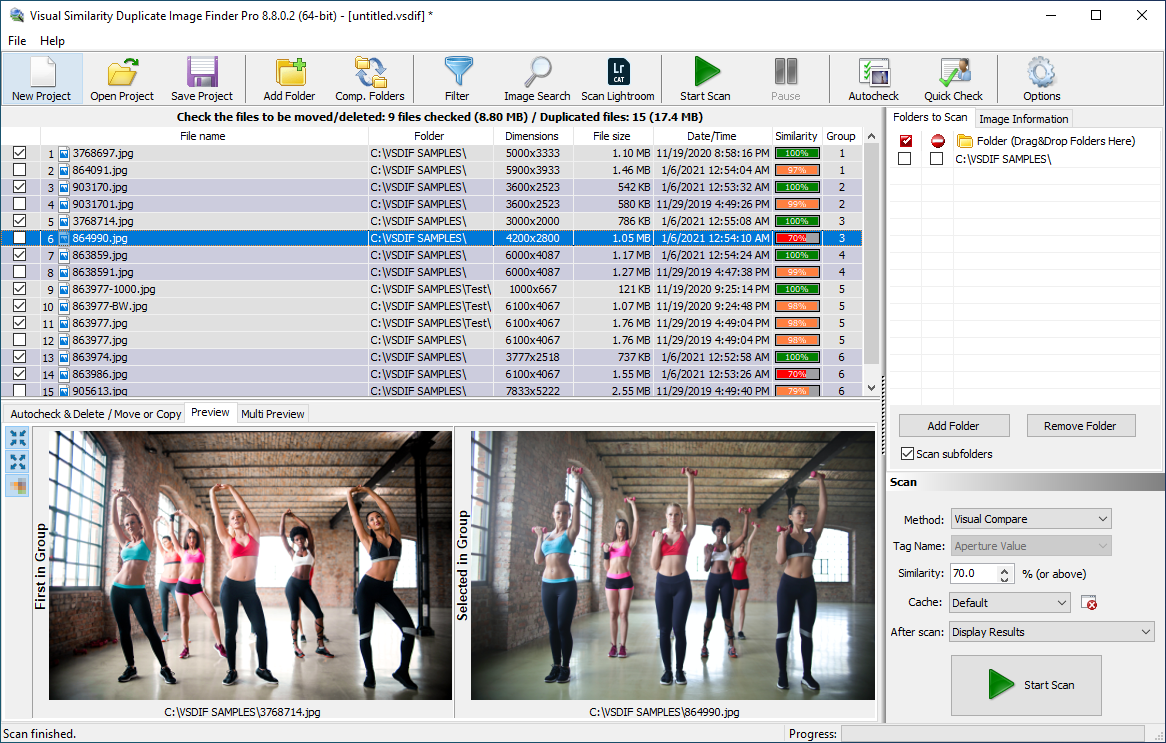
MindGems Duplicate Photo Finder
That gap isn’t an accident. MindGems Duplicate Image Finder has been actively developed for over 25 years, longer than any other tool in this comparison has existed at all. Its detection engine is built specifically to analyze actual image content – color distribution, structural similarity, and visual patterns – rather than relying on file names, checksums, or the basic fuzzy hashes that tools like dupeGuru and Czkawka use, which is exactly why those tools produce false matches that MindGems Duplicate Image Finder avoids. That same content-based approach is also what lets it correctly identify RAW files instead of crashing on them, and what makes EXIF-based duplicate search possible at all – a capability no other tool in this comparison offers in any form.
Free tools are free because they’re built to do one thing reasonably well – Czkawka is fast at exact-hash matching, dupeGuru covers files and music alongside photos – but none of them were designed from the ground up as a dedicated, reliable photo deduplication engine the way MindGems Duplicate Image Finder was. The result is straightforward: MindGems Duplicate Image Finder finds duplicates that every free tool in this comparison misses – resized copies, reformatted files, edited versions, and photos matched by EXIF data rather than pixel content alone – while still running efficiently enough to scan libraries in the millions of files. For anyone serious about actually cleaning a photo library, rather than catching only the easiest duplicates or risking an unreliable or unsafe download, MindGems Duplicate Image Finder is the clear best choice.
MindGems Duplicate Image Finder vs. Free Tools: Feature Comparison
The comparison table earlier in this guide shows the high-level picture, but a few of those differences are worth explaining in practical terms – since “Partial” support for a feature often means something very different in practice than full support.
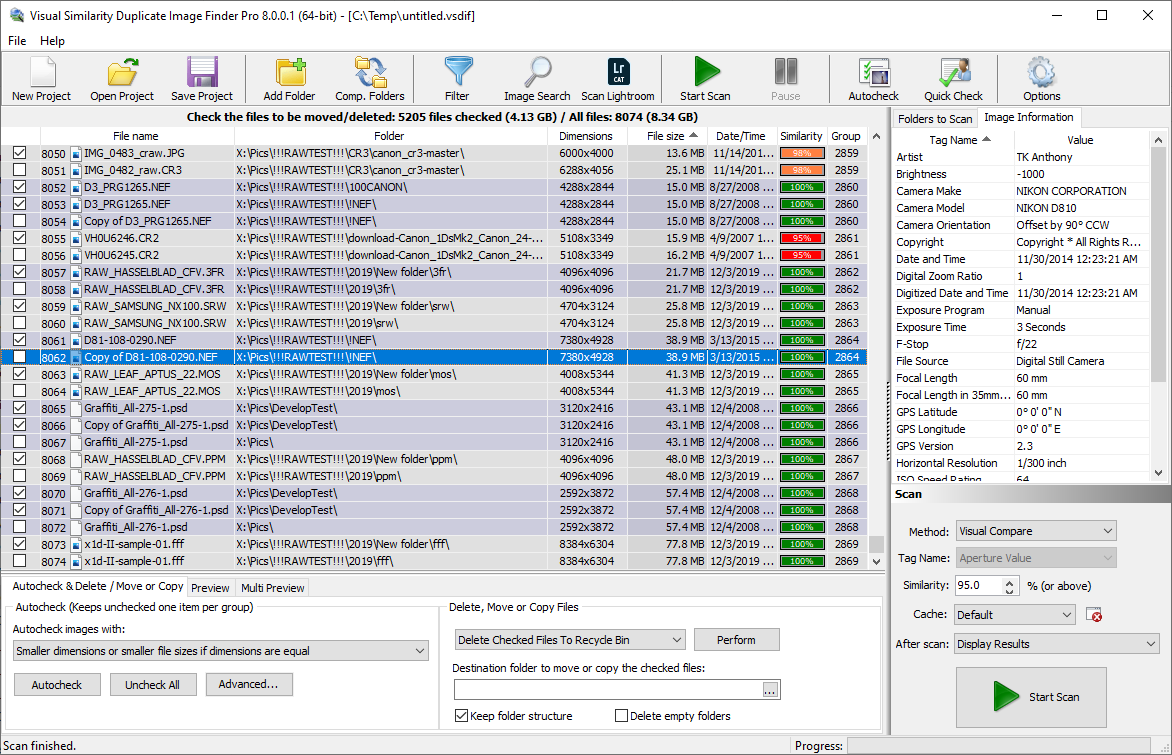
Find Duplicate RAW Photos With MindGems Duplicate Image Finder
Visual similarity detection is the biggest gap. Free tools that offer “partial” visual matching typically rely on basic perceptual hashing, which catches near-identical files but struggles once an image has been resized, cropped, recompressed, or color-corrected. MindGems Duplicate Image Finder’s engine is built specifically to recognize the same photo across these kinds of edits, which is why it consistently surfaces duplicates the free tools miss entirely.
EXIF-based duplicate search is unique to MindGems Duplicate Image Finder in this comparison. None of the free tools search by camera metadata at all, which matters for photographers trying to group shots from the same camera, session, or timestamp range when filenames offer no clues.
Multi-folder and multi-drive comparison is another area where “partial” support creates real friction. Tools like dupeGuru and Czkawka can technically scan more than one folder, but often require separate scans or manual merging of results. MindGems Duplicate Image Finder handles folders and entire drives in a single unified scan, which matters once a library is spread across a main drive, an external backup, and cloud-synced folders.
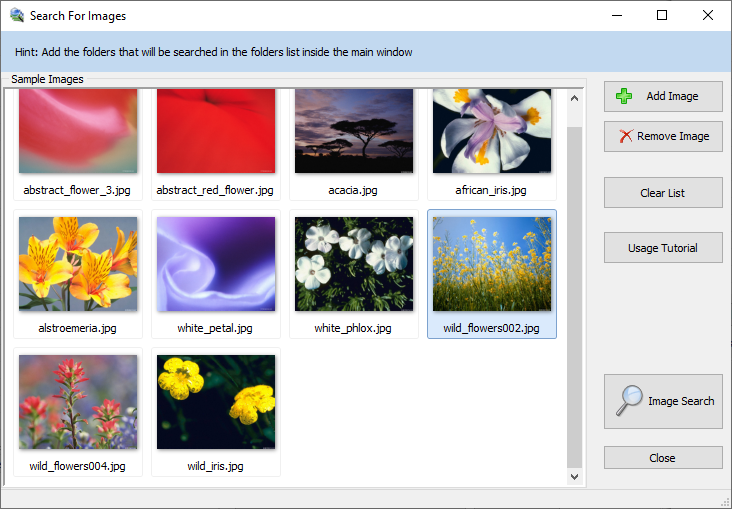
Search for Similar & Duplicate Images on Your Computer or Network
Safe deletion and folder protection separate the more mature tools from the rest. VisiPics and Awesome Duplicate Photo Finder offer no Recycle Bin safeguard, meaning a wrong selection is a permanent loss. MindGems Duplicate Image Finder, like Fast Duplicate File Finder, defaults to safe deletion and blocks system/Windows folders from being scanned in the first place.
How to Delete Duplicate Photos with MindGems Duplicate Image Finder (Step-by-Step)
MindGems Duplicate Image Finder is configured for best results right out of the box, which makes it even simpler to use than tools built specifically to target novice users. The default scan mode is already set to Visual Similarity, with the similarity level preset to 90% – the setting that produces the best results for most photo libraries. For a common basic cleanup, all you have to do is add your folders to the folders list and press Scan.
- Download and install MindGems Duplicate Image Finder, then launch the application.
- Add the folders or drives you want to scan using the folder list on the right side of the main window – you can add multiple locations at once, including external drives or backup folders.
- Press the Search button to start the scan. The default Visual Similarity mode at 90% similarity is already active, so no further setup is needed for most libraries.
- Larger libraries in the tens of thousands of photos may take several minutes; the tool will show progress as it works through each folder.
- Review the results. Each duplicate group is displayed with image previews, and the tool automatically marks the lower-quality photos in each group for deletion, always leaving at least one photo per group unchecked so you never end up with an empty group.
- Check the auto-marked selection and adjust it manually if needed – simply check or uncheck individual photos in a group to change what gets kept or removed.
- Use the preview options to confirm matches before taking action: a side-by-side preview for comparing two images at a time, a multi-preview to view every photo in a duplicate group together, and a full-screen view for a closer look at any single image.
- Once you’re happy with the selection, choose the action you want: Copy, Move, send to Recycle Bin, or Delete Permanently. Nothing is removed or changed until you actively choose one of these actions.
- If you manually check every photo in a group and then hit Delete, the app displays a warning and lists exactly which groups have every photo marked for deletion, letting you cancel the operation and fix the selection before anything is removed.
- If you used the Recycle Bin option, empty the Recycle Bin only once you’ve confirmed the results look correct and no longer need the removed copies.
This step-by-step process is one of the safest ways to remove duplicate photos on Windows – nothing happens automatically or irreversibly until you decide. Between the auto-mark safeguard that always preserves one copy per group, the warning that catches groups where every photo has been marked for deletion, the multiple preview modes for confirming matches, and the choice between safe deletion and permanent removal, MindGems Duplicate Image Finder gives you several layers of review before a single file is touched.
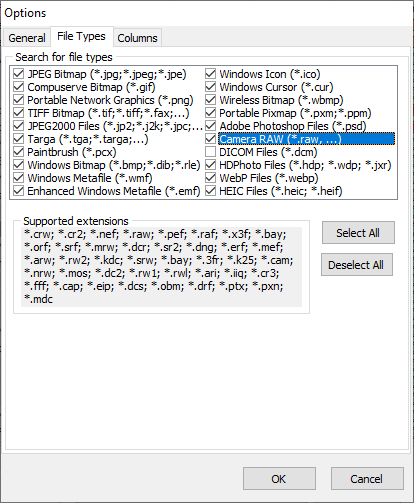
Supported RAW Image Formats
Best Practices for Safe Deletion
Finding duplicates is the easy part – deleting them without losing something you actually wanted to keep is where most damage happens. A few precautions make the process close to risk-free.
Back up before you scan. Even with a reliable tool, it’s worth having a full backup of your photo library before any bulk deletion, especially the first time you run a scan on a folder you haven’t organized before.
Always review matches visually before deleting. Automated matching is accurate, but “accurate” isn’t the same as “infallible” – a quick glance at the preview thumbnails before confirming a batch deletion catches the rare edge case where two genuinely different photos were grouped together.
Use safe delete, not permanent delete. Sending files to the Recycle Bin instead of deleting them outright costs nothing and gives you a recovery window if you spot a mistake after the fact.
Keep the highest-resolution or original copy. When duplicates differ in size or quality – for example, an original next to a compressed copy exported for email – keep the highest-quality version and remove the rest, rather than keeping whichever one happens to be easiest to find.
Don’t rely on filenames or folder names to decide what’s safe to delete. A photo can be duplicated across a “Camera Roll,” a “Backup,” and an “Edited” folder with three completely different names – trust the visual/content match, not the folder it happened to end up in.
Conclusion
Manually hunting down duplicate photos doesn’t scale much past a few hundred images, and even the best free tools stop short of true visual similarity and EXIF-based matching. Fast Duplicate File Finder is a genuinely strong free option if you mainly need to catch exact or near-exact duplicates safely. But if your library includes resized exports, edited copies, or photos spread across multiple folders and drives, MindGems Duplicate Image Finder is built specifically to catch what those tools miss – while still keeping the same safe-deletion protections in place.
Delete Duplicate Photos Frequently Asked Questions
I’ve been putting off sorting through years of duplicate photos for so long, this article finally got me to do it. Tried Visual Similarity Duplicate Image Finder based on the recommendation here and honestly wasn’t expecting it to catch as much as it did – I had a bunch of resized copies and old edits I didn’t even remember making that it picked up. Took a couple hours instead of the whole weekend I was dreading. My photo library actually looks organized now for the first time in years.
Didn’t expect to find my answer in a random article but here we are. I’d tried a couple other duplicate finders before and they only ever caught the exact same file twice – never the stuff I actually needed found, like the same photo resized or slightly cropped from editing. Visual Similarity Duplicate Image Finder was the first one that actually caught those. Wish I’d known about this tool years ago instead of just living with a messy photo folder.
Perfect timing honestly, I’d been putting off cleaning up my photo library for probably a year at this point. Didn’t really know where to start since I have photos spread across a couple different folders and an old backup drive too. Followed the steps here and used Visual Similarity Duplicate Image Finder to scan everything at once, and it was way less painful than I expected. Actually enjoy scrolling through my photos now instead of dreading it.
As someone who shoots a lot, my library gets out of hand fast between RAW files, edited exports, and duplicates from importing the same shoot twice. Tried Visual Similarity Duplicate Image Finder after reading this and it’s actually the first tool that handled my RAW files properly instead of just ignoring them or choking on them. Went from dreading opening my photo folders to actually having a system now. This is my go-to for keeping things in order going forward.
Was just trying to free up some space on my laptop and ended up here. Didn’t realize how many duplicate photos I’d actually accumulated until I ran a scan with Visual Similarity Duplicate Image Finder – found way more than I expected, including a bunch of copies I didn’t even know I had from old backups. Cleared up a decent chunk of storage and my photo folders finally make sense again. Glad I found this before just manually deleting stuff at random.
Never thought I’d actually get around to organizing my photo library, but the step-by-step guide here made it a lot less intimidating than I expected. Ran Visual Similarity Duplicate Image Finder on my main folder and an old backup I’d been ignoring for years, and it picked up so many near-duplicates I would’ve never caught manually – definitely saved me a weekend of scrolling through thumbnails. Freed up a good amount of storage too, which was an unexpected bonus.
The step-by-step part was actually useful, not just generic advice. Ran Visual Similarity Duplicate Image Finder and it was faster than I expected for how many photos I threw at it, and I didn’t have to mess with any settings to get good results. If you actually care about keeping your photos organized instead of just letting them pile up, worth grabbing.
Genuinely saved me hours. I was dreading going through everything by hand and Visual Similarity Duplicate Image Finder just handled it in the background while I did other stuff. If you’re stuck with a huge pile of duplicate photos, this is way less painful than trying to sort it out yourself.
Really appreciated how thorough this was instead of just a quick “here’s a tool” post. Visual Similarity Duplicate Image Finder was easy to figure out without reading a manual first, and going through the duplicates it found was way less tedious than I expected. Made a task I’d been avoiding for months actually manageable.