

Find empty folders cluttering your Windows PC using several free and reliable methods, from built-in File Explorer tricks to dedicated scanning tools. This guide walks through each approach so you can choose the one that fits your library size and comfort level. But first, it helps to understand why empty folders pile up in the first place.
Empty folders and files build up on every Windows PC over time – leftovers from uninstalled programs, half-finished downloads, old backup jobs that never cleaned up after themselves. None of it takes up much space individually, but a drive with thousands of empty folders scattered across it gets slower to search and harder to navigate. Here are six ways to actually find them, from a dedicated free tool to Windows’ own search and command line.
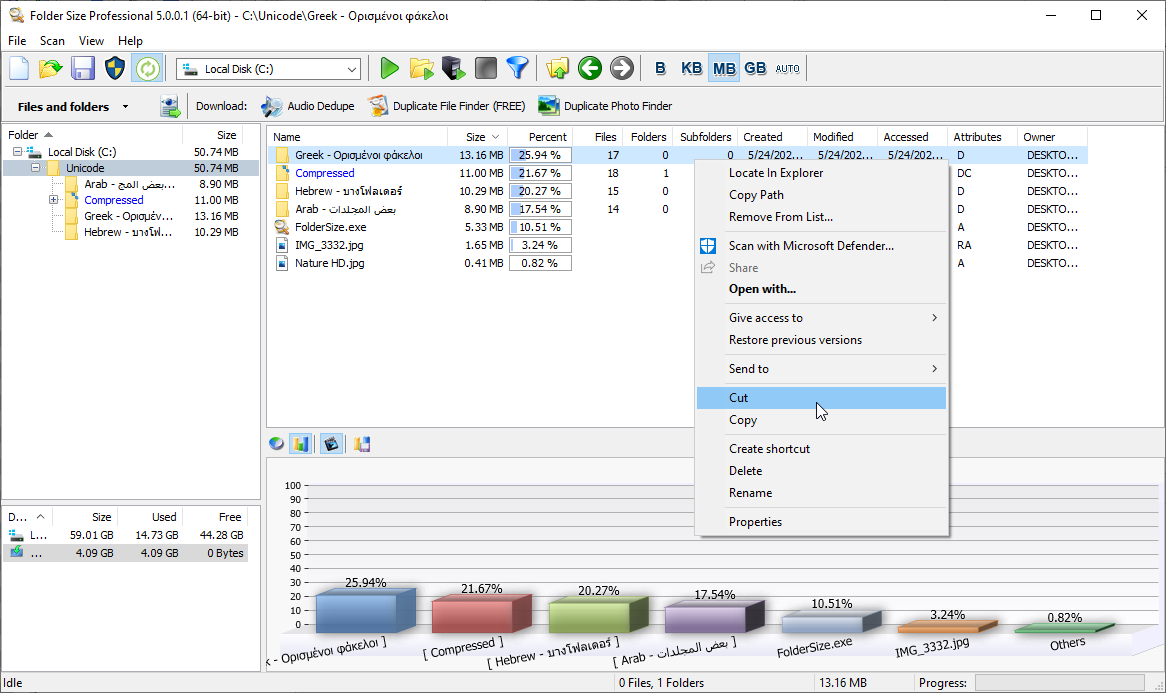
The fastest of these by a wide margin is Folder Size, a free tool that also happens to be good at finding your largest files and largest folders while you’re at it – so if disk space is the actual problem, it’s worth having installed regardless. But if you’d rather not add another app, File Explorer and the command line can both do this too, just with more clicking.
Here’s what’s covered below:
- Find Empty Folders (Zero Size)
- Find Empty Folders (Zero Items)
- Find Empty Files (Zero Size)
- Find Empty Folders Using File Explorer
- Find Zero-Size Files Using File Explorer
- Find Empty Files From the Command Line
1. Find Empty Folders (Zero Size)
A folder doesn’t have to be completely empty to be useless – if it only contains other empty folders, or files that are themselves zero bytes, it’s still just dead weight. That’s why searching by size rather than item count catches more than you’d expect.
Steps:
- Click “Scan folder” or “Scan drive” and pick where to search.
- On the toolbar, click “Report Type” and select “Empty -> Folders (zero size)”.
- Review the results – every zero-size folder in that location shows up in the list.
This report catches anything with no real content inside it, even if that “content” is technically a subfolder or two. Switching to a different folder or drive on the left updates the list instantly, so you don’t need to re-run the scan every time you want to check somewhere else.
2. Find Empty Folders (Zero Items)
This one’s stricter than the report above – it only flags folders with absolutely nothing inside, not even other empty folders. If a folder contains anything at all, even junk, it won’t show up here.
Steps:
- Choose a folder, drive, or network share to scan.
- On the toolbar, select “Empty -> Folders (zero items)” from the reports menu.
- Check the results for folders with nothing inside them.
Same as above, clicking a different folder in the tree refreshes the list without needing another full scan.
3. Find Empty Files (Zero Size)
Files are simpler than folders here – there’s no “contains other empty things” nuance, since a file can’t hold subfolders. It’s either zero bytes or it isn’t.
Steps:
- Pick a folder, drive, or network location and start the scan.
- Select “Empty -> Files (zero sizes)” from the toolbar.
- Review the list of zero-byte files.
Between this and the two folder reports above, Folder Size covers the whole picture in a single scan – you’re just switching which report you’re looking at, not rescanning the drive three separate times.
4. Find Empty Folders Using File Explorer
No extra software needed for this one – Windows can do a basic version of the same search on its own, it’s just slower to work with across a large drive.
- Open File Explorer – press Win + E, or click the icon in the taskbar.
- Go to the folder you want to check using the sidebar or drive list.
- Search for empty folders – type kind:folder size:empty into the search bar and hit Enter.
- Review what comes back – every folder matching that filter will be listed.
- Decide what to do with them – delete directly from File Explorer, or leave them if you’re not sure.
5. Find Zero-Size Files Using File Explorer
Same approach, different target – this searches for empty files instead of folders.
- Open File Explorer – Win + E or the taskbar icon.
- Navigate to the folder or drive you want to search.
- Search for zero-byte files – type size:0 in the search bar and press Enter.
- Check the results – anything listed is a 0-byte file.
- Handle them as needed – delete, ignore, or investigate further.
The size:0 filter is a genuinely useful shortcut worth remembering even outside this specific task – it works anywhere Windows search is available, not just in a dedicated empty-files hunt.
6. Find Empty Files From the Command Line
If you’re already comfortable in a terminal, this is faster than clicking through File Explorer – though it’s easy to mistype a path, so double-check before running anything.
- Open Command Prompt – press Win + R, type cmd, hit Enter.
- Navigate to the folder you want to search:
cd path\to\your\directory - Run this command:
dir /A:-D /B /S | find “0 File(s)”
Breaking that down: /A:-D leaves out directories so only files show up, /B strips the output down to bare file names, /S pulls in subdirectories too, and find “0 File(s)” filters everything down to just the zero-byte results. Adjust the path in the cd command for wherever you actually want to search – the rest stays the same.
Is It Safe to Delete Empty Folders and Files?
Usually, yes – an empty folder holds no data, so deleting one can’t cost you anything directly. The exception is folders an application created on purpose and expects to still be there – a logs folder that stays empty until the app actually needs to write something to it, for example. Delete it, and some poorly-written programs won’t check whether it exists before trying to use it again, which can throw an error or crash.
Most abandoned folders you’ll find are leftovers from software you’ve already uninstalled, and those are safe to clear out. Still worth a quick look at what’s in a folder’s path or name before deleting a large batch at once, just so you’re not guessing.
If you’re ready to actually clear these out rather than just find them, see our full guide on how to delete empty folders in Windows, which covers Folder Size, Command Prompt, and PowerShell methods in more detail, including how to send deleted folders to the Recycle Bin instead of removing them permanently.
Folder Size Reports – Largest Files & Largest Folders
The largest files and largest folders reports used to cap out at 50 items – that’s now been raised to 100, and the same increase applies to the oldest/newest file reports and the longest paths report. The empty folders and files reports aren’t limited at all – they’ll list everything in the scanned location, however many items that turns out to be.
This release also cleaned up some code under the hood – startup wasn’t slow before, but it’s a bit faster now.
Finding empty folders and files is really just one piece of what Folder Size does – the largest files report and largest folders report tend to be where people find the bigger space savings. Also, it shows hidden files and folders that occupy space. It’s free to download here: Folder Size
Good rundown. I never really thought about empty folders being an actual issue until I read this. Tried the File Explorer steps and then ran Folder Size out of curiosity – ended up finding a couple huge files I’d totally forgotten about too. Worth the ten minutes.
Pingback: Find Long Paths & Long File Names
I move around a lot for work so keeping my laptop lean actually matters to me. The File Explorer method here is simple enough that I could do it between flights. Downloaded Folder Size after reading this – being able to check disk usage quickly without a lot of setup is exactly what I needed.
The command-line steps are accurate, which isn’t always a given with these guides. Added Folder Size to what I use for keeping servers tidy. Good writeup.
The command-line section was exactly what I was looking for. Didn’t expect Folder Size to be useful beyond just empty folders either – ended up using it for general disk analysis too.
Straightforward guide, no complaints. The File Explorer search trick is easy enough for anyone to follow, and I appreciated the reminder not to just start deleting folders blindly. Grabbed the newer version of Folder Size while I was at it.
Solid technical writeup – the command-line instructions are accurate and I’ll probably point a couple people on my team to this. Didn’t realize Folder Size could also surface the largest files on a drive, that’s a nice bonus on top of the empty-folder stuff. Glad to see the report limit got bumped up too.
Didn’t know empty folders were even something worth checking for until this. The File Explorer steps were easy to follow. Ran Folder Size afterward and cleaned up my laptop pretty quickly. Appreciated.
Good breakdown of the different ways to handle this in Windows. The File Explorer and command-line sections are both clear, and the warning about not deleting folders carelessly is a fair point to include. Started using Folder Size regularly since it does more than just empty folders – the largest-files report has been genuinely useful.
Well laid out for both casual users and people who want the technical detail. File Explorer method worked fine for a quick check, but Folder Size is what I kept using afterward – the expanded limit on the largest files/folders reports was a nice addition. Worth the read if you’re trying to clean up a Windows install.
Good resource for anyone trying to get their storage under control. File Explorer method is easy enough for most people, though Folder Size ended up being the more useful tool overall since it handles disk analysis beyond just empty folders. Appreciated the note about being careful before deleting anything. Bookmarked for later.
Really helpful, thanks for putting this together.