

We have provided a list of the best ways to print folder and directory content in Windows easily. Use these tips to customize the way the printed folders are displayed and structured.
Usually, it is easy to print a folder that is visible on the screen by taking a screenshot and using an image editing application. You can also use the screen capture application itself to print the image. Unfortunately, if you need to print the entire folder tree and it contains tens or hundreds or more sub-folders the task becomes quite hard. Follow this guide to print the folder tree easily and for free.
List of Best Ways to Print Folder and Directory Contents
- Print Folders List by Taking a Screenshot
- Export Folder Content from CMD (Command Line)
- Print Folder Tree From Command Line Using The “Tree” Command
- Print Directories Using the Folder Size Application
- Steps to Print Folders
- Export and Print Folders as CSV, XLS, or TXT File
- Save Folders and Files Snapshot
- Print Folder Using JR Directory Printer
- Print Folder Contents Using Windows PowerShell
- Frequently Asked Questions About Printing Folders in Windows
1. Print Folders List by Taking a Screenshot
As I already mentioned, it is easy to use Windows Explorer to take a screenshot of the folder tree. You can use the screen capture tools that are built-in in Windows to capture and print the desired region. Try also the “Prt Scr” button to capture the entire screen and you can paste it into your favorite image editing application simply by pressing CTRL+V. You should crop the captured image as it includes the entire screen. If the folders that you want to print can not fit on the screen, you can make multiple captures and print them on separate pages.
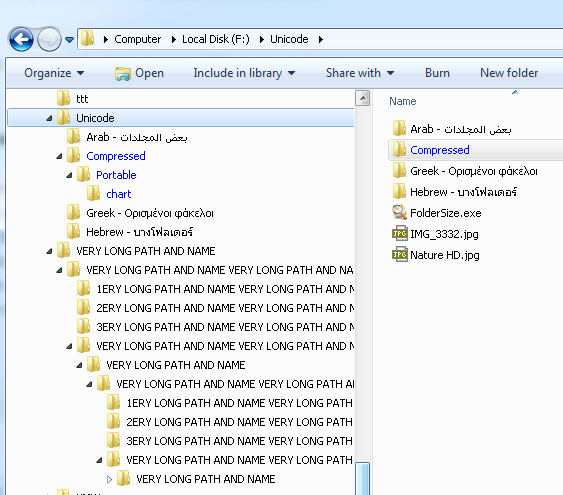
Print Folder Tree
Above is an example where very long paths take too much horizontal space and such an approach may not always be convenient.
2. Export Folder Content from CMD (Command Line)
There is also the possibility to print the folders from a command line using the DIR command. From the above example you can list the Unicode folder using the command below:
dir /s /AD unicode
To do this press WIN+R (RUN) and type CMD in the edit box.
The dir command lists all files and folders in the current folder. Use the /S flag as it denotes that all sub-folders of the specified folder should be listed. Set the /AD flag to denote that only the FOLDERS should be listed without the file names that are contained inside. The command lists the folders, but the output is not very readable. Furthermore, the UNICODE folder names are not listed properly and question marks are printed instead. So if you need to print non-Latin file names this may not be a proper solution for you.
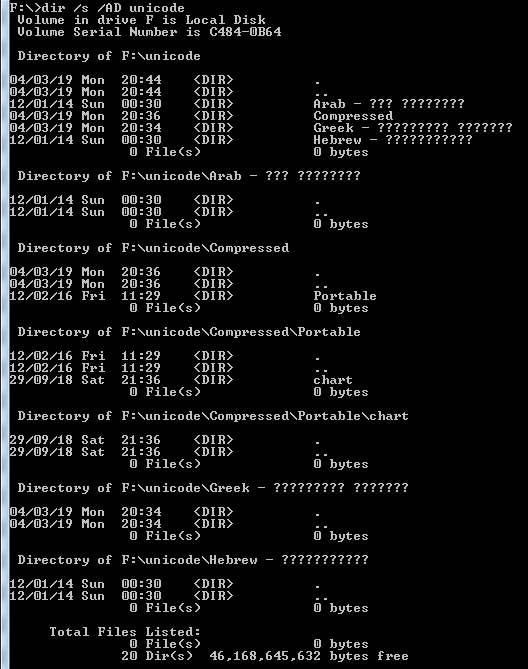
Command Line Print Folder
You can extend the same command to print the content of the folder and all its sub-folders to a text file instead of listing them in the console:
dir /s /AD unicode > FoldersList.txt
Execute the modified command and the results will be saved in a file named FoldersList.txt which is stored in the same folder. The file is in text format hence you can load it in Notepad or Word to print it.
3. Print Folder Tree From Command Line Using The “Tree” Command
Another much better solution for printing the folders is to use the Tree command. Modify the command as follows:
tree unicode > FoldersList.txt /A /F
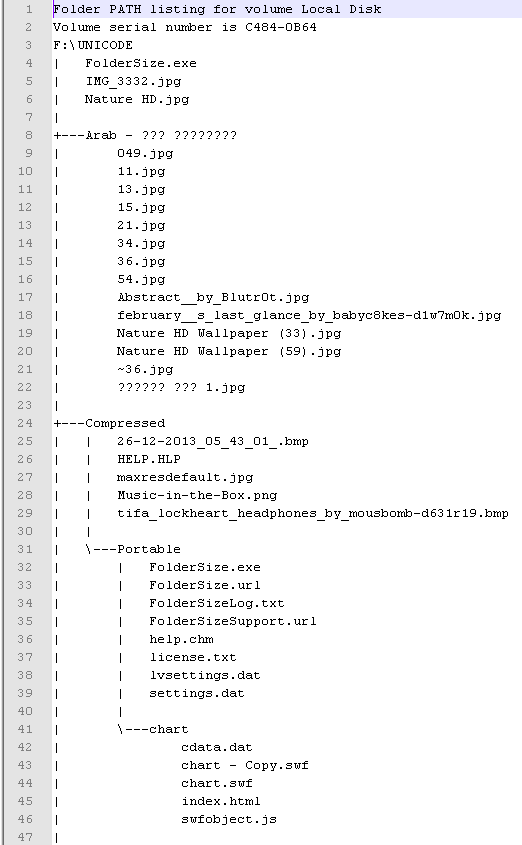
How to Print Folder Contents Easily with Tree Command.
As a result, the list is much better and the folder structure is easy to understand. Similar to the last command, Unicode symbols are replaced with question marks. If you do not use non-Latin symbols, these are simple ways to print directory listings.
4. Print Directories Using the Folder Size Application
Folder Size is a powerful tool that can list all folder and file sizes on your computer or network. It handles all the issues we encountered with the command-line methods above – including Unicode support, structured output, and the ability to export or print results in multiple formats. Folder Size is available for free, with printing features available in the licensed version. You can use the free version to visualize disk space distribution and locate large unused files using clear charts and sortable file lists.
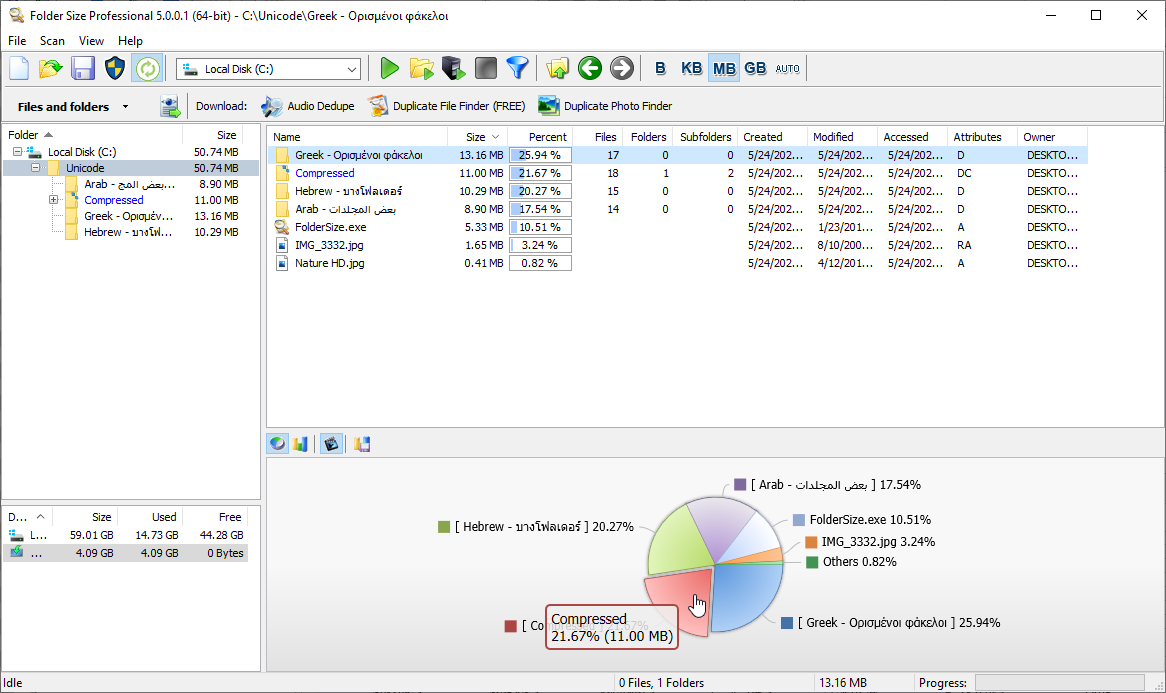
Print Folders Using Folder Size
5. Steps to Print Folders
- Use the scan buttons or file menu to scan the desired folder or drive. The tool can scan network locations and external drives too.
- Right-click the desired folder and click “Expand All Subfolders”. There are filtering options and an option to remove a folder from the tree, so you can adjust the results to print only the data you need.
- Click File > Print Folder Tree.
- This will display the Print Preview window where you can apply modifications to how the printed folders will look.
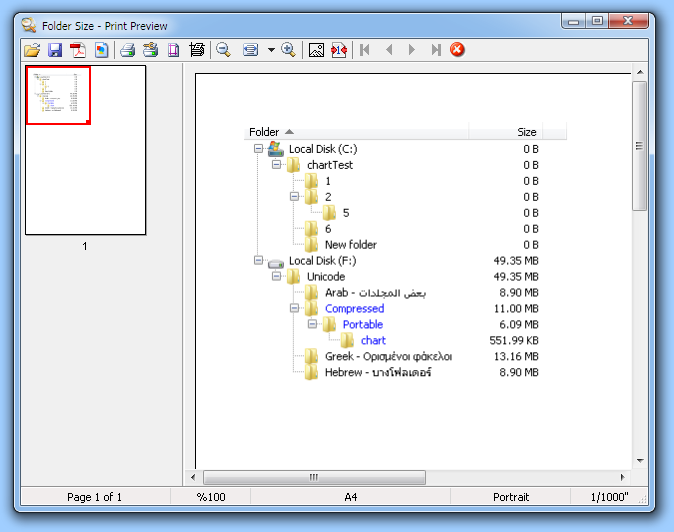
Print Folders Using Folder Size
- If the folder tree is too large to fit on a single page horizontally, the application will automatically distribute it across multiple pages. There is also an option to limit output to a single horizontal page.
- Tweak the options as needed and save the result as a PPV file, PDF, or multi-page TIFF, or print directly to paper.
6. Export and Print Folders as CSV, XLS, or TXT File
Folder Size provides robust features for printing folder contents, but if you need extra formatting or want to apply custom changes to the list, exporting is the better option. You can then edit the results in Microsoft Excel or any text editor.
There are multiple export options available in Folder Size. It can export folders, files, or a combination of both. Charts can also be exported as images.
Use “Export As…” to export all data listed in the application, including both files and folders. If you do not need the file list, you can disable it in settings before running a scan. You can also limit the scan depth to a specific folder level if needed.
“Export Details View…” will export the list shown on the right side of the application. It includes all files and folders inside the currently selected folder from the tree view on the left. You can configure the details view to list the largest files, largest folders, oldest and newest items, or entries with the longest paths.
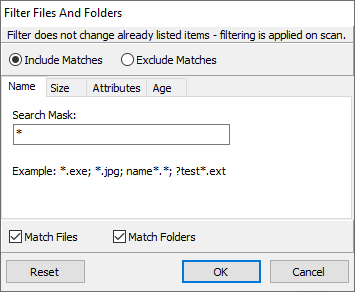
Folders List and Files List Filtering
The filtering options – covering folder and file name, size, date, attributes, and other file properties – make the combinations and possibilities practically unlimited.
7. Save Folders and Files Snapshot
Another useful feature of Folder Size is the ability to save all scanned data in an internal project file. Project files are compact and internally compressed, capable of storing information for millions of files without taking up significant disk space.
Since file and folder structures change constantly, you can capture the current state of a drive in a project file and print it later at your convenience. You can also filter the tree before saving, so the project file contains only the folders and files you actually need.
Project files are also useful for cataloging folder structures over time or monitoring changes to the file system. Because they include file and folder size data, they make it easy to spot folders that are growing unusually fast.
8. Print Folder Using JR Directory Printer
The free JR Directory Printer utility allows you to print a listing of every file contained within a directory and its subdirectories.
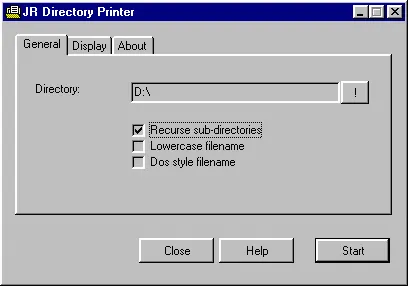
JR Directory Printer
The tool creates a file called “dirprint.txt” containing the folder and file list and automatically opens it in Notepad. Every time you click “Start”, the file is recreated in the JR Directory Printer installation folder.
Print Folder Options:
Check the Recurse Sub-directories option to see a complete list of all subdirectories and all files within them.
The Lowercase Filename option forces all file names into lowercase regardless of their actual casing.
The DOS Style Filename option limits file name length to 8 characters.
Display Sub-directories lists all subdirectories under the selected folder along with files in the root directory only – it does not recurse into subdirectories. To get a complete recursive list, enable the Recurse Sub-directories option instead.
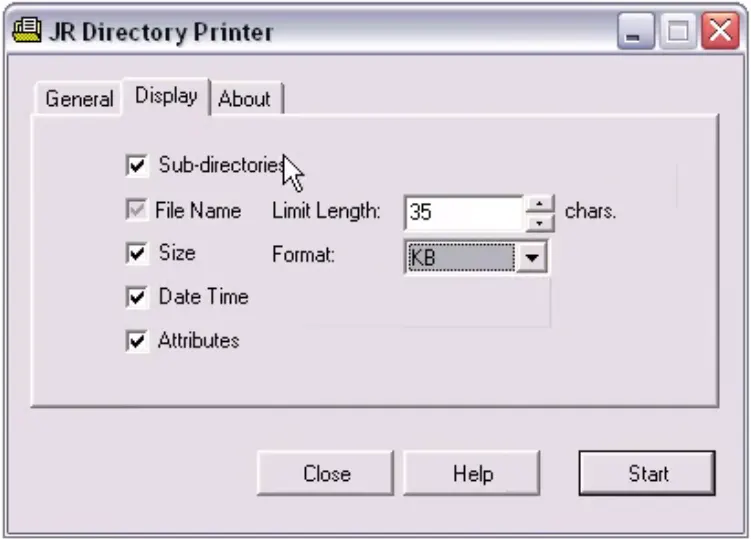
JR Directory Printer Options
You can limit the length of file names so they fit properly in the list – the default is 35 characters. The Display Size, DateTime, and Attributes options let you include or exclude file size, modification date, and file attributes (a – Archive, r – Read Only, s – System, h – Hidden).
Download JR Directory Printer
9. Print Folder Contents Using Windows PowerShell
When you need to print folder contents in Windows, PowerShell is one of the most flexible methods available. Unlike the built-in options, PowerShell lets you generate a complete list of files and subfolders, export them in a structured format, and print or share the results. This method is especially useful for folders containing hundreds or thousands of files, deeply nested subdirectories, or when you need to include additional details such as file sizes, creation dates, or full paths.
Step 1: Open Windows PowerShell
Press Win + X and select Windows PowerShell or Windows PowerShell (Admin). Running as administrator ensures you have the necessary permissions for all folders.
Step 2: Navigate to Your Folder
Use the cd command to navigate to the target folder:
cd "C:\Users\YourUsername\Documents\TargetFolder"
Step 3: Export Folder Contents
To generate a complete list of all files and subfolders, run:
Get-ChildItem -Recurse | Select-Object FullName | Export-Csv -Path "C:\Users\YourUsername\Documents\folder_contents.csv" -NoTypeInformation
Here is what each part does:
- Get-ChildItem -Recurse – retrieves all files and subfolders recursively.
- Select-Object FullName – selects the full path of each item.
- Export-Csv – saves the output to a CSV file.
- -NoTypeInformation – removes the type header line from the CSV output.
Step 4: Open and Print the CSV File
Navigate to where you saved the CSV file and open it in Microsoft Excel, LibreOffice Calc, or a text editor. Format the list as needed and print directly from there.
PowerShell handles large folders automatically, supports nested directories, and produces output that can be saved as CSV, text, or HTML. It is a solid option for IT professionals or anyone who needs a reproducible, scriptable way to document folder contents.
Final Thoughts
Each method in this guide has its place depending on what you need. Screenshots work for quick, small captures. The CMD and PowerShell methods are free and flexible but require some technical comfort. JR Directory Printer is a simple free option for basic file lists.
For the most complete solution – especially if you need to print large folder trees, export structured data, or handle Unicode paths reliably – Folder Size is the tool we recommend. The free version already gives you full disk space visualization and sortable file lists. The licensed version unlocks folder printing, PDF export, and network scanning, making it the most capable option on this list for serious folder management tasks.
Did you discover an easier way to print folder trees or file lists? Share it in the comments below – we would be glad to hear your solutions.
Pingback: Print Folder Sizes, Folder Tree, File Sizes, Largest Folders And Files
Pingback: Export Folder Structure or Folder List to Excel, CSV or XML - Folder Size
Thank you. tree command worked great for folder, sub folder, file names and size. My question, I have approx 15,000 jpg photos all in folder/subfolder set up. Is there a way to print in thumbnail size the (black and white) actual file contents ( photo ) within each sub folder
Pingback: Find Long Paths & Long File Names
How do you list only the file names? I hav no use for directories and that is explained here, so what gives just the directory names and extensions??
You can use the tool or the DIR command.
The print feature in [Folder Size Tool] adds a convenient layer to the robust disk space analysis capabilities. Being able to print detailed folder contents helps in creating tangible records for offline reference or documentation. While the primary strength lies in its intuitive visualization of disk space usage, the addition of a print feature enhances the tool’s versatility. Users can now easily generate hard copies of folder contents for various purposes, contributing to a more comprehensive file and folder management experience.
For LinuxTerminal:
Open a terminal.
Navigate to the folder using the cd command.
Type ls > output.txt and press Enter. This will create a text file (output.txt) with the list of files and folders.
Open the text file and print it.
The ability to print folder contents is a valuable feature that enhances organization and accessibility. Printing folders provides a tangible, offline reference for the contents of a directory, offering a quick overview without the need to access a computer. This can be particularly useful for creating physical documentation, sharing file lists with colleagues, or maintaining records for offline reference. It adds a layer of convenience and flexibility to digital file management, ensuring that crucial information is readily available in various contexts. Whether for archiving purposes, collaborating on projects, or simply having a hard copy backup, the option to print folders brings an extra level of versatility to effective file organization