

All MindGems duplicate finders let you narrow down a scan before it even starts, so you’re not sifting through irrelevant results afterward. This guide covers every filtering option available in Duplicate File Finder – by file type, folder, size, date, and name – and the same filtering approach applies across Duplicate Image Finder and Duplicate Song Finder too.
Duplicate File Finder – How to Filter Files and Folders When Searching For Duplicate Files
When looking for duplicates it is sometimes necessary to filter the results by file type, folder location, file attributes like date or size, file name, and other properties – this is possible using the filtering functionality inside Duplicate File Finder.
The filtering settings are applied before starting a scan. This can lead to a much quicker scan if you’re only interested in certain file types or locations.
There are plenty of filtering options available inside Fast Duplicate File Finder.
Enabling and Disabling the Filtering Option When Searching For Duplicate Files
The filter button is a two-state button at the top of the application, represented by a funnel icon. When it’s off, pressing the button will display the filtering options.
- If the options are applied using the OK button, the filtering tool button will stay pressed, denoting that filtering is applied.
- If the filtering dialog is canceled, the filtering tool button will remain unpressed, denoting that no filtering is applied.
- If the filtering tool button is pressed, pressing it a second time will disable the filtering and the tool button will pop back up.
Pressing the button a second time, when it’s in its unpressed state, will display the filtering window where the last filter can be edited and reapplied.
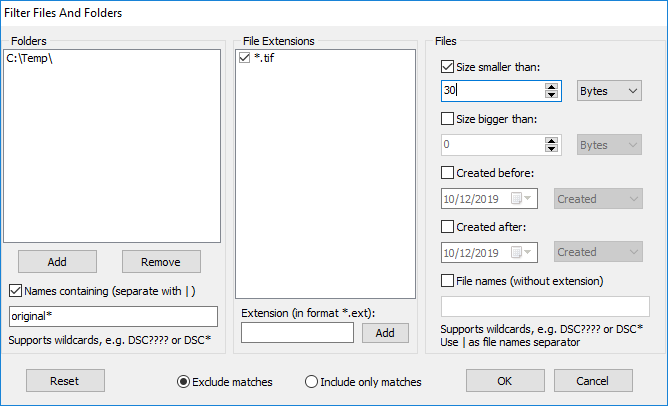
Including or Excluding Matches From the Duplicate Search
At the bottom of the filtering dialog, there’s an option that determines whether items matched by the filtering options will be included in or excluded from the results.
Filtering Duplicates By Folder
The folders pane can be used to filter duplicates by location. There are buttons at the bottom to add or remove folders – the remove button acts on the currently selected item.
Filtering Duplicate Files By Type – File Extension
The File Extensions panel provides options to filter files by type. Extensions in the format *.ext (asterisk-dot-extension) can be added to the list. Use the checkboxes in the list to toggle file types on or off. Unchecked items are removed automatically the next time the application is restarted.
Filtering Duplicates By File Attributes – File Date, File Size and File Name
The File Attributes panel provides options to filter duplicates by specific file properties. Using the File Size Bigger Than and File Size Smaller Than options together with the global Exclude/Include setting lets you search for duplicates inside or outside a certain file size range.
The same applies to the date range – files older, newer, or inside/outside a certain period of time can be included in or excluded from the results.
There’s also an option to filter files by name, which supports the standard file name wildcards: an asterisk denotes multiple characters, and a question mark denotes a single character. For example, A*LOT?OF* will match all files starting with A, followed by any characters, then containing LOT, followed by a single character, followed by OF, followed by any number of other characters. Another example is Copy of *, which will match all files that start with “Copy of.”
Using the filter is straightforward and provides a lot of flexibility. Set up the filter options and make sure to apply them using the OK button in the filtering dialog. The filter toolbar button (the one with the funnel icon) will stay pressed, denoting that filtering is active. Once filtering is enabled, start the scan to search for duplicate files that match the filter options.
How To Compare Folders For Duplicates
If the above filtering options aren’t sufficient, you can also Exclude Folders From Auto-Check or Exclude Folders From Self-Scan, which let you compare folders easily.
Take a look at Duplicate Photo Finder and Duplicate Songs Finder for dedicated tools. This short article can also help you choose the right duplicate finder for your needs.
Why isn’t Fast Duplicate File Finder Pro 3.7.0.1 finding duplicate files such as this pair: I have 7000+ such pairs that I need to find. In each pair of duplicate files, one file name is truncated and the other file name is not truncated. The truncated file name files also contain a watermark and range from 100-200KB. The non-truncated file name files contain no watermark and range from 1MB-5MB.
16390604’MariaSchummer dJoesSchummer+Anna— Kehlen gpDidMei.JPG
and
16390604’MariaSchummer dJoesSchummer+Anna— Kehlen gpDidMeisMariaKaules(Schoenberg,LU).JPG
Hello
First I recommend you to update to the latest version as 3.7.0.1 is quite outdated.
You can detect those duplicates by using the “Similar file names” method.
If you want to compare similar images the standard duplicate file finders can not do this. Thar is why we have dedicated Duplicate photo finder tool
You can download and test the FREE demo on your images.
Here is an explanation why Audio Dedupe and VSDIF are provided as separate tools and why they are much better in their tasks than regular duplicate finders that are found on the market:
https://www.mindgems.com/info/Which-Duplicates-File-Finder-To-Choose.html