
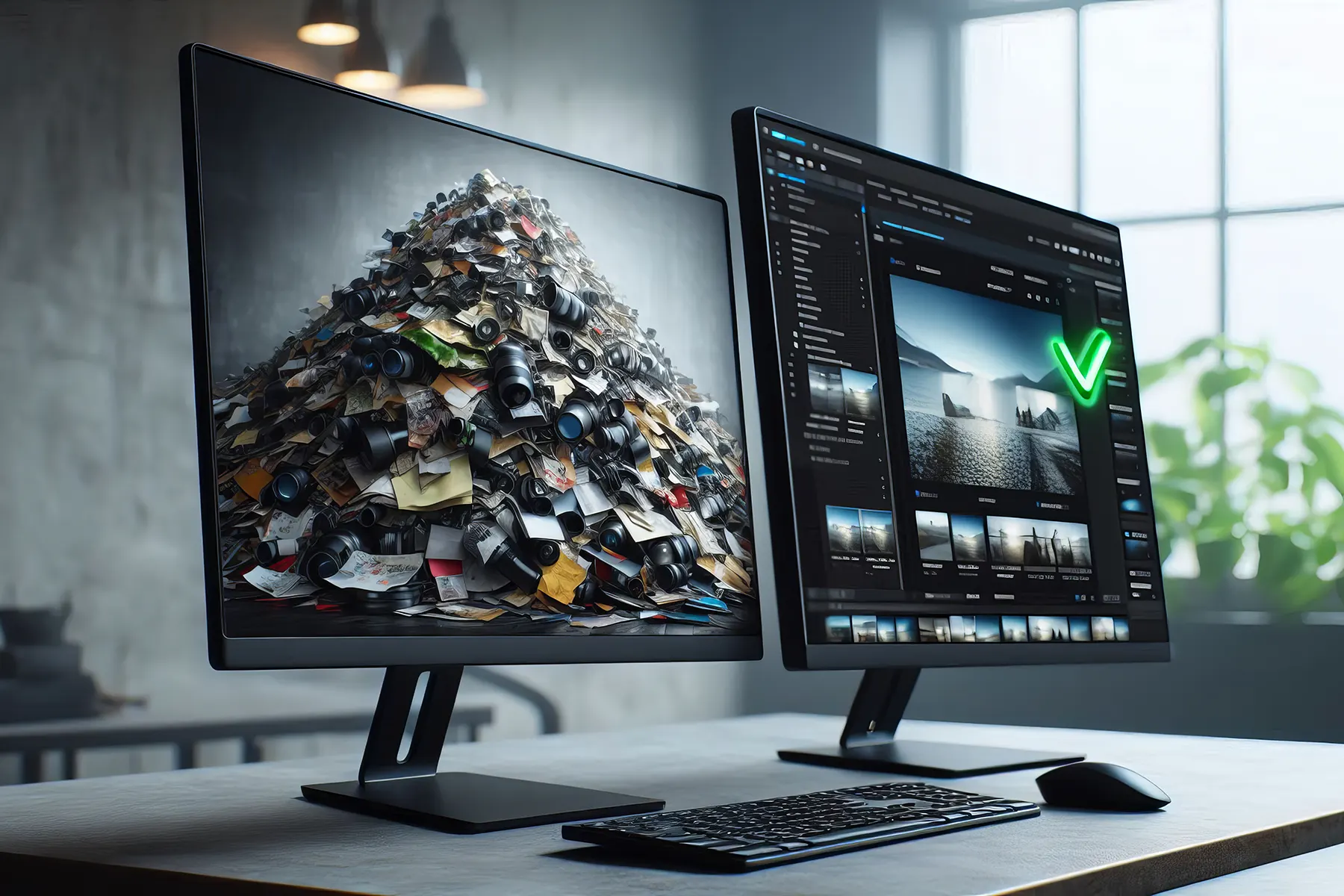

Finding duplicate photos is one of those tasks that sounds simple until you actually sit down to do it. Your library looks fine at first – then you start noticing the same beach shot in three different folders, four nearly identical versions of a portrait, and a whole batch of camera roll imports you copied twice by accident. This guide walks you through how to find and remove duplicate and similar photos using Visual Similarity Duplicate Image Finder – a tool that actually analyzes what is in the photo rather than just comparing file names or sizes.
- What Is a Duplicate Photo Finder?
- Why Duplicate Photos Are a Problem
- How Duplicate Photo Detection Works
- How to Find and Remove Duplicate Photos
- Finding Similar but Not Identical Photos
- Tips for Large Photo Libraries
- What to Look for in a Duplicate Photo Finder
- Common Mistakes to Avoid
- Frequently Asked Questions
- Final Thoughts
What Is a Duplicate Photo Finder?
A duplicate photo finder is a tool that scans your photo library and identifies copies – but the word “duplicate” covers a lot of ground. At one end you have exact copies: the same file saved twice with a different name. At the other end you have visually similar photos: two shots of the same subject taken a second apart, or the same image saved as both a JPEG and a PNG.
Most tools marketed as duplicate photo finders only handle the first case. They compare file hashes or sizes and flag byte-for-byte identical files. That works for finding copies made by accidental re-imports or backup errors, but it completely misses the harder problem – photos that look the same but are technically different files.
A genuine duplicate photo finder like Visual Similarity Duplicate Image Finder does something different. It analyzes the actual pixel content of each image and compares what the photo shows, not how the file is stored. This means it can match the same photo across different formats, resolutions, or after minor edits – catching duplicates that file-based tools will always miss.
Why Duplicate Photos Are a Problem
The most obvious issue is storage. RAW files from a modern camera can be 25-50MB each. A library of 50,000 photos – not unusual for anyone who shoots regularly – can easily run to several hundred gigabytes. If even 20% of those are duplicates, you are carrying tens of gigabytes of files you do not need.
But storage is not the worst of it. The real cost is time. When your library contains thousands of near-identical shots, finding a specific photo becomes genuinely difficult. You scroll past dozens of similar images trying to remember which one you actually edited, which was the sharpest, which had the best composition. That friction adds up every time you open your photo manager.
Duplicates accumulate in predictable ways. Importing the same SD card twice. Syncing photos from a phone and a camera that both shot the same event. Saving edited versions without removing the original. Downloading images from multiple sources. None of these feel like a big deal at the time – but six months later your library is twice the size it needs to be and significantly harder to navigate.
How Duplicate Photo Detection Works
File-based tools compare duplicates using hash algorithms like MD5 or CRC. These produce a unique fingerprint for each file based on its raw data. Two files with identical hashes are byte-for-byte identical. This approach is fast and accurate for exact copies but fails the moment anything about the file changes – different compression, different format, any pixel modification at all.
Visual similarity tools take a different approach. They generate a perceptual hash – a compact representation of what the image looks like rather than what data it contains. Two photos of the same subject will produce similar perceptual hashes even if they have different resolutions, formats, or minor color corrections. The tool compares these hashes and groups images that fall within your specified similarity threshold.
Visual Similarity Duplicate Image Finder uses this approach with a multi-threaded engine and result caching. The first scan of a large library takes the most time – subsequent scans are much faster because the tool reuses previously analyzed data and only processes new or changed files.
How to Find and Remove Duplicate Photos
Step 1 – Download and Install
Download Visual Similarity Duplicate Image Finder from the official download page. Always use the official source – third-party download sites sometimes bundle unwanted software. The installer is straightforward and takes under a minute. Windows SmartScreen may show a warning on first run – this is a standard warning for software that is not yet widely distributed and does not indicate a problem with the application.
Step 2 – Add Your Photo Folders
Click Add or drag folders directly from Windows Explorer into the folder list. You can add multiple folders, entire drives, or network locations. If you want to compare two specific collections – for example your main library against a backup drive – add both and enable the Exclude from Self-Scan option on each. This tells the tool to compare the folders against each other rather than scanning each one internally, which is exactly what you want when consolidating libraries.
Step 3 – Choose a Scan Mode and Start
The default scan mode is visual similarity comparison at 95% – this is the right starting point for most users. At 95% the tool finds photos that look nearly identical while filtering out shots that are merely similar in subject. You can lower this threshold later if you want to catch more variations, but start with the default and adjust based on what the results show.
Click Start. The first scan of a large library will take some time – most of that is reading files from disk rather than processing them. An SSD makes a noticeable difference here. The tool processes files in parallel across multiple CPU threads, so it scales well with modern hardware.
Step 4 – Review the Results
Results are grouped by similarity so you see all matching copies together. Click any image to open a full preview. The Auto-Check feature can automatically mark duplicates for removal while keeping one copy in each group – you can configure the rules to keep the highest resolution, newest, or largest file. Use Quick Check to apply additional filters on top of the automatic selection – for example keeping files in a specific folder regardless of quality.
Do not skip the review step. Even with accurate detection, it is worth scanning through the groups before deleting anything, particularly on the first run through a library you have not cleaned before.
Step 5 – Remove Duplicates Safely
Once you are satisfied with the selection, choose your action: move to a temporary folder, send to Recycle Bin, or delete permanently. Moving to a temporary folder first is the safest approach – it lets you review what was removed before committing to permanent deletion. Empty the temporary folder once you are confident nothing important was caught.
If you are working through a very large library, use Save Project before closing. This saves your scan results and selections so you can continue the next day without rescanning from scratch.
Finding Similar but Not Identical Photos
The visual similarity mode is where this tool genuinely separates itself from generic duplicate finders. Lower the similarity threshold to 80-90% and it will surface photos that share the same subject or composition – useful for finding near-misses from a burst shoot, identifying which of several similar edits you actually kept, or spotting photos of the same location taken on different visits.
The Search by Sample Image feature takes this further. Select a specific photo and the tool will find all other images in your library that visually resemble it. This is useful when you are looking for all variants of a particular shot without wanting to scan the entire library at a broad threshold.
Be aware that lowering the threshold significantly increases the number of results – and the proportion of false positives. At 70% you will start seeing photos grouped together that merely share similar colors or lighting. The preview tools make it easy to review these groups, but expect more manual work at lower thresholds.
Tips for Large Photo Libraries
Libraries over 100,000 images need some extra thought. A few things that help:
- Scan in batches by folder or year – rather than throwing your entire library at the tool in one go, work through it in logical sections. This makes results easier to review and reduces the memory footprint of each scan.
- Enable caching – put the cache file on an SSD if possible. The cache stores fingerprint data from previous scans so the tool does not reprocess files it has already analyzed. On a library you scan regularly this dramatically reduces scan time.
- Scan local drives first – network drives and USB storage are significantly slower to read than local SSDs. Clean your main library first, then scan external sources against it.
- Close other applications during the scan – the tool uses multi-threaded processing and benefits from having CPU and memory available. Closing browsers and other heavy applications makes a measurable difference on large scans.
- Save your project frequently – if you are working through a large result set over multiple sessions, save the project after each session so you do not lose your selections.
What to Look for in a Duplicate Photo Finder
Most tools in this category fall into one of two camps: generic file deduplicators that have been rebranded as photo tools, and genuine image analysis tools. The difference becomes obvious the moment you test them with photos that are visually identical but technically different files.
The things that actually matter when choosing a duplicate photo finder:
- Visual similarity detection – not just hash comparison. If the tool cannot find the same photo saved as both a JPEG and a PNG, it is not a photo finder, it is a file cleaner.
- RAW format support – essential for anyone who shoots with a DSLR or mirrorless camera. Many tools support common formats but quietly skip RAW files or handle them poorly.
- Result grouping and preview – results should be grouped by duplicate set with side-by-side preview. A flat list of duplicates with no grouping makes reviewing results unnecessarily difficult.
- Auto-selection rules – the ability to automatically keep the highest resolution, newest, or largest file in each group saves significant time in large libraries.
- Offline processing – your photos should never leave your computer. Any tool that requires uploading images to a cloud service for analysis is a privacy risk.
- Caching – a tool that rescans every file from scratch on every run is going to be slow on large libraries. Caching of previously analyzed files is not optional at scale.
- Stability – this sounds obvious but many free tools crash or freeze on libraries over a certain size. Test with your actual library before committing to a cleanup.
Visual Similarity Duplicate Image Finder covers all of these. It has been actively developed for 25 years and handles libraries of hundreds of thousands of images without stability issues – something many newer tools cannot claim.
Common Mistakes to Avoid
- Deleting without reviewing first – auto-selection is a starting point, not a final answer. Always scan through the groups before permanently removing anything, especially on the first run through a library.
- Setting the similarity threshold too low – at 70% or below you will start grouping photos that have nothing in common except similar colors. The 95% default exists for a reason – adjust it gradually and check what changes in the results before going further.
- Not backing up before the first scan – make a backup of your library before running any duplicate removal tool for the first time. This is especially important if you are working with irreplaceable photos.
- Scanning slow drives without caching – scanning a large library from a network drive or external HDD without caching enabled is slow and pointless. Copy to a local drive first, or at minimum enable caching so subsequent scans do not repeat the work.
- Deleting edited versions accidentally – if you keep edited and original versions of photos in the same folder, make sure your auto-selection rules favor the version you actually want to keep – usually the higher resolution or more recently modified file.
- Using a generic duplicate file finder – if the tool does not mention visual similarity or image fingerprinting anywhere in its description, it is almost certainly just comparing file hashes. It will miss the vast majority of photo duplicates.
Frequently Asked Questions
Final Thoughts
Duplicate photos are one of those problems that gets worse the longer you ignore it. A library that feels manageable today will feel overwhelming in two years if you keep accumulating near-identical shots without cleaning them out periodically.
The tools that make this genuinely easy are the ones that analyze what photos look like rather than how they are stored. Visual Similarity Duplicate Image Finder has been doing this for 25 years and handles the full range of scenarios – exact copies, cross-format duplicates, resized versions, and visually similar near-duplicates – in a single scan. The result caching and Auto-Check features make it practical to use on large libraries without spending hours reviewing results manually.
Run it on your library once, set up a habit of scanning every few months, and the problem largely takes care of itself.