
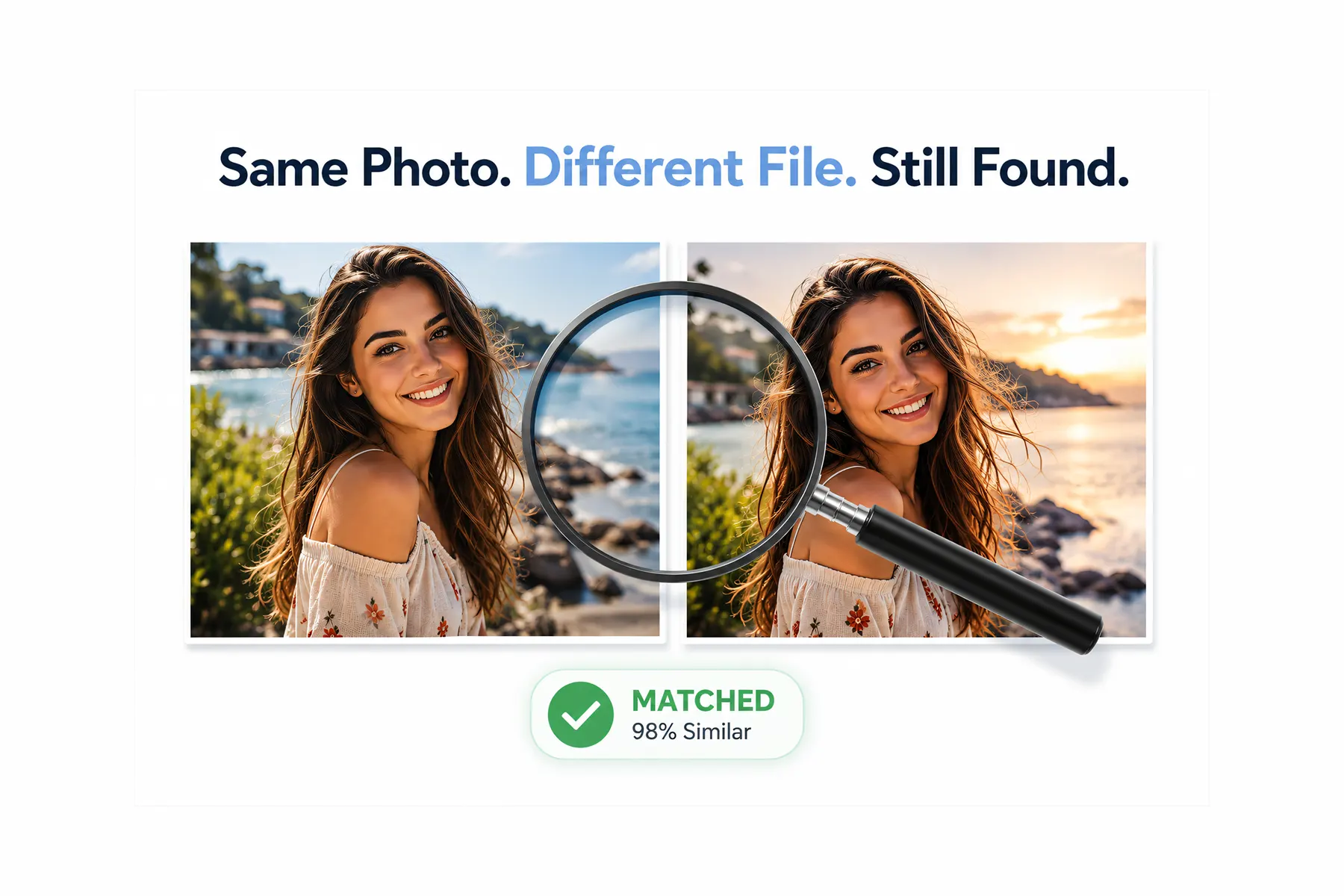

A duplicate photo cleaner is the fastest way to reclaim disk space and untangle a photo library that’s grown messy over years of downloads, backups, and phone transfers. Instead of scrolling through thousands of near-identical shots by hand, the right duplicate photo cleaner scans your entire collection and groups matching photos automatically – even when they’ve been renamed, resized, or saved in a different format. This guide breaks down how these tools actually work, what separates a reliable one from a weak one, and which duplicate photo cleaner is worth installing in 2026.
What Is a Duplicate Photo Cleaner?
A duplicate photo cleaner is a dedicated tool built specifically to find and remove repeated or near-identical photos by analyzing the images themselves – not just their file names or sizes. It scans a folder, drive, or entire library, groups matching photos together, and lets you review and delete the copies you don’t need, all without touching the images it doesn’t flag.
That “dedicated” part matters more than it sounds like it should. A real duplicate photo cleaner is not the same thing as a common duplicate file finder pointed at a photo folder – and a lot of tools marketed as photo cleaners are exactly that: a generic duplicate finder that simply filters for image file extensions. These tools can only catch exact file matches. The moment a photo is renamed, saved in a different format, or resized, they miss it entirely, because they’re still comparing file data instead of the picture itself.
A proper duplicate photo cleaner decodes and compares the actual visual content of each image – content-based image retrieval, which is what lets it catch duplicates that a filename or file-size match never will. MindGems Visual Similarity Duplicate Image Finder is one of the most popular duplicate photo cleaner tools, an established example of this approach, having built its detection method around comparing image content rather than file properties since it first introduced the technique over two decades ago.
Here’s what a complete duplicate photo cleaner looks like in practice
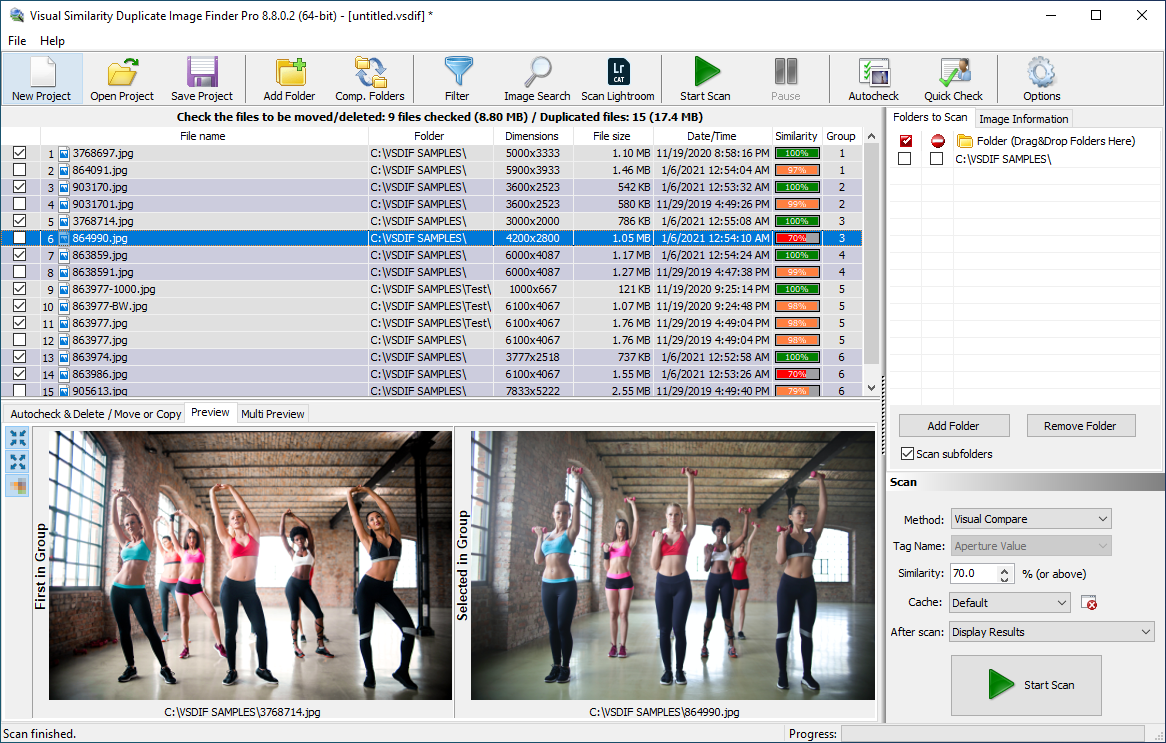
A good duplicate photo cleaner groups similar photos together, making it easy to review and safely remove duplicates.
How Do Duplicate Photo Cleaners Detect Similar Photos?
Every duplicate photo cleaner works by comparing photos against each other and flagging the ones that match closely enough to count as duplicates – but *how* that comparison happens varies enormously between tools, and it’s the single biggest factor in how many actual duplicates a scan will find.
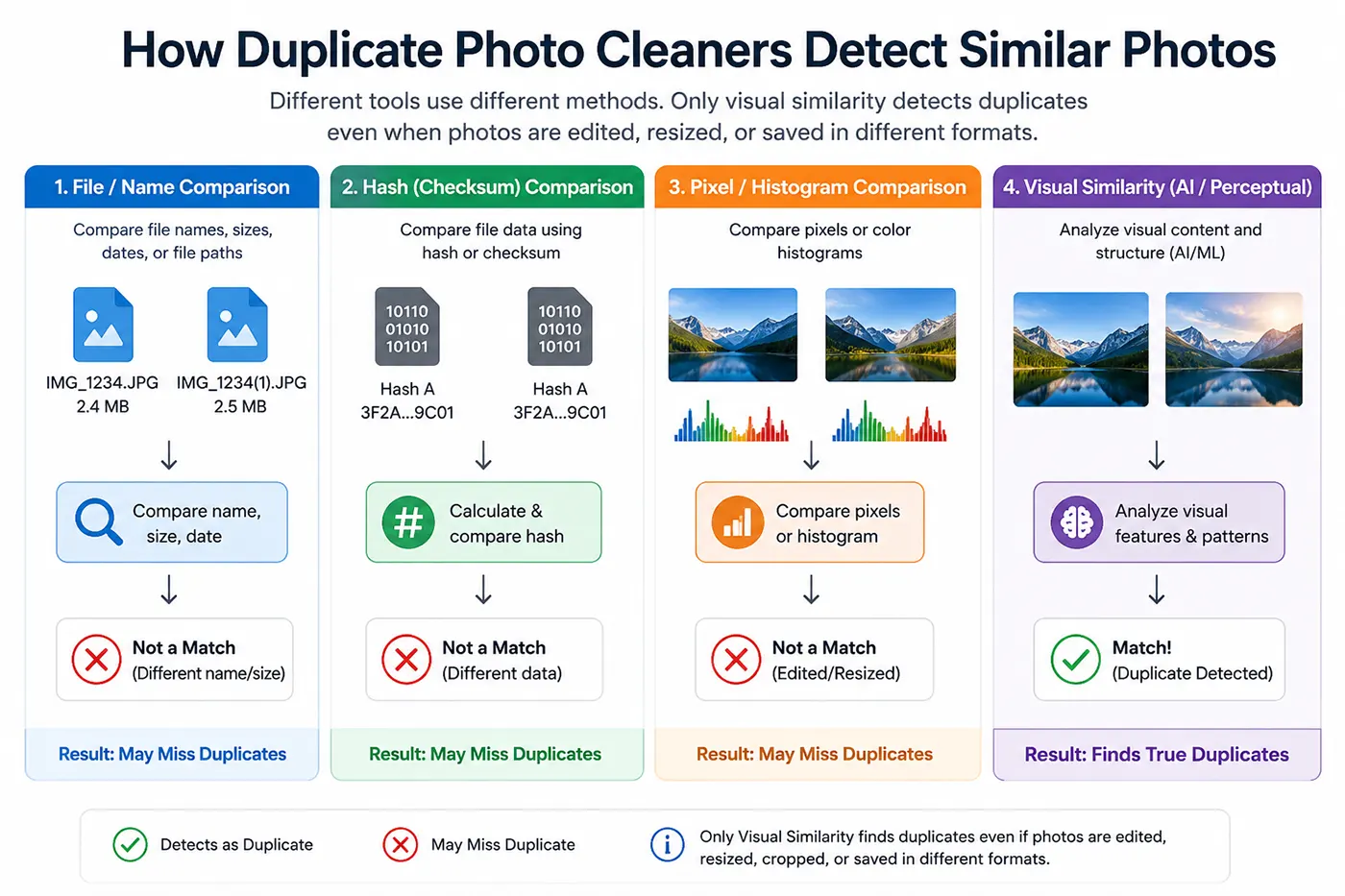
Comparison of the four main duplicate photo detection methods. Only visual similarity analysis can reliably find duplicate and similar photos after editing, resizing, cropping, or format conversion.
At the simplest end, a tool might just compare file names or file sizes. This catches obvious cases – the same file copied twice into two folders – but breaks the moment anything about the file changes. Rename a photo, and a filename-based tool loses track of it completely. Save it at a slightly different size, and a size-based tool won’t connect it to the original either.
A step up from that is hash-based comparison, sometimes called checksum matching. Here, the tool generates a unique fingerprint from a file’s raw data and compares those fingerprints instead of the names or sizes directly. This is fast and reliable for catching byte-for-byte identical files, which is why it’s built into so many general-purpose duplicate finders. But a hash is calculated from the file’s data, not the image it represents – so resave a photo in a different format, recompress it, or even just re-export it from the same editing software twice, and the hash comes out completely different, even though the photo looks identical to the human eye. Hash-based tools have no way to know the two files are related.
The most advanced approach is visual similarity analysis, where the tool decodes each image and compares the actual picture rather than the underlying file data. This is a fundamentally different process (perceptual hashing): instead of asking “are these files identical,” it asks “do these images look the same.” That distinction is what allows it to catch duplicates that every method above misses entirely – a JPG and a PNG of the same photo, a resized copy, a rotated or flipped version, or a lightly color-corrected edit.
MindGems Duplicate Image Finder is a good example of this advanced end of the category. Rather than relying on simple hashes or file properties, it performs true image analysis – loading and evaluating the actual visual content of every photo it scans. Because of that, it consistently outperforms tools built around hash or filename matching, since those methods are structurally incapable of recognizing a duplicate the moment any part of the file itself changes, no matter how visually identical the photo still is.
Here’s how these detection methods stack up against each other directly:
| Detection Method | Compares | Finds Renamed Files | Finds Different Formats | Finds Edited or Resized Copies | Speed |
|---|---|---|---|---|---|
| File Size Matching | File size only | Yes | No | No | Fastest |
| Filename Matching | File names only | No | Yes | Yes | Very fast |
| Hash / Checksum Matching | Raw file data | Yes | No | No | Very fast |
| Visual Similarity Duplicate Image Finder | Actual image content | Yes | Yes | Yes | Fast |
The pattern is clear: every method except visual similarity has at least one blind spot that lets duplicates slip through untouched. File size and hash-based matching are fast precisely because they’re comparing simple, fixed data rather than decoding an actual image – but that speed comes at the cost of missing anything beyond an exact, unmodified copy. Filename matching sits in an odd middle ground, catching format and edit variations by accident (since it never looks at content at all) while missing the far more common case of a renamed file entirely.
Visual similarity is the only method in the table with no structural blind spot for common real-world duplicates – the tradeoff is that decoding and analyzing actual image content takes more processing time than comparing a size, name, or checksum. MindGems Duplicate Image Finder is built around this method specifically because the accuracy gain outweighs the speed cost for most photo libraries, especially once multi-threading and hardware acceleration are used to close that gap.
Hashes vs. Visual Similarity: Why the Detection Method Matters
Not every duplicate photo cleaner detects duplicates the same way, and the method a tool uses determines exactly which duplicates it can find – and which ones it will silently miss. Here’s how the most common detection methods actually compare.
Common duplicate finders compare only file names, file sizes, or raw binary data
These are the least reliable option for photos. These tools were built for general file management, not images, so they only catch a duplicate if the file itself is untouched – same name, same size, same bytes. The moment a photo is renamed, re-saved, or converted to a different format, it becomes invisible to this method, even though it’s pixel-for-pixel the same picture.
Many tools compare images pixel by pixel
This sounds precise, but it’s fragile in practice. A pixel-level comparison expects two images to line up exactly, so even a slight difference in color, compression, resolution, or a single-pixel crop causes the comparison to fail – the tool concludes the images are different when a person looking at them would immediately recognize them as duplicates.
Some tools compare color histograms
That essentially is checking whether two images have a similar overall color distribution. This produces some of the poorest results of all, since two completely unrelated photos can share a similar color histograms (a beach photo and a desert photo, for example) while two real duplicates with a slight color adjustment can score as dissimilar. Histogram comparison measures color statistics, not the actual content of the photo.
Other tools rely on hashes (checksums)
Hashes are generated from the file’s data. This is fast and works well for catching exact, untouched copies, but a hash is only ever a fingerprint of the file – not the image. Two visually identical photos saved through different software, at different quality settings, or in different formats produce completely different hashes, so hash-based tools frequently produce false matches on unrelated files while missing real duplicates that were only re-encoded.
Best Duplicate Photo Cleaners Compare Actual Image Content
MindGems Duplicate Image Finder takes a fundamentally different approach: it analyzes the actual image and compares photo features and visual characteristics to determine similarity, rather than comparing file data, raw pixels, or color statistics in isolation. This feature-based analysis is what allows it to correctly identify duplicates that every method above fails on – resized, rotated, cropped, recompressed, or format-converted copies – while avoiding the false positives that plague histogram- and hash-based tools.
| Detection Method | What It Actually Compares | Common Failure Point | False Positives | Accuracy on Real-World Duplicates |
|---|---|---|---|---|
| File Name / Size / Binary Matching | File metadata and raw file bytes | Misses anything renamed, resized, or reformatted | Low | Very Low |
| Pixel-by-Pixel Comparison | Exact pixel values, position by position | Fails on any resize, crop, or color shift | Low | Low |
| Histogram Comparison | Overall color distribution | Confuses unrelated photos with similar colors | High | Very Low |
| Hash / Checksum Matching | A fingerprint of the raw file data | Any re-encode or format change produces a new hash | Moderate | Low to Moderate |
| MindGems Duplicate Image Finder (Feature-Based Visual Analysis) | Actual image content and visual features | None of the above blind spots apply | Very Low | Highest |
The pattern across the table is consistent: every method except feature-based visual analysis fails as soon as a photo is altered in some way that a human eye would still recognize as the same image. That’s the core reason MindGems Duplicate Image Finder outperforms other duplicate photo cleaners – it was built specifically to compare what a photo actually looks like, not just how its file data happens to be structured.
Key Features to Look For in a Duplicate Photo Cleaner
Not all duplicate photo cleaners offer the same level of control once duplicates are found. Beyond detection accuracy, the features below determine how safely and efficiently you can actually clean up a large photo library.
Adjustable similarity thresholds, folder exclusions, and a safe-delete workflow matter as much as detection quality itself. A tool that finds duplicates perfectly but forces an all-or-nothing deletion, or can’t be pointed away from a source folder, creates more risk than it removes. The best duplicate photo cleaners give you granular control at every step – from how strictly photos are matched, to which folders are off-limits, to how (and whether) anything is permanently deleted.
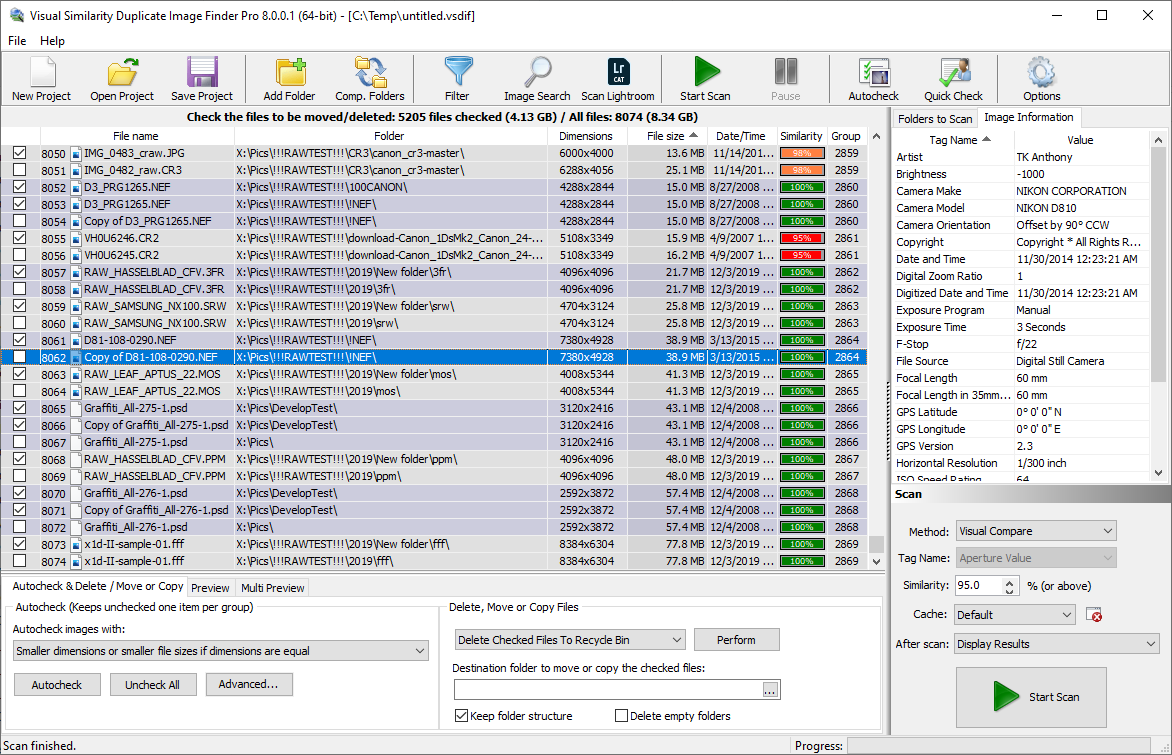
The most important settings in a duplicate photo cleaner include an adjustable similarity threshold, folder exclusion options, and image format filters, allowing you to customize scans for accurate duplicate photo detection.
MindGems Duplicate Image Finder supports every feature in the checklist below, which is one of the reasons it handles large, mixed-format photo libraries more reliably than tools that only cover two or three of these areas.
| Feature | Why It Matters |
|---|---|
| Adjustable similarity threshold | Lets you switch between finding only exact duplicates and finding edited or near-identical copies |
| Folder exclusion / source folder protection | Prevents a trusted or original folder from ever being auto-marked for deletion |
| Preview and side-by-side comparison | Confirms a match visually before anything is removed |
| Safe delete (Recycle Bin or quarantine folder) | Gives you a way to recover files if something is deleted by mistake |
| Broad format support (RAW, HEIC, PSD, etc.) | Ensures duplicates aren’t missed just because of the file format they’re saved in |
| Auto-select rules (resolution, size, date) | Speeds up cleanup on large libraries without manually reviewing every group |
| Scan caching | Makes repeat scans on the same library significantly faster |
Duplicate Photo Cleaner Tools Compared
There are dozens of tools marketed as duplicate photo cleaners, but they differ enormously in how they detect duplicates and how safely they let you remove them. Below is a feature comparison of five commonly used tools: MindGems Duplicate Image Finder, dupeGuru, Awesome Duplicate Photo Finder, Fast Duplicate File Finder, and Czkawka.
Most of these tools cover only part of what a complete duplicate photo cleaner needs. Fast Duplicate File Finder and Czkawka are built around exact/hash-based matching, so they’re fast but miss visually identical photos saved in a different format or resolution. dupeGuru adds basic fuzzy image matching but lacks RAW image format support and fine-grained similarity control. Awesome Duplicate Photo Finder supports only a handful of common formats and, as reported by security vendors, has been flagged for bundling unwanted adware (potentially unwanted program) – worth knowing before installing it.
MindGems Duplicate Image Finder is the only tool in this comparison that supports every feature listed, including RAW/HEIC support, adjustable similarity thresholds, and a safe quarantine workflow, which is why it consistently finds more real duplicates while producing fewer false matches.
| Feature | MindGems Duplicate Image Finder | dupeGuru | Awesome Duplicate Photo Finder | Fast Duplicate File Finder | Czkawka |
|---|---|---|---|---|---|
| Visual similarity detection (not just hash/file match) | Yes | Partial | Partial | No | Partial |
| Adjustable similarity threshold | Yes | No | No | No | Partial |
| RAW format support | Yes | No | No | Partial | No |
| HEIC / AVIF support | Yes | No | No | Partial | No |
| Folder exclusion / source folder protection | Yes | No | No | Yes | No |
| Safe delete / quarantine folder | Yes | No | No | Yes | No |
| Adobe Lightroom catalog scanning | Yes | No | No | No | No |
| Scan caching for faster repeat scans | Yes | No | No | Partial | No |
Which One Is the Best? Our Recommendation
Based on the comparison above, MindGems Duplicate Image Finder is the best overall duplicate photo cleaner. It’s the only tool that combines true visual similarity detection with full RAW/HEIC support, adjustable thresholds, folder protection, and a safe quarantine workflow – the complete feature set a large, mixed-format photo library actually needs.
That said, the right choice still depends on your situation. If you only need to remove exact, untouched duplicate files and don’t care about catching resized or reformatted copies, a hash-based tool like Fast Duplicate File Finder or Czkawka will work and is faster for that narrow case. If you want basic fuzzy image matching for a small, casual photo folder, dupeGuru is a reasonable free option, though it lacks RAW support and safe-delete controls.
For photographers, designers, or anyone managing a large or professional photo library, the gaps in those lighter tools become real problems – missed duplicates, no RAW support, and no safety net before deletion. MindGems Duplicate Image Finder is the tool built to handle that scale without those tradeoffs, which is why it’s the recommendation for most users comparing duplicate photo cleaners in 2026.
How to Safely Remove Duplicate Photos (Quick Steps)
Once your duplicate photo cleaner has scanned your library, follow these steps to remove duplicates without risking your originals.
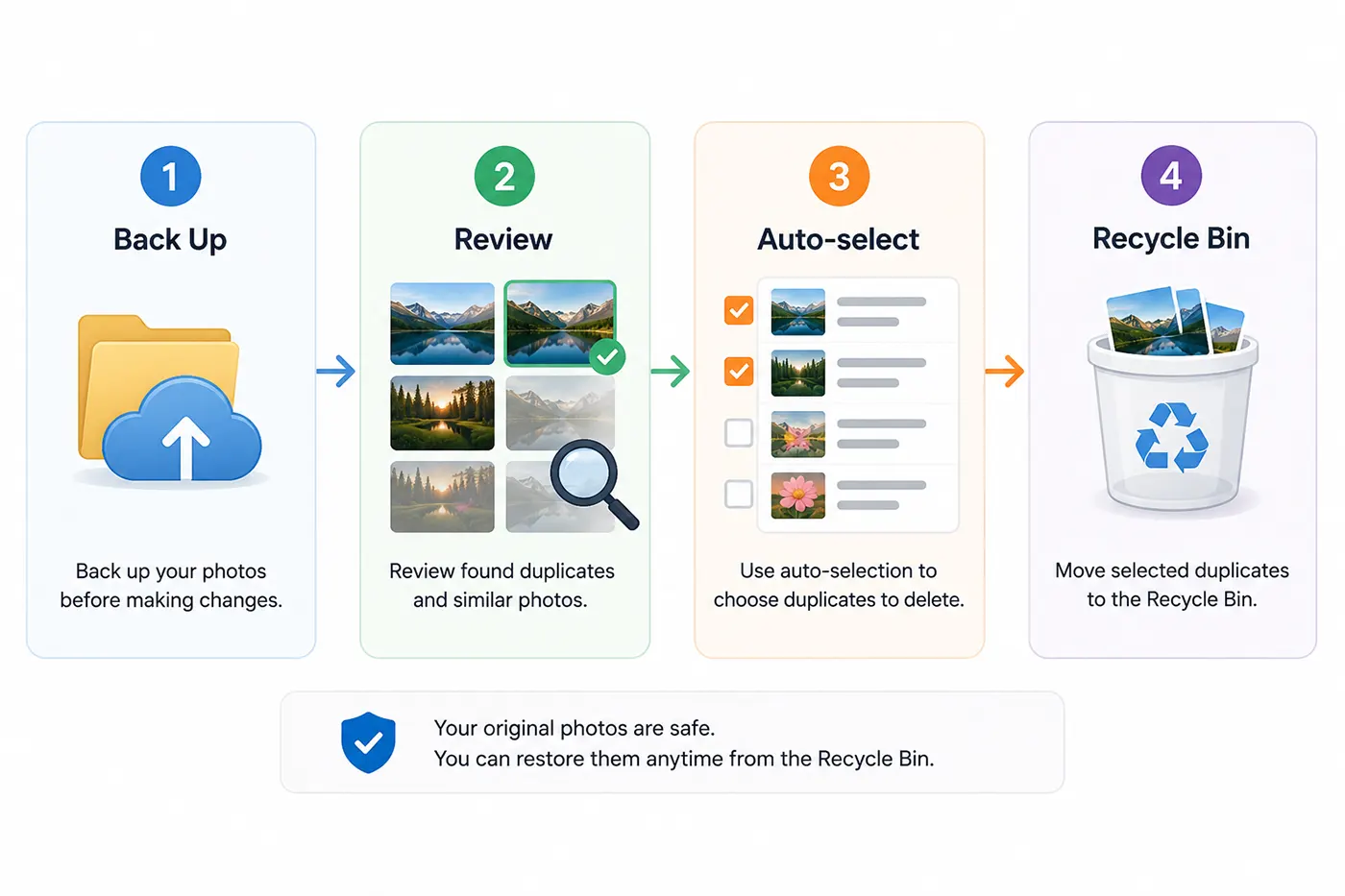
A simple four-step workflow for safely removing duplicate photos. Always back up your photos, review the detected duplicates, use auto-select to mark redundant copies, and send them to the Recycle Bin so they can be restored if needed.
1. Back up first
Copy your photo folder to an external drive or cloud storage before deleting anything. This step takes a few minutes and eliminates almost all real risk.
2. Review each group before deleting
Open the grouped results and preview matches side by side. Don’t rely on auto-select alone for anything you’re unsure about – confirm visually first.
3. Use auto-select rules to save time
Let the tool automatically mark lower-resolution or smaller-file copies for removal, then manually check the results before confirming.
4. Move to quarantine or Recycle Bin, not permanent deletion
Send marked duplicates to a temporary folder or the Recycle Bin first. Only delete permanently after you’ve confirmed your library still looks correct.
Read how to restore files from the Recycle Bin
Tips to Avoid Losing Important Photos
Bulk-removing duplicates is safe as long as you build in a few safeguards before you start deleting anything.
Always keep a backup until you’ve verified the results – backup strategy. Copy your library to an external drive or cloud storage first, and don’t clear that backup until you’ve confirmed the cleaned-up library opens correctly and nothing important is missing.
Treat auto-select as a starting point, not a final decision. Rules like “keep the highest resolution” work well in most cases, but they can occasionally pick the wrong file – for example, a smaller export that you actually meant to keep. Skim through auto-marked groups before confirming, and route anything you delete to the Recycle Bin or a quarantine folder rather than deleting permanently on the first pass.
Conclusion
A duplicate photo cleaner is only as good as its detection method, and as this guide has shown, most tools rely on file names, hashes, or pixel-level comparisons that break the moment a photo is renamed, resized, or saved in a different format. Visual similarity – comparing what a photo actually looks like rather than its file data – is the only method that reliably catches these real-world duplicates without flooding your results with false matches.
Among the tools compared, MindGems Duplicate Image Finder stands out as the most complete option, combining accurate visual detection with the safety features – folder protection, quarantine, previews – that make large-scale cleanup low-risk rather than a gamble.
Whichever tool you choose, the safest approach stays the same: back up first, review before deleting, and use a quarantine step rather than permanent deletion on the first pass. Followed consistently, that process turns duplicate photo cleanup from a risky chore into routine maintenance.
will it be able to scan my cloud?????
There are currently no true cloud-based duplicate file finders. Many services advertised as such online rely on misleading marketing claims. A proper duplicate finder like ours has to analyze your files to find duplicates. To analyze files it has to download them. So there is no duplicate finder that will directly find duplicates on the cloud as such functionality should be provided by the cloud itself. The purpose of any cloud service is to limit users and enslave them with subscription fees.
To clean your cloud files you should download all your cloud files to your local folder, then use our duplicate finder and remove the duplicate. Your cloud service should sync automatically and delete the corresponding files from the cloud.