


Windows File Explorer doesn’t display folder sizes by default – only individual file sizes – which makes it hard to see where your disk space is actually going. This guide covers 6 ways to show folder sizes in Windows 11, 10, 8, and 7, from built-in tooltips to a free disk space analyzer that lists every folder size at once.
List of ways to show folder sizes in Windows:
- Show Folder Sizes in File Explorer Tooltips
- View Folder Size From Folder Properties
- Display Folder Sizes in the Windows 11 Size Column
- Show Folder Size From the Command Line
- Display Folder Sizes Using PowerShell
- Show All Folder Sizes at Once Using a Free Disk Analysis App
- Conclusion
- Show Folder Size Windows FAQ
Show Folder Sizes in File Explorer Tooltips
Displaying folder size information in File Explorer folder tips is a valuable feature that enhances user productivity by providing quick insights into storage space usage without opening Properties or third-party software.
Enable Folder Size Information
- Open Windows File Explorer.
- Navigate to the “View” tab on the ribbon menu.
- Click on “Options” located on the right side of the ribbon.
- In the Folder Options dialog box, switch to the “View” tab.
- Scroll down and locate the checkbox labeled “Display file size information in folder tips.“
- Check the box, then click “Apply” and “OK” to save the changes.
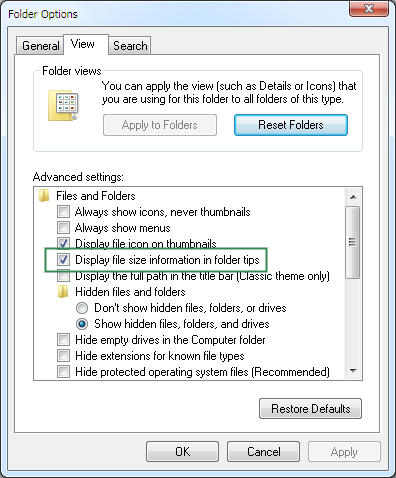
Show Folder Sizes Tooltip
View Folder Size Information
- Once enabled, navigate to a folder in File Explorer.
- Hover your mouse cursor over the folder icon, and after a moment a tooltip will appear.
- The tooltip will display information about the folder, including its size.
- Folder size in the tooltip is shown in bytes, kilobytes, megabytes, or gigabytes depending on the folder’s size.
Advantages
- Instant Insight: Provides an immediate read on storage usage without interrupting your workflow.
- Efficient Workflow: No need to open Properties or launch a separate application.
- No Additional Software: Built into Windows File Explorer, so there’s nothing to install.
Disadvantages
- Limited Customization: No detailed breakdown of what’s taking up space inside the folder.
- Tooltip Clutter: Can feel intrusive if you hover over folders frequently while browsing.
- Tooltip Delay: There’s often a short delay before the size appears.
View Folder Size From Folder Properties
Steps to view folder size from File Explorer’s Properties menu:
- Right-click on the folder you want to inspect.
- Select “Properties” from the context menu.
- In the Properties dialog box, stay on the “General” tab.
- The size of the folder, including its contents, is displayed under “Size” and “Size on disk.”
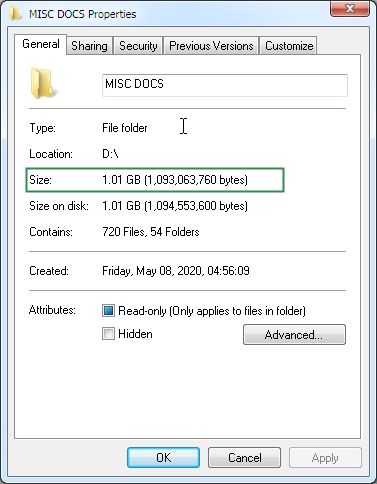
Show Folder Size From Properties
Advantages
- Simple and Quick: Only takes a few clicks.
- Detailed Information: Also shows location, creation date, and attributes.
- No Third-Party Software Required: Fully built into Windows.
Disadvantages
- One Folder at a Time: There’s no way to compare or sort multiple folders at once.
- Manual Process: Checking many folders means repeating the same steps over and over.
- Limited Compatibility: Sizes can be inaccurate for some network or cloud-synced folders.
Display Folder Sizes in the Windows 11 Size Column
By design, File Explorer’s Size column only shows sizes for individual files – folders are left blank. This is intentional: calculating a folder’s size means recursively scanning every file inside it, including nested subfolders, which would slow down browsing on large drives if done automatically every time you open a window.
Windows itself has no setting to turn this on. Some third-party customization tools, such as Windhawk, offer community mods that force folder sizes into the Size column – but this comes at a real cost. To make this work, Windhawk installs a background service that runs continuously and injects code directly into explorer.exe every time it starts, so it can intercept and modify how File Explorer behaves. That means a process running at all times in the background, even when you’re not checking folder sizes, plus the general risk that comes with injecting third-party code into a core Windows process – instability, conflicts with future Windows updates, or slower Explorer performance overall.
We’d recommend against this approach. A dedicated, standalone application like Folder Size gives you the same information – and far more of it – without installing anything that hooks into Explorer or runs in the background. See Show All Folder Sizes at Once Using a Free Disk Analysis App below for a safer way to get this.
Why This Approach Is Risky
- Always-On Background Service: Runs continuously, using system resources whether or not you’re actively checking folder sizes.
- Injects Into a Core Windows Process: Modifying
explorer.exedirectly can cause instability, crashes, or conflicts with Windows updates. - No Vendor Accountability: Mods are community-submitted, so quality and security vary between individual submissions.
A Safer Alternative
- No Background Service: A dedicated app like Folder Size only uses resources while it’s actually open and running.
- No System Hooks: Works alongside Windows Explorer rather than modifying it, so there’s no risk to Explorer’s stability.
- More Information, Not Less: Shows every folder’s size in a sortable list, with charts and largest-folder reports – well beyond what a single Size column could show anyway.
Show Folder Size From the Command Line
Using Command Prompt to check folder size is a flexible option for anyone who prefers a command-line interface or wants to script the process.
- Open Command Prompt: Press Windows key + R, type “cmd,” and press Enter – or search for “Command Prompt” in the Start menu.
- Navigate to the directory: Use cd followed by the folder’s path, for example
cd C:\Users\YourUsername\Documents. Replace “YourUsername” with your actual username. - Run the size command: Type
dir /s FolderName, replacing “FolderName” with the folder you want to check. - Read the result: Command Prompt lists every file and subdirectory inside the folder along with their sizes, then shows the total size of the folder and its contents at the end of the output.
Example
To check the size of a “Photos” folder inside “Pictures”:
- Open Command Prompt.
- Navigate to Pictures:
cd C:\Users\YourUsername\Pictures - Run:
dir /s Photos
Command Prompt will list every file and subfolder inside “Photos” along with their sizes, then display the folder’s total size.
Advantages
- Powerful and Scriptable: Can be automated or built into larger scripts.
- Quick for Command-Line Users: No need to open a GUI or install anything extra.
- Detailed Information: Also lists modification dates and file attributes.
Disadvantages
- Learning Curve: Not intuitive if you’re unfamiliar with command-line syntax.
- No Visual Breakdown: Just text output, no charts or sortable columns.
- Risk of Mistakes: Easy to mistype a path or command if you’re not careful.
Display Folder Sizes Using PowerShell
PowerShell offers a more flexible, scriptable way to check folder sizes than Command Prompt, especially for bulk operations.
- Open PowerShell: Press Windows key + X and select “Windows PowerShell,” or search for it in the Start menu.
- Navigate to the directory: Use cd followed by the folder’s path, e.g.
cd C:\Users\YourUsername\Documents. - Run Get-ChildItem: Type
Get-ChildItem -Directory -Recurse | Measure-Object -Property Length -Sum. - Read the result: PowerShell returns the total size in bytes, which you can reformat into KB, MB, or GB as needed.
Example
To check the size of a “Photos” folder inside “Pictures”:
- Open PowerShell.
- Navigate to Pictures:
cd C:\Users\YourUsername\Pictures - Run:
Get-ChildItem -Directory -Recurse | Measure-Object -Property Length -Sum
Advantages
- Scripting Capabilities: Ideal for automating repeated checks or bulk operations.
- Tightly Integrated with Windows: Works consistently across modern Windows versions.
- Customizable Output: Format results however you prefer.
Disadvantages
- Learning Curve: Cmdlet syntax takes some getting used to.
- Potential for Mistakes: Scripting mistakes can affect files if you’re not careful.
- Less Intuitive Than a GUI: Slower to use for a single one-off check.
Show All Folder Sizes at Once Using a Free Disk Analysis App
All the built-in methods above have the same limitation: they show you one folder at a time. To see every folder size in a drive at once, sorted and ready to act on, you need a dedicated disk space analyzer. Free options include Folder Size, TreeSize Free, and WinDirStat – all let you scan a full drive and view folder sizes in a sortable list rather than checking folders one by one.
Find the largest files and largest folders, sort folders and files by size, delete large unused files and folders to free up disk space, and visualize disk usage with pie or bar charts to spot space hogs at a glance. You can also print folder lists or print a folder tree for reporting or auditing.
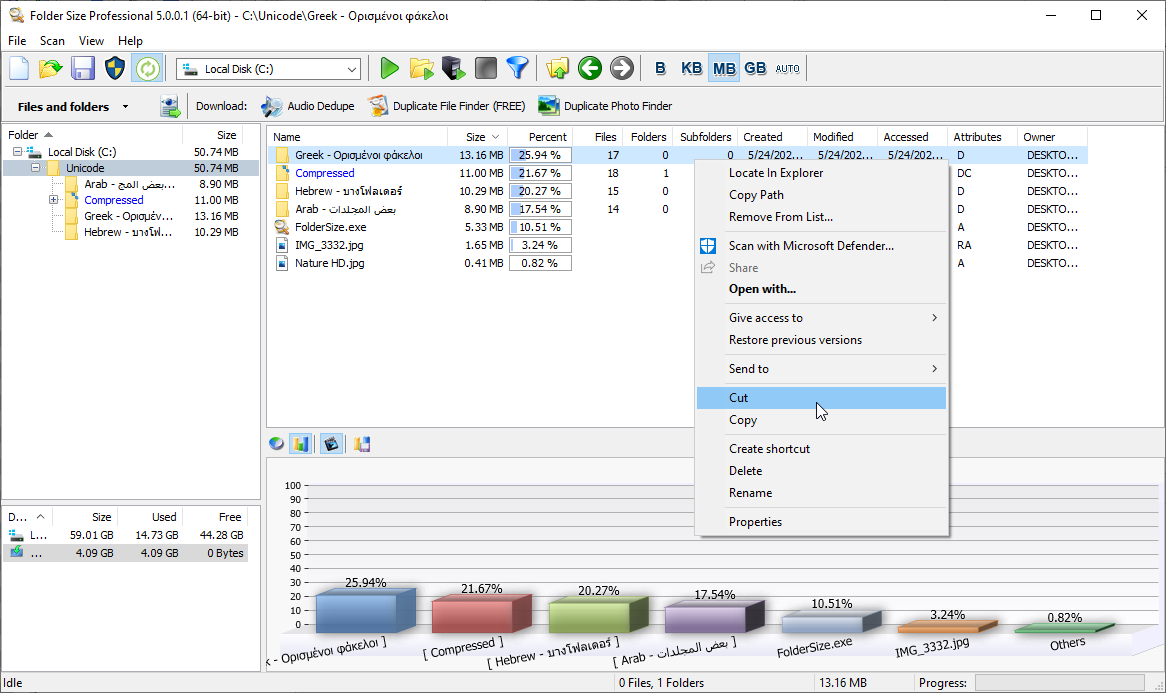
Show Folder Sizes
Folder Size: Copy, Cut, Paste, Delete, and Rename
Beyond just showing sizes, Folder Size lets you Copy, Cut, Paste, Delete, and Rename files and folders directly from its results – including copying between Folder Size and Windows Explorer. Combined with the full Windows Explorer shell context menu built into the app, it functions as a Windows Explorer with folder sizes built in.
Automatic Updates – No Rescanning Required
Folder Size monitors file system changes and updates scan results automatically. If you copy, move, rename, or delete files in Windows Explorer, those changes reflect in Folder Size immediately, with zero added load on system performance – it uses native Windows change notifications rather than installing a background service or shell hook, so it has no impact on your PC when you’re not using it.
Conclusion
Each of these methods works, and which one to use mostly comes down to how much detail you need. For a quick one-off check, folder tooltips or Properties are enough. For scripting or automation, Command Prompt and PowerShell get the job done. If you regularly need to see every folder size on a drive at a glance, sorted and ready to clean up, a dedicated tool like Folder Size – free to download for Windows 11, 10, 8.1, 8, 7, and Vista – saves the most time.
Show Folder Size Windows FAQ
How can I view the size of a folder in Windows File Explorer?
Is there a way to see folder sizes without opening Properties?
Does Windows 11 show folder sizes in the Size column?
Can I use Command Prompt to check the size of a folder?
Is PowerShell another option for displaying folder sizes?
What’s the fastest way to see every folder size on a drive at once?
Why doesn’t Windows show folder sizes by default?
Are there any third-party applications for showing folder sizes in Windows?
Please share this article with your friends – they will thank you!
Pingback: Print Directory List in Windows Easily & Free
In my version of windows 7 “Folder options” is in the “Tools” menu, not “View”.
Ofc nobody uses 7 anymore so it’s helping nobody. It came with my second hand i5 thinkpad years ago, the machine will continue to serve me with linux lite or MX.