
Duplicate Image Finder - Remove Duplicate or Similar Photos
Detect Duplicate & Similar Photos Across 340+ Formats — RAW, HEIC, PSD, and More
 About
About Features
 Download
 Register (buy)
 Screen Shots
 What's New?
 FAQ
FAQ Awards
 Tutorials


MindGems first introduced the term “Visual Similarity” for its Duplicate Image Finder more than 25 years ago to distinguish it from common duplicate file finders. The software was the first duplicate photo cleaner tool to analyze image content for finding duplicate photos and similar images.
Instead of relying on file names, sizes, dates, or checksums, it compares the actual visual content of images, establishing a new standard for duplicate photo detection. Actively developed since its creation, the tool remains the best duplicate photo finder on the market in terms of precision, performance, features, and supported image formats.
Find duplicate and similar photos on your computer, across networks, or within Adobe Lightroom. The duplicate photo finder detects similar images even when edited, rotated, flipped, color-corrected, or stored in different file formats. Scanning includes JPG, JPEG, GIF, PNG, TIFF, BMP, PSD, RAW, HEIC, WEBP, AVIF, and other popular image formats, with support for more than 300 RAW camera formats such as CRW, CR2, CR3, NEF, and DNG.
Our tools are trusted by governments, space agencies, international banks, libraries, game studios, laboratories, photographers, DJs, and more than 50 million users worldwide.
-



-
 EV
EV
Certified - Top-Rated

-

Duplicate Image Finder Features: Clean 340+ Formats, RAW & HEIC
- Find duplicate photos everywhere - search for duplicate images in folders, hard drives, USB drives, computers, NAS, or entire networks.
- Find similar images - true AI image analysis algorithms that will find similar photos across different image formats. Option to adjust image similarity precisely in percentage.
- Find edited pictures - identifies photos rotated 90°, 180°, or 270°, flipped horizontally or vertically, grayscaled, skewed, watermarked, or with added borders.
- Image Search - find similar images of a sample photo - Reverse Image Search for your computer or local network.
- Find Lightroom duplicates - scan Adobe Lightroom Classic Catalogs LRCAT files.
- Search for similar and duplicate EXIF tags - find photos from the same lens, camera, location, or photos that have similar descriptions.
- Find photos with close EXIF times - search images by time difference in EXIF original date time. Locates photos shot in close time intervals or images from the same photo shoot.
- Automatically keep the photos with the best quality - features to mark the duplicates that you want to remove based on resolution, file size, date, names, locations, and all other file properties.
- Preview duplicate photos - easily assess the cloned images before removing them. There are three view options - preview, multi-preview, and full-screen preview that let you view the duplicates side-by-side in any image format, including RAW.
- Powerful filter - include or exclude file types or folders based on all file properties.
- Compare folders and set "source" folder - options to exclude folders from auto-check and self-scan.
- Multiple Quick Check/Uncheck options - mark duplicates automatically based on all file properties. Combine multiple selection criteria to solve even the toughest tasks.
- Remove duplicate photos - you can move or copy the repeating images to a custom folder or delete them to the Recycle Bin or permanently.
- Remove corrupt photos - in addition to removing duplicate images the tool will report damaged (corrupted) photos. Remove corrupt images to keep a healthy photo collection.
- Supports 340 popular image file formats and RAW camera images - see the list of supported image formats. The more image formats a tool supports the more cloned pictures it can identify.
- Extreme performance - one of the fastest duplicate photo finders on the market, using AI (Artificial Intelligence) algorithms and the hardware acceleration features of your system.
- Multi-threaded scan - compares multiple photos simultaneously. The app is so fast that it compares the photos faster than they can be read from your storage. Therefore, if you want even faster scans, you should store your files on fast storage.
- Tested with 1 million images - built to promptly find duplicates even in very large photo collections.
- Internal CACHE - keeps information for the previously scanned images. That dramatically improves performance for subsequent scans when you add new photos to your picture library.
- Process priority settings - scan for duplicates in your computer's IDLE time.
- Support for sidecar files - move, copy, or delete sidecar files together with the repeating pics.
- Command line options - automate your workflow or integrate our tool into your system or website.
- Scientific research - find similar DICOM Images (*.dcm; *.dicom; *.dic; *.v2 ) and other specialized image formats for scientific and medical research.
- Maximum Privacy Assurance - We prioritize your privacy with the utmost seriousness. Our tools conduct all scans locally on your device, ensuring that no data is ever transmitted online.
- An intuitive user interface, Native support for 64-bit and 32-bit operating systems, and rich documentation.
- Lifetime License!
Please reference the FEATURE COMPARISON TABLE before choosing your product variation. Do not take our word for granted - download the duplicate photo finder and try it for free.
Duplicate Image Finder Scan Modes
Finding visually similar images is a unique feature, but the tool goes further and provides extra scan modes like "100% Identical Files", "File Size", "EXIF Date/Time", "Similar EXIF".
Visual Compare - Find Similar Images
Advanced algorithms compare images visually by loading and analyzing actual image content — which is why so many formats are supported. Precision and performance are limited only by the resources in your system.
100% Identical Files - Find Duplicate Images
This mode will find only exact matches. These are only files with the same resolution and image format. This scan mode is convenient if you want to remove only the unaltered true duplicate photos. The advantage of using this mode is that it is very fast as no heavy visual processing is required.
File Size - Find Duplicate Images By Size
This is the fastest of all modes and looks only for files that have the same size. Two files can share the same size yet have completely different content - but if you compare only files of the same format, that's very unlikely.
EXIF Date/Time - Find Photos Shot In Close Time Intervals
This scan mode compares differences in shot time. It compares the actual date and time when the photo was taken - not its file date or time. You can set the time difference in seconds between the shots. So if you set, for example, 60 seconds, the tool will group together all the images that have less than a 1-minute interval between the shots. This is very convenient as you can group items by time even if they are visually different.
Similar EXIF - Find Photos With Similar Or Duplicate EXIF Tags
As the name suggests, this mode can find similar or exact match EXIF tags. For example, you can find photos that have similar EXIF descriptions. If you set the similarity to 100%, the tool will list only the exact matches.
How To Find Duplicate Photos
The tool has many options and scan modes, but is configured for best results out of the box — no settings need to be changed to get started. By default it finds visually similar photos, so all you have to do is follow these three simple steps.
Steps to find and remove duplicate photos:
- Start the Scan: Add your photo folders to the folders list and click the Start Scan button. The duplicate photo finder will analyze the visual content of your images and group all similar and identical photos together.
- Review Results: Use the Auto-Check options to automatically mark which duplicate photos to remove, then review the results. Make manual modifications to the selection if needed.
- Delete Duplicate Photos: Delete, move, or copy the duplicate images in one go and enjoy your organized photo library and the free disk space you have recovered.
If you want to compare folders or set up exclusions, see the Compare Folders section above, or read the Detailed Tutorial on How To Find Duplicate Photos.
Compare Folders - Remove Duplicate Photos
Besides scanning an entire library, the tool can also compare two or more folders for duplicate photos and delete duplicate images only from the target folder while keeping your source folder completely untouched.
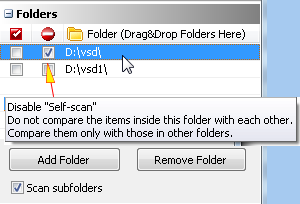
You can designate a "source" folder to protect it from automatic selection. The Exclude from Self-Scan option tells the duplicate photo finder to skip comparing images within that folder against each other - they will only be compared against images in the other folders in the list. This is useful when checking a backup against an original, or merging two photo collections without risking your primary library. Read more on How To Exclude A Folder From Scan.
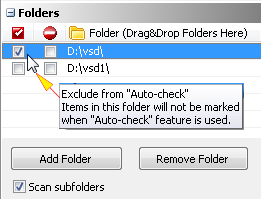
The Exclude from Auto-Check option adds another layer of control. It can be used on its own or together with Exclude from Self-Scan. When enabled for a folder, the duplicate photo cleaner will find similar images inside it but will not mark any of them for removal during auto-selection - giving you full control over what gets deleted. Read more on How To Exclude A Folder From Auto-Check.
If these options seem too advanced, simply use the File - Compare Folders option on the toolbar. It lets you pick a source and a target folder and configures all the settings automatically. Comparing folders to remove duplicate photos has never been easier.
Reverse Image Search - Search By Sample Photo
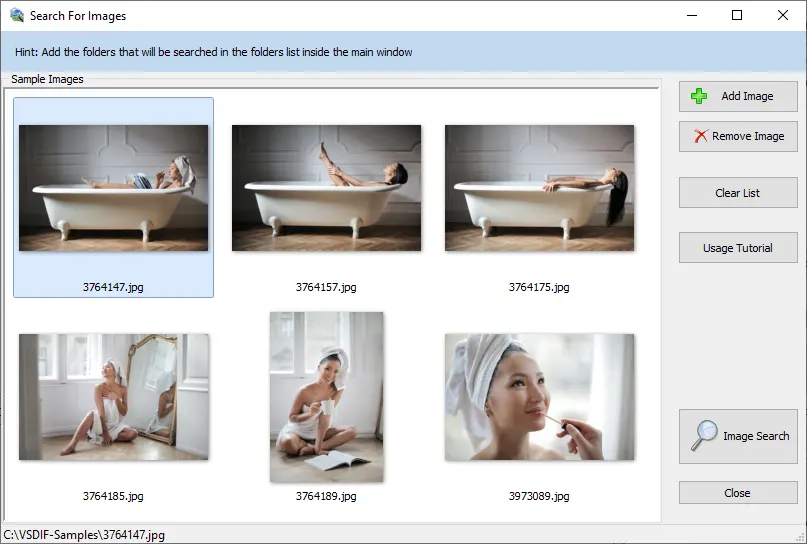
Are you trying to find the photo shoot to which an image belongs? Using the reverse image search feature will solve this problem instantly. It can search for single or multiple sample photos in your image libraries and find and list all pictures that are similar.
How to search for similar images:
- Add the folders to be searched in the folders list
- Set the desired similarity
- Hit "Image Search" on the toolbar
- Add the sample photos to be found
- Click "Image Search" to start the scan
Lightroom Duplicate Photo Finder

A dedicated built-in feature lets you search for similar and duplicate photos in Adobe Lightroom Classic. It does not install a separate Adobe Lightroom duplicate finder plug-in. Simply select a Lightroom catalog (LRCAT) to be scanned for duplicates, and all the features of the application will be available. Deleting duplicate photos in Adobe Lightroom is extremely easy.
How to Find Duplicate Photos in Lightroom:
- Press the Scan Lightroom button on the toolbar
- Select a Lightroom Catalog to be scanned for duplicate photos and press the Start Scan button
- All the similar and duplicate photos in that Lightroom catalog will be listed in groups by similarity
- Mark the ones that are not needed
- Select delete, move or copy operation and press the "Perform" button
Duplicate Image Finder - Supported Photo Formats
Our photo duplicate cleaner supports the following formats:
- JPEG Bitmap (*.jpg;*.jpeg;*.jpe;*.jfif;*.jif)
- CompuServe Bitmap (*.gif)
- Portable Network Graphics (*.png)
- TIFF Bitmap (*.tif;*.tiff;*.fax;*.g3n;*.g3f;*.xif)
- JPEG2000 Files (*.jp2)
- JPEG2000 Code Stream (*.j2k;*.jpc;*.j2c)
- Targa (*.tga;*.targa;*.vda;*.icb;*.vst;*.pix)
- Paintbrush (*.pcx)
- Windows Bitmap (*.bmp;*.dib;*.rle)
- Windows Metafile (*.wmf)
- Enhanced Windows Metafile (*.emf)
- Windows Icon (*.ico)
- Windows Cursor (*.cur)
- Wireless Bitmap (*.wbmp)
- Portable Pixmap (*.pxm;*.ppm)
- Portable Bitmap / Gray-map (*.pgm; *.pbm)
- Adobe Photoshop (*.psd)
- Camera RAW (*.crw; *.cr2; *.cr3; *.fff; *.eip; *.dcs; *.drf; *.ptx; *.pxn; *.mdc; *.obm; *.nef; *.raw; *.pef; *.raf; *.x3f; *.bay; *.orf; *.srf; *.mrw; *.dcr; *.sr2; *.dng; *.erf; *.mef; *.arw) [ List of all 300+ Camera RAW formats ] (only in Pro and Corporate versions)
- DICOM Images (*.dcm; *.dicom; *.dic; *.v2) (only in Corporate version)
- HDPhoto Images (*.hdp; *.wdp; *.jxr) (only in Pro and Corporate versions)
- WebP Images (*.webp) (only in Pro and Corporate versions)
- HEIC Images (*.heic) (requires external WIC codec) (only in Pro and Corporate versions)
- AV1 Images (*.avif) (requires external WIC codec) (only in Pro and Corporate versions)
Duplicate Image Finder - Testimonials
Helen Bradley - Digital-Photography-School.com

I have been researching duplicate image tools that would work for digital photographers and yours is the best I have found - the raw image support is critical obviously as is stability and functionality.
I am pleased that my impression of the program seems to be being reflected in its user base. I spent half of yesterday trying out programs and I really didn't find anything that worked the way I thought it should until I found your product. So it was a relief, I must say, to find it. I think it will answer a lot of users problems. I am getting email from a lot of people who have duplicate photo problems so I think the post will go down well with our readers.
Conclusion:
Visual Similarity Duplicate Image Finder is a professional tool and is designed to help manage large image collections. It has a lot of handy options that will speed up the process of determining what images are potential duplicates and for helping you to manage them according to your workflow requirements. When you consider the time that it will save you in organizing your image collection its purchase price looks like good value indeed.
Read full review on Digital-Photography-School.com
Jon Canfield - PhotographyBlog.com
Visual Similarity Duplicate Image Finder works very well and accurately. The ability to visually find duplicate photos, rather than just by filename will be useful to anyone that saves multiple versions of a file and needs to find all of them. The Search by sample image option is especially useful.
Read full review on PhotographyBlog.com
Preston Gralla - PCWorld.com
Anyone who has a hard disk clogged with photos will welcome Visual Similarity Duplicate Image Finder. This utility does an excellent job of hunting down not just file duplicates, but photos that are so similar that you might as well erase some of them to get back hard disk space. It’s exceptionally easy to use,exceptionally fast, and does an exceptionally good job at fulfilling its promise.
Read full review on PCWorld.com
Editorial - CNET
Duplicate Image Finder is exceptionally fast and precise, making it a top choice for anyone looking to declutter their photo library. It's not just about finding exact duplicates; it can also identify similar images, which is a massive help when you have multiple shots of the same scene.
Editorial - SnapFiles.com
Unlike traditional duplicate finders, this program `looks` at your images to determine whether they are duplicates or not and can find them even if the file name, format and size are different or the images have been rotated.
Cyrano - DPReview.com
Good software to find duplicate/matching images: Visual Similarity Duplicate Image Finder
I often need to determine if a given image is one of mine. This can be a very time-consuming task if the image has been stripped of its original file name and embedded metadata, as is often the case for images posted on blogs and social media sites. I found a good solution in Visual Similarity Duplicate Image Finder.
As the name implies, this application searches for duplicate or similar images not by file name or metadata, but by visual similarity. It's like Google Image Search, but running on your own desktop, searching your own files. I've been quite pleased by its performance, and it's very inexpensive.
Read full review on DPReview.com
Editorial - SlashDot.org
This tool can locate both look-alike and duplicate photos stored in a specific folder, on your computer, across a network, or even within Adobe Lightroom. By removing unnecessary duplicates, you can better organize your photo collection and free up precious disk space. This software excels in identifying similar and duplicate images, regardless of whether they have been edited, rotated, flipped, or had their colors adjusted.
Duplicate Image Finder - Command-Line Options
Command-Line Parameters Usage: (Available only in Corporate Version)
DupImageFinder.exe -src_list <srclistfilename> -target_list <targetfilename> -log <logfilename> -s <similarity> -db <dbfilename> -p
-src_list <srclistfilename> - specifies a plain text file which contains image file names that you want to compare against <targetfilename> files
-target_list <targetfilename> - specifies a plain text file which contains image file names that you want to compare against <srclistfilename> files. If this parameter is omitted only the files inside <srclistfilename> will be compared against each other.
Note (new in version 2.5.0.1): if you omit -target_list parameter only -src_list files will be scanned
-log <logfilename> - specifies full path file name where the log from the comparison will be saved, e.g. c:\log.txt
-s <similarity> - specifies a similarity in percents. Example: -s 95
-db <dbfilename> - specifies the images cache file name without extension to be used or created. (see example below) ( "c:\any folder\cachefilename" )
-p - if this option is set then after scanning the project is auto-saved in the same folder as the log file
The command line parameters that are in bold are mandatory!
Information regarding errors and incorrect input can be found in the log file which is named "VSDIF_Log.txt" and generated in the "Documents" folder for the current user.
Starting from version 3.5.0.1 you could register the program using these command-line parameters:
-regname - specify your registration user name
-regcode - specify your registration code
Note: Cache files store images information gathered during the preprocessing pass (1st pass) of the scanning process. So if you often scan the same images, using cache file speeds up the preprocessing pass significantly.
You don't need to create the cache file. Just specify it as a parameter and the program will create it. If a cache file from previous scan exists the program will use it.
Example: DupImageFinder.exe -src_list "c:\src.txt" -target_list "c:\target.txt" -log "c:\log.txt" -s 95 -db "c:\cachefolder\cachename"
If you are using the FULL Corporate version you should run DupImageFinderDP.exe in order to use the command line parameters, if you are evaluating the DEMO then you should use DupImageFinder.exe as displayed in the example above.
This will find all images with similarity >= 95% and save their file names and similarity in c:\log.txt file
Note: If some of the parameters contain spaces, you must enclose them in double quotes. Example: -src_list "c:\program files\images.txt"
Please reference the help file for the most up to date information and example source and output file.
Duplicate Image Finder - System Requirements
- Operating system: Windows 11 / Windows 10 / Windows 8.1 / Windows 8 / Windows 7 / All Windows Server operating systems newer than Windows Server 2008
- CPU: 1Ghz or higher
- 1 GB RAM
- 20 MB free hard disk space