
Duplicate File Finder - Free Duplicate Cleaner
Find and Remove Duplicate Files on Your Windows PC
 About
About Features
 Download
 Register (buy)
 Screen Shots
 What's New?
 FAQ
FAQ Awards
 Tutorials


Find and remove duplicate files for free with Duplicate File Finder. Locate repeating files across your computer, external drives, NAS devices, and network storage, even when they have different names or are stored in different folders. Unlike many duplicate finders that rely primarily on file names, sizes, dates, or other file attributes, this free duplicate finder compares actual file content to identify true duplicates with greater accuracy.
Duplicate File Finder is a free duplicate file finder trusted by more than 50 million users worldwide. Developed by MindGems since 2001, the software has been continuously improved through decades of real-world use and customer feedback. The optional Professional version can also find similar files, helping you locate related documents that traditional duplicate finders often miss.
MindGems Duplicate File Finder provides fast scans, flexible search options, and safe duplicate removal tools at no cost. Advanced filters, file previews, and automatic selection rules help you review results with confidence before deleting files. The software also includes multiple search methods and specialized similarity scan modes, giving you complete control over how duplicates are detected and managed.
Delete duplicate files, save valuable disk space, and keep your computer organized - completely free.
Our tools are trusted by governments, space agencies, international banks, libraries, game studios, laboratories, photographers, DJs, and more than 50 million users worldwide.
-



-
 EV
EV
Certified - Top-Rated

-

Duplicate File Finder KEY Features
The duplicate cleaner is a powerful utility for finding repeating files in a folder and all its sub folders. The free duplicate remover has the following features:
- Find duplicate files everywhere - search for duplicates in folders, hard drives, USB drives, computers, NAS, or entire networks.
- Find similar files - identify and compare similar files, including documents (PDF, Word, Excel, and text files), archive files, and binary files of the same format type. This is not a simple FUZZY search - the tool will list similar documents even if entire paragraphs are rearranged. We have a dedicated duplicate image finder to find similar images and a duplicate audio finder to find similar songs. Read our article about Which Duplicate File Finder to Choose.
- Find duplicate file names - Find files with the same or similar names. Set 100% to find repeating file names or set lower to find alike names.
- Find files with the same size - files with the same sizes are not necessarily duplicates, but you can choose to search for files with the same types and sizes.
- Fast binary comparison algorithm - does not use CRC, MD5, and other unreliable checksum scan methods used by other duplicate finders.
- Multi-threaded duplicate scan - the tool compares akin files simultaneously to find duplicates faster than other apps.
- Internal preview - supports PDF, Excel, TXT, Video, Audio, Binary, and Image files. More than 40 popular image formats are supported including over 300 RAW Camera image formats. You can open the files with their associated application or locate them in Windows Explorer.
- Automatically select duplicate files - use the "Auto-check" option to choose which cloned files to remove and always keep one "original" file. Mark duplicates based on dates, sizes, locations, name length, path length, and all other file properties. Powerful "Quick Check/Uncheck" dialog to combine multiple automatic selection features. Options to exclude file types or folders from auto-check.
- Filter duplicates - exclude or include files or folders in the search based on various properties.
- Get rid of repeating files - delete duplicates permanently or to Recycle Bin, move or copy identical files, and replace cloned files with symlinks to original files to save disk space.
- Protect system files and folders when searching for duplicates - prevent damage to your system files when removing redundant files.
- Find duplicates in any language - multi-language file system support.
- Process priority settings - scan for duplicates in your computers IDLE time.
- Maximum Privacy Assurance - We prioritize your privacy with the utmost seriousness. Our tools conduct all scans locally on your device, ensuring that no data is ever transmitted online.
- Intuitive interface, rich documentation, native support for ALL Windows 64 bit and 32 bit operating systems
- Lifetime License!
Duplicate File Finder Scan Modes

Duplicate File Finder provides multiple scan methods for finding duplicate and similar files, including "100% Equal Files", "Similar Files", "File Size", "Similar File Names", and "Same File Size and Name". Choose the mode that fits your needs.
100% Equal Binary Comparison - Find true duplicates regardless of name or location
This scan mode finds exact copies of a file even if it is stored with a different name. The mode compares the actual file data and not just size, name, or checksum. Tools that scan by checksum like CRC or MD5 may incorrectly list totally different files as duplicates - this is not the case with Duplicate File Finder.
Find Similar Files - Find Similar Documents
This mode finds similar files, including similar documents, archives, or any other file type. It analyzes the files and looks for similar chunks of data, and can identify similar documents even if entire paragraphs inside are rearranged. This mode is different from our Duplicate Image Finder and Duplicate Song Finder tools, and the differences are explained here - Which Duplicate Finder To Choose?
File Size - Find Duplicates By Size
This is the fastest of all modes and looks only for files that have the same size and/or extension. Two files may share the same size and completely different content, but if you compare only files with the same extension (file type), that is very unlikely.
Find Similar File Names - Find Files With Duplicate Or Similar Names
Find similar file names even if the text is rearranged. This is a true similarity analysis, not just partial pattern matching. For example, "red rabbit jumping.mov" and "23 jumping rabbit (red).mov" will be matched as similar depending on the specified similarity level. Set the similarity level to 100% to find only exact duplicate file names.
Same File Size and Name - Instantly find duplicates with identical names and size
This is a very fast scan mode that groups files with identical names and file sizes, making it ideal for quickly finding obvious duplicates without full file comparison. You can also enable the "Treat Copy (X) as same file name" option, which allows the scan to recognize renamed copies as duplicates even when numbering or copy labels are added. For example, files like "Video.mp4", "Video - Copy.mp4", and "Video - Copy (2).mp4" will all be identified as duplicates if they have the same file size.
Compare Folders for Duplicate Files
While you can remove all duplicate files from a computer, drive, network, or folder, you can also compare two or more folders for duplicates.
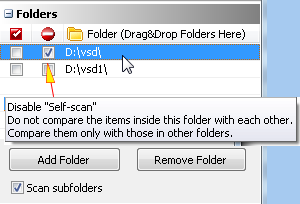
You can set a "source" folder to exclude it from auto-check and preserve the items inside. There is a per-folder option, "Exclude from self-scan", which means the items inside that "source" folder will not be compared with each other - they will be compared only with items from the other folders in the list. Read more on How To Exclude A Folder From Scan.
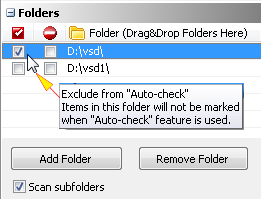
There is also an "Exclude from auto-check" option, which can be used separately or in combination with the "Exclude from self-scan" option. Ticking the option for the corresponding folder means the items inside will not be marked if the auto-check feature is used. Read more on How To Exclude A Folder From Auto-Check.
How To Find Duplicate Files
Duplicate File Finder provides multiple options for professionals, but anyone can find and remove repeating files in just three simple steps. You do not need to be a pro to use it.
Steps to find and remove duplicate files:
- Start the Scan: Select a computer, drive, folder, or network location to scan, and choose among the multiple detection modes - 100% Equal Files, Similar Files, File Size, Similar File Names, or Same File Size and Name.
- Review Results: The tool automatically selects true duplicates for removal, but the identified files can be previewed inside the application, and the selection can be modified manually if needed.
- Delete Duplicate Files: Duplicated files can be removed in one go or moved to a folder or backup drive. You can now enjoy a fast and organized computer.
If you want to compare folders or set up exclusions, see the Compare Folders section above, or read the Detailed Tutorial on How To Find Duplicate Files.
Duplicate File Finder Testimonials
David Cardinal - PC Magazine

"If you suspect you've wound up with multiple copies of large files like photos, music, or videos, there are utilities that can help you locate and delete duplicates. One nice free one is Duplicate File Finder from MindGems."
Gavin Cooper, D&D Consulting - www.timesunion.com
"Duplicate files build up over time as you move files around, especially music, photos, and video files, leaving the originals to sit and gather dust. There are a few free applications out there that can help you de-duplicate files - a good free one is Fast Duplicate File Finder."
Jason Willis - IT Professional
I manage data across networks and systems, so accuracy matters a lot to me - I can't afford to risk sensitive files with an unreliable tool. Duplicate File Finder has been consistently precise, and it's fast too - it scans millions of files in a fraction of the time other tools I've tried have taken. The interface is simple enough that I'm not fighting it to get results, and being able to preview files before deleting anything gives me real peace of mind. Best part is it's free, and honestly more capable than some of the paid tools I've used.
Michael Johnson - Archives Department
Finding and managing duplicates is a big part of my job handling backups and archives, and Duplicate File Finder has earned its place in my toolkit. It scans through large backup sets quickly, and the ability to export results and compare folders has been genuinely useful when I need to check consistency across archive versions. I also like that I can save and load projects - on big comparisons I can pick up the next day right where I left off instead of starting over.
Duplicate File Finder Command Line
Duplicate File Finder Professional supports command-line automation, making it possible to run scheduled scans and export results without opening the user interface. This is useful for IT professionals managing backups, archives, and network storage who need to automate duplicate detection.
Command-Line Parameters Usage: (available only in the Professional version)
DupFileFinder.exe -run -s -exp <semicolon delimited list of export formats>
- -run - performs a duplicate file scan immediately after the program is started.
- -exp <semicolon delimited list of export formats> - export command-line parameter. Depending on the file extension, this will export the corresponding file type. Multiple formats can be exported at once by separating the paths with semicolons. The variables {DATE} and {TIME} will be replaced with the current date and time.
- -s - stands for SILENT. Using this option, the GUI will not be displayed during the scan, and the application will exit after the command-line actions are processed.
Example: DupFileFinder.exe -run -s -exp "c:\result_{DATE} {TIME}.xml;c:\result_{DATE} {TIME}.fdff;c:\result_{DATE} {TIME}.csv"
Note: If any of the parameters contain spaces, you must enclose them in double quotes, as shown above.
Duplicate File Finder System Requirements
- Operating system: Windows 11 / Windows 10 / Windows 8.1 / Windows 8 / Windows 7 / Windows Server 2008 and newer
- CPU: Any modern processor - Intel, AMD, or ARM64
- 4 GB RAM recommended (2 GB minimum)
- 20 MB free hard disk space