

Please follow this short tutorial to learn the basics of the tool.
You can find detailed information about every feature in the application by pressing F1 on your keyboard. The context-sensitive help will display the help section for the window that is currently displayed.
Do not forget to check also the blog area as it contains a lot of information, tutorials and examples and provides a search option for easier navigation: www.mindgems.com/article/
Start the program. The main window will be displayed.
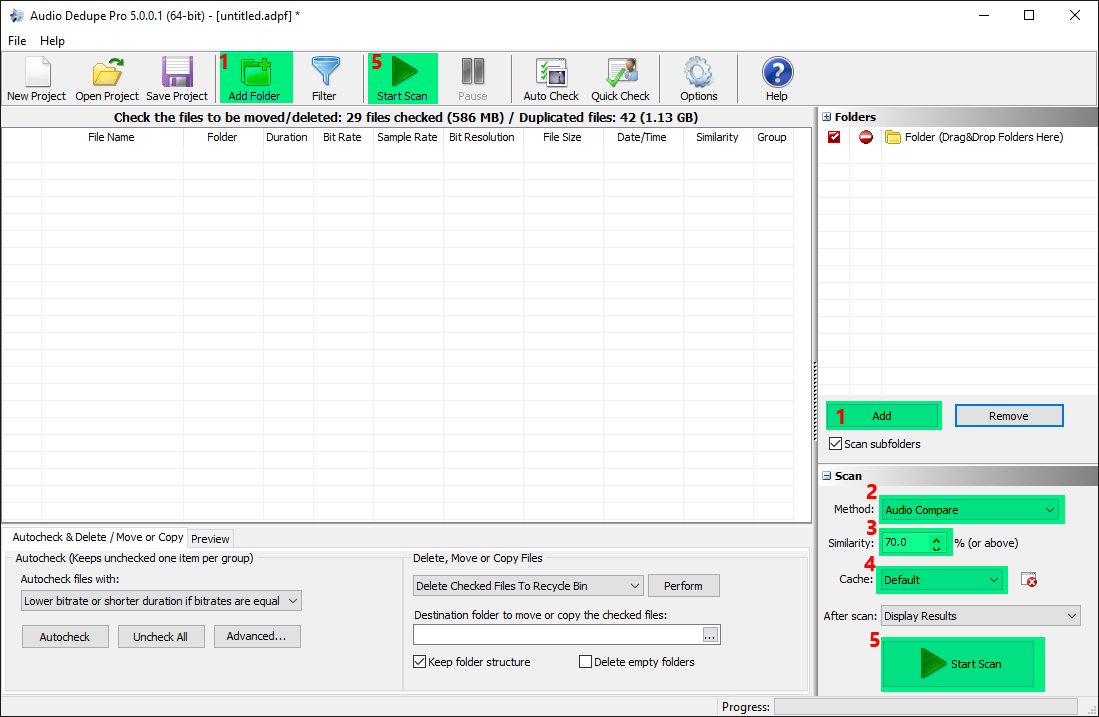
1) Add the folder(s) that will be scanned using "Add Folder" button (1). Folders can also be added by dragging them inside the application from Windows Explorer.
Note: Folders can be excluded from "Auto-check" and "Self scan" using the check-boxes in front of the folder name. Reference the help file for more details.
2) Select "Audio Compare" method from the drop down list (2).
Note: The "100% Identical Files " method does not scan the files for acoustic similarity. Using this method only 100% binary equal files can be detected. "File Size" method will find duplicates with equal file sizes.
3) Adjust the "Similarity" spin button with the desired value (3). The default similarity value is 70%.
Note: Similarity value is used only for the "Audio Compare" method.
4) You should not alter this setting if you are a home user. Cache is set to "<Default>" (4). It holds information for already scanned files.
Note:
Using cache files extremely speeds up the the scan for consecutive scans. Even if the files are modified they will be detected and updated in the cache. The cache system is extremely optimized and compact. You can find and change cache location in the settings if needed.
5) Press "Start Scan" button (5)
After the scan process is finished the results list will be displayed:
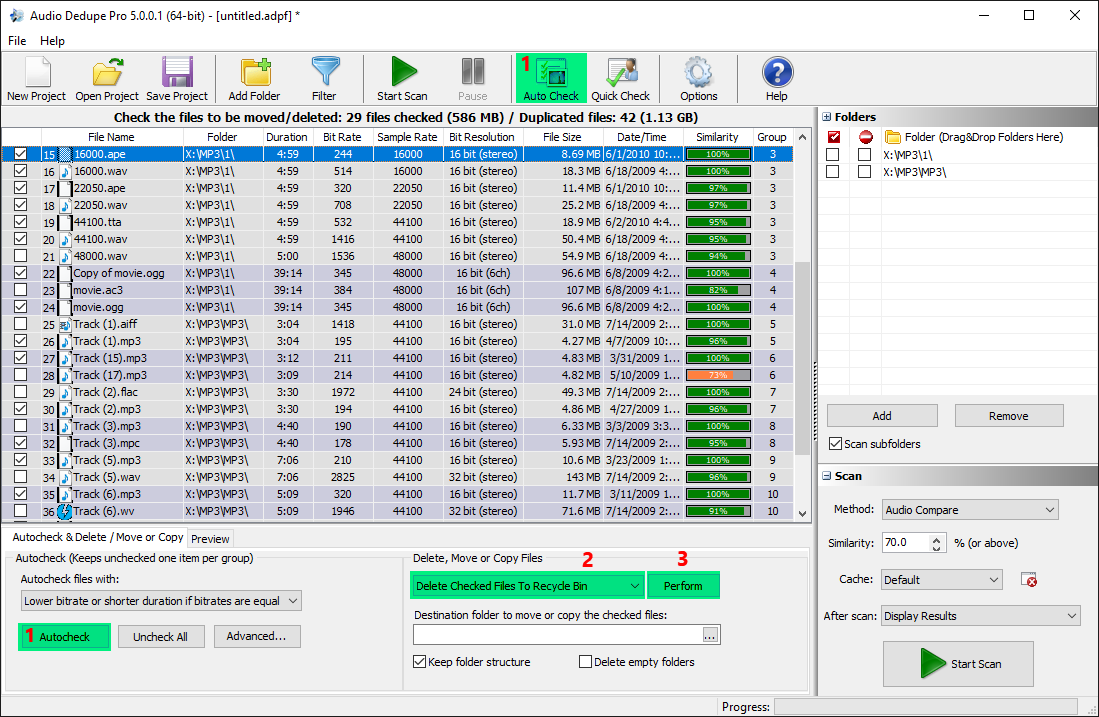
Duplicate audio files are grouped together with alternating group colors. Depending on the "Auto Check " settings, the program can automatically mark files with lower bitrate, shorter duration or smaller file size in every duplicate group. If some files are un/checked manually, the "Auto Check " button (1) can be used to reset the selection.
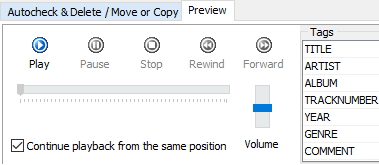
The internal audio player can be used to preview the files. It continues to play from the same position while navigating through the results in order to provide a better comparison.
Audio Dedupe Internal Player and Tag Viewer
After checking the files to be moved, copied or deleted (2) using the "Perform" button (3) will execute the selected action.
The checked files can be deleted the to the Recycle Bin by selecting "Delete files to Recycle Bin" option. The files will be deleted permanently if the "Delete files" option is selected..
The checked files can also be moved or copied to a custom folder which should be set in the "Destination folder..." option. The source file folder structure can be recreated in the target folder if "Keep folder structure" is checked.
The duplicates list supports multiple selection. Multiple files can be selected using the mouse and Ctrl/Shift keys. Note the difference between checked and selected files.
The selected files can be removed from the list using Delete key and deleted from the hard drive using the Shift+Delete key.
 About
About Features
 Download
 Register (buy)
 Screen Shots
 What's New?
 FAQ
FAQ Awards
 Tutorials